
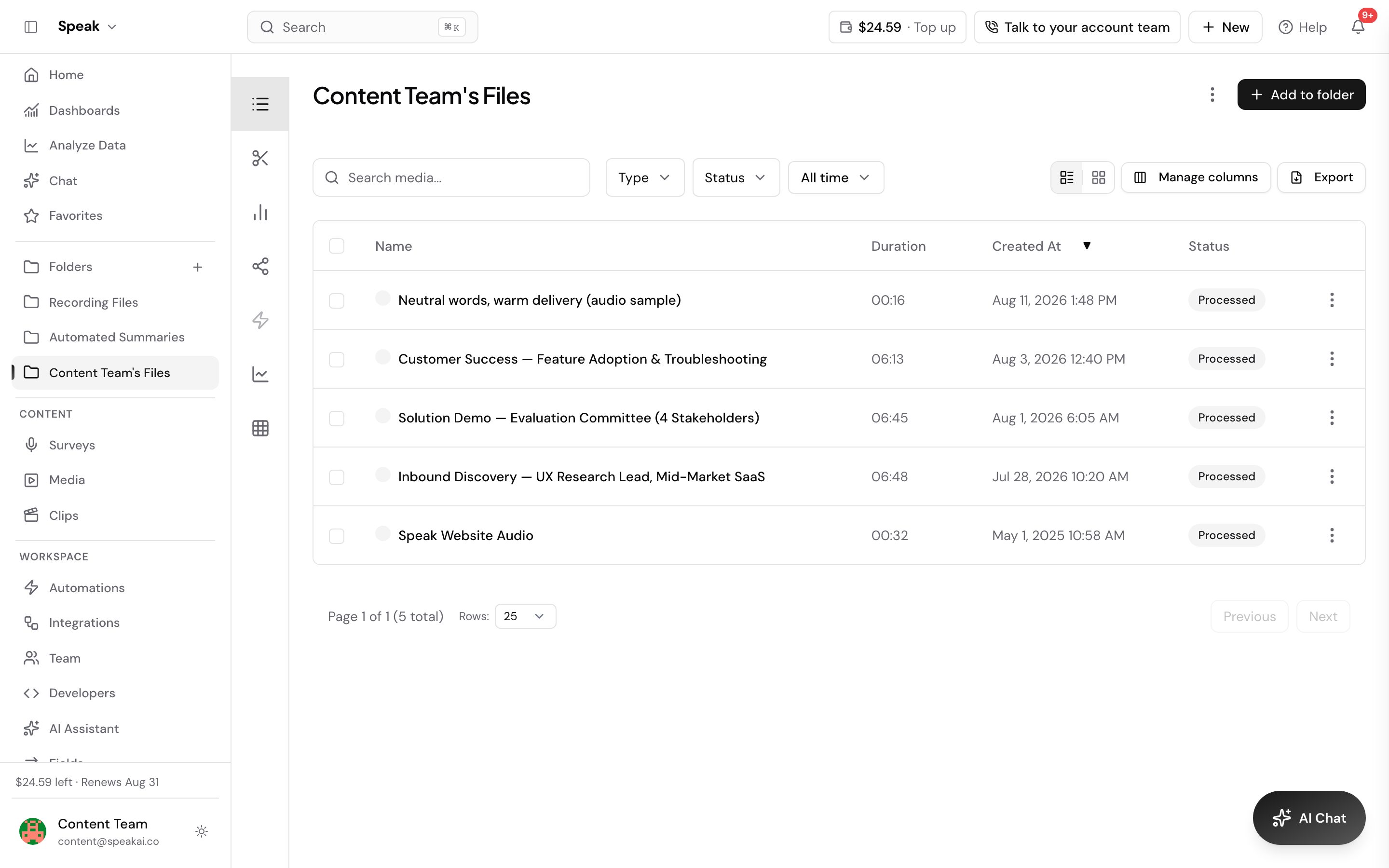
 Every file carries its processing state with it, so you can see at a glance whether a transcript and
its insights are ready. Check it on the media card in your dashboard, or let Speak AI email you when
the file finishes.
Every file carries its processing state with it, so you can see at a glance whether a transcript and
its insights are ready. Check it on the media card in your dashboard, or let Speak AI email you when
the file finishes.
Where to check
- Activity: the right-hand panel of your dashboard. Its Ongoing tab lists the files still processing, and Recent lists the ones that have just finished.
- Media library: open Explore Insights or Media and read the Status column. A spinner means the file is still being worked on.
- Detail view: click the file name. The current step appears at the top left, for example “Transcribing” or “Analyzing”. Speak names the stage it is on, as “(Stage 1/3) Preparing”, “(Stage 2/3) Transcribing” or “(Stage 3/3) Analyzing insights”.
What the status icons mean
| Icon | Meaning |
|---|---|
| Spinner | The file is uploading, transcoding, transcribing or analyzing |
| Green check | Processing finished successfully |
| Red exclamation | Processing failed |
If a file shows the red exclamation, see Transcription troubleshooting.
Get an email when a file is ready
Speak AI can email you as soon as a file finishes processing, which is the easiest way to handle long uploads. Open Profile > Notifications and turn on the Email switches for Analyzed Media and Transcription Completed. You can also turn on Web or Mobile on the same rows to be notified in your browser or on your phone. If the emails do not arrive, check your spam folder first, then confirm the switch is still on. See Email preferences.
When a file looks stuck
Most files finish in a few minutes, so a 30-minute recording is usually done in under a minute. See Processing times for what slows a file down.
If a file is still processing after 30 minutes:
- Refresh the page. The status updates on its own, but a cached page can show a stale value.
- Re-transcribe the file from its options menu.
- If it fails again, send us the file name and we will look into it.
A file that sits at zero progress usually points at the upload rather than the transcription. Check your connection and any firewall or VPN between you and the app.
Still stuck? Write to success@speakai.co or book a free consult.
Related: Transcription · Accuracy