
Skip to content

Field mapping

Link each recorder question to a Speak AI field so every submission populates structured data you can filter and export.

Updated View as MarkdownAsk ClaudeOpen in ChatGPTllms.txt

Please follow the steps below to map your answers for each recording question to the individual fields for further analysis and review.

Step 1:

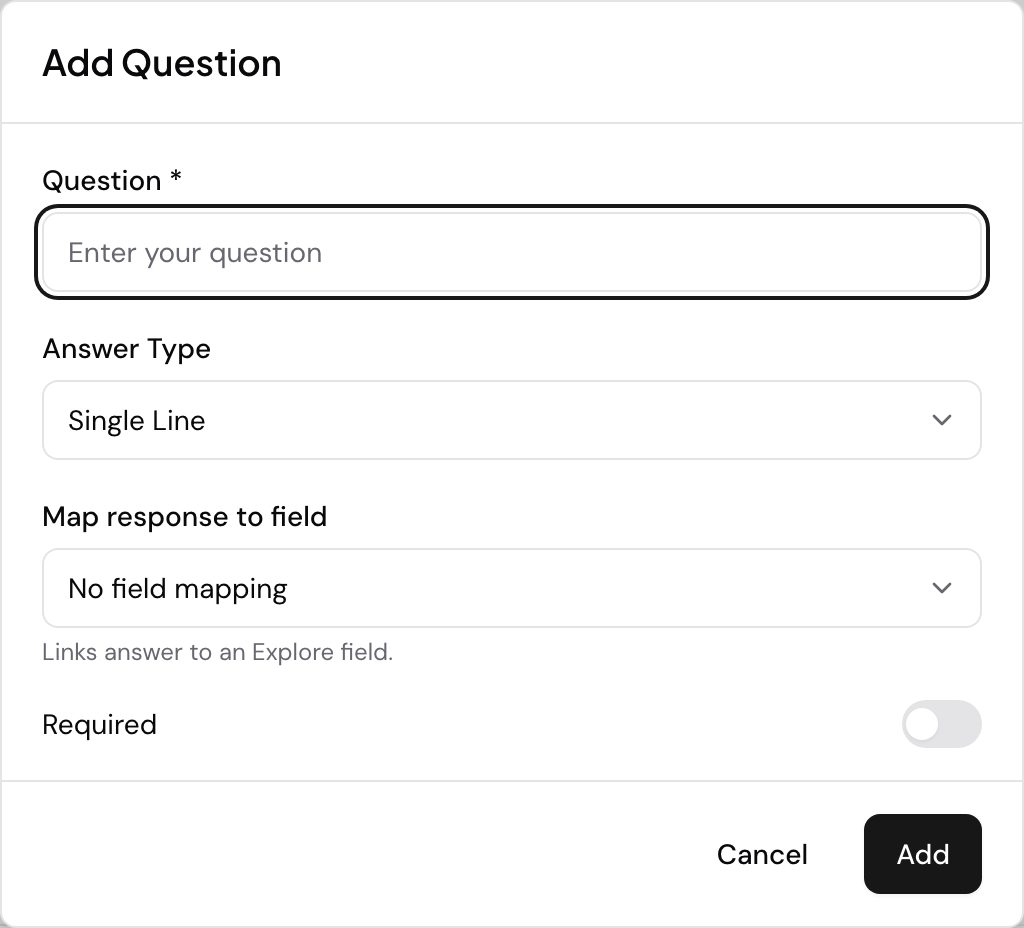
  1. Go to the recorder and the questions tab.
  2. Create a new question or open the existing Question.
  3. You will see a **Map Answer to Field (Optional)**input.

Step 2:

  1. You will see your existing fields
  2. Create your new field (if it does not exist)

Step 3:

  1. Map your Question to be similar to the field.
  2. Select the field to which you want to save your answer.

When you receive the recording - it will automatically link to the Media File.

Click on “Columns” and add your “Fields” to the display to review all the responses related to the recorder questions at a glance.

Overview

Speak AI helps you collect information more effectively by allowing you to connect the questions you ask in your recorder directly to specific fields.

This ensures that the data you gather is organized and easy to use, making it simpler to manage and analyze your customer interactions.

How It Works

You can map custom questions from your recorder to various fields, such as Name, Email, or custom fields you’ve created. This process ensures that answers to specific questions are automatically saved into the corresponding fields.

Getting Started

To map fields, navigate to Recorder and select your recorder. Then, go to the Questions tab.

Configuration

Follow these steps to map your fields:

  1. Add a new question or edit an existing one.
  2. Locate the Sync to Field option.
  3. Select the destination field from the dropdown menu (e.g., Name, Email, Custom Field).
  4. Save your changes.

Retroactive Syncing

If you have existing data that wasn’t mapped when it was collected, you can sync it retroactively:

  1. Open the specific Question settings.
  2. Click Sync answers to field.
  3. Confirm the action to update all previous answers to the selected field.

This ensures that both future and past data are correctly organized in your Speak AI dashboard.

Next Steps

Ready to organize your data more effectively? Here’s what to do next:

  • Login to your account and navigate to your Recorder settings.
  • Map your custom questions to relevant fields.
  • Sync past answers if needed to ensure all your data is organized.

Recorder Field Mapping

Overview

Ensure your recorder questions accurately capture and send data to the correct Speak AI fields. This helps you organize and analyze your feedback effectively.

Proper mapping prevents data loss or misinterpretation, making your reporting more reliable and actionable.

How It Works

When you create questions in your recorder, you can map them to specific fields in Speak AI. This ensures that the answers users provide are stored in the intended places for easy retrieval and analysis.

Troubleshooting

If your recorder questions are not mapping correctly to Speak AI fields, check the following common issues:

Data Type Mismatch

Ensure the Question Type matches the Field Type. For example, mapping a “Text” question to a “Date” field may fail or result in empty values.

Field Sync Not Activated

Mapping is not retroactive by default. If you changed a mapping after responses were collected, you must manually trigger a sync:

  • Go to Recorder > Questions.
  • Click Sync answers to field for the specific question.

Duplicate Field Names

Check if you have multiple custom fields with the exact same name. The system might be mapping to the wrong one. Rename fields to be unique if necessary.

Browser Cache

Clear your browser cache and refresh the dashboard to ensure you are seeing the latest data and settings.

Getting Started

To access and manage your recorder questions and field mappings, go to Survey→ Questions in your Survey Creation.

Next Steps

Ready to ensure your data is mapping correctly? Here’s what to do next:

  • Login to your account and navigate to the Recorder section.
  • Review your existing question mappings for any potential issues.
  • Test a new question to confirm it maps to the correct Speak AI field.

Troubleshooting recorder field mapping

Field Mapping Issues

Overview

Ensuring your custom recorder questions accurately map to your analysis fields is crucial for getting meaningful insights from your customer feedback. When these fields don’t align, your data can become messy, making it difficult to analyze trends or identify areas for improvement.

This guide helps you quickly identify and fix common mapping problems, so you can trust the data you see in your reports and make informed decisions with confidence.

How It Works

When you set up your custom recorder, you ask questions to gather specific information from your users. Each question needs to be linked to a corresponding field in your analysis system. If this link is broken or incorrect, the data from that question won’t appear in the right place, or at all.

Step-By-Step Fixes

Follow these steps to resolve common field mapping issues:

  • Check Field Types: Make sure the type of data you’re asking for matches the type of field it’s being sent to. For example, a question asking for a date should be mapped to a ‘Date’ field, not a ‘Text’ field.
  • Unique Names: Avoid using the exact same name for multiple questions. This can confuse the system when trying to map responses.
  • Field IDs: Open your Recorder settings and carefully check the fieldId for each question. This ID must exactly match the corresponding field in your internal database or CRM.
  • Hidden Fields: If you’re using hidden fields, ensure there aren’t duplicates that might be overriding the visible fields you intend to use.

Pro Tips

To make mapping easier and ensure data consistency:

  • Use ‘Radio Buttons’ or ‘Dropdowns’ for questions instead of ‘Text’ inputs. This helps standardize the answers, making them easier to map correctly.

Troubleshooting

If you notice data is missing from your analysis:

  • Data Missing: Double-check if the user actually filled out the optional field in the recorder.

Next Steps

Ready to ensure your data is mapping correctly?

  • Login to your account and navigate to your Custom Recorder settings.
  • Review your questions and their corresponding field IDs, paying close attention to data types.
  • Test your recorder with a few submissions to confirm data is appearing as expected in your analysis.

Need further assistance? Contact our support team or explore our other help articles.

Need help? Contact our support team or check out our other guides.

Need help? Contact our support team or check out our other guides.

Overview

Ensure your recorder questions accurately capture and send data to the correct Speak AI fields. This helps you organize and analyze your feedback effectively.

Proper mapping prevents data loss or misinterpretation, making your reporting more reliable and actionable.

How It Works

When you create questions in your recorder, you can map them to specific fields in Speak AI. This ensures that the answers users provide are stored in the intended places for easy retrieval and analysis.

Troubleshooting

If your recorder questions are not mapping correctly to Speak AI fields, check the following common issues:

Data Type Mismatch

Ensure the Question Type matches the Field Type. For example, mapping a “Text” question to a “Date” field may fail or result in empty values.

Field Sync Not Activated

Mapping is not retroactive by default. If you changed a mapping after responses were collected, you must manually trigger a sync:

  • Go to Recorder > Questions.
  • Click Sync answers to field for the specific question.

Duplicate Field Names

Check if you have multiple custom fields with the exact same name. The system might be mapping to the wrong one. Rename fields to be unique if necessary.

Browser Cache

Clear your browser cache and refresh the dashboard to ensure you are seeing the latest data and settings.

Getting Started

To access and manage your recorder questions and field mappings, go to Survey→ Questions in your Survey Creation.

Next Steps

Ready to ensure your data is mapping correctly? Here’s what to do next:

  • Login to your account and navigate to the Recorder section.
  • Review your existing question mappings for any potential issues.
  • Test a new question to confirm it maps to the correct Speak AI field.

Need help? Contact our support team or check out our other guides.

Overview

Ensuring your custom recorder questions accurately map to your analysis fields is crucial for getting meaningful insights from your customer feedback. When these fields don’t align, your data can become messy, making it difficult to analyze trends or identify areas for improvement.

How It Works

When you set up your custom recorder, you ask questions to gather specific information from your users. Each question needs to be linked to a corresponding field in your analysis system. If this link is broken or incorrect, the data from that question won’t appear in the right place, or at all.

Step-By-Step Fixes

Follow these steps to resolve common field mapping issues:

  • Check Field Types: Make sure the type of data you’re asking for matches the type of field it’s being sent to. For example, a question asking for a date should be mapped to a ‘Date’ field, not a ‘Text’ field.
  • Unique Names: Avoid using the exact same name for multiple questions. This can confuse the system when trying to map responses.
  • Field IDs: Open your Recorder settings and carefully check the fieldId for each question. This ID must exactly match the corresponding field in your internal database or CRM.
  • Hidden Fields: If you’re using hidden fields, ensure there aren’t duplicates that might be overriding the visible fields you intend to use.

Pro Tips

To make mapping easier and ensure data consistency:

  • Use ‘Radio Buttons’ or ‘Dropdowns’ for questions instead of ‘Text’ inputs. This helps standardize the answers, making them easier to map correctly.

Troubleshooting

If you notice data is missing from your analysis:

  • Data Missing: Double-check if the user actually filled out the optional field in the recorder.

Next Steps

Ready to ensure your data is mapping correctly?

  • Login to your account and navigate to your Custom Recorder settings.
  • Review your questions and their corresponding field IDs, paying close attention to data types.
  • Test your recorder with a few submissions to confirm data is appearing as expected in your analysis.

Need further assistance? Contact our support team or explore our other help articles.

Want a hand setting this up? Book a free consult and we’ll do it together on your account.


Related: Embeddable recorder · Browser support

Navigation

Type to search…

↑↓ navigate↵ selectEsc close