
What variables are
 Variables are
 {{token}} placeholders you can insert into a chat prompt or an automation prompt. Before the prompt reaches the AI model, Speak AI replaces each token with a real value from the current context, so you can write reusable prompts without hardcoding file names, dates, or user details.
Available variables
{{media_name}}, the name of the media file(s) the chat is about. For multi-file chats, up to three names are listed and the rest are summarized.{{media_description}}, the description of the media file(s) the chat is about.{{folder_name}}, the name of the folder the chat or automation is scoped to.{{created_date}}, the date the media file was created. For a date range, shows the earliest and latest date.{{current_date}}, today’s date (server time, ISO format).{{media_count}}, the number of media files in the current chat.{{user_name}}, the full name of the person running the chat.{{company_name}}, the name of your workspace.
Not all tokens are available in every context. {{media_name}}, {{media_description}} and {{created_date}} are available in media and automation scopes. {{folder_name}} is available in folder and automation scopes. {{current_date}}, {{media_count}}, {{user_name}}, and {{company_name}} are available everywhere.
How do you put a custom field’s value in a prompt?
Address a custom field with {{field.<slug>}} and Speak AI substitutes that
field’s value for the media before the model runs. A field called Regulator Comment is addressed
as {{field.regulator_comment}}.
A slug is built from the field’s name, lowercased, with each run of other characters becoming an
underscore. Names in any script work, so a field called Проработка возражений is addressed as
{{field.проработка_возражений}}.
Two things make a slug safe to keep in a prompt once it is there:
- It is unique inside your workspace. Two fields never share one slug.
- It never changes when you rename the field. A prompt that already addresses a field keeps working after someone renames it, so prefer the slug over the field name.
Insert the token from the picker anyway rather than deriving it by hand, because the stored slug is
not always what the naming rule alone predicts. It is capped at 48 characters, so a long name is
truncated. A second field with the same name gets a counter appended, as _2, _3 and so on. A
name with no letters or digits at all, such as an emoji, falls back to the field’s id.
Getting it wrong fails in two different ways, and only one of them is obvious:
- The field exists but the media has no value for it. The token resolves to
Not provided. - No field has that slug. The token is left in the prompt exactly as you typed it, so the model
receives the literal text
{{field.regulator_comment}}. Nothing errors. Check the field’s real slug in the picker if a prompt behaves as though a value never arrived.
Insert a variable
There are two ways to add a variable to your prompt:
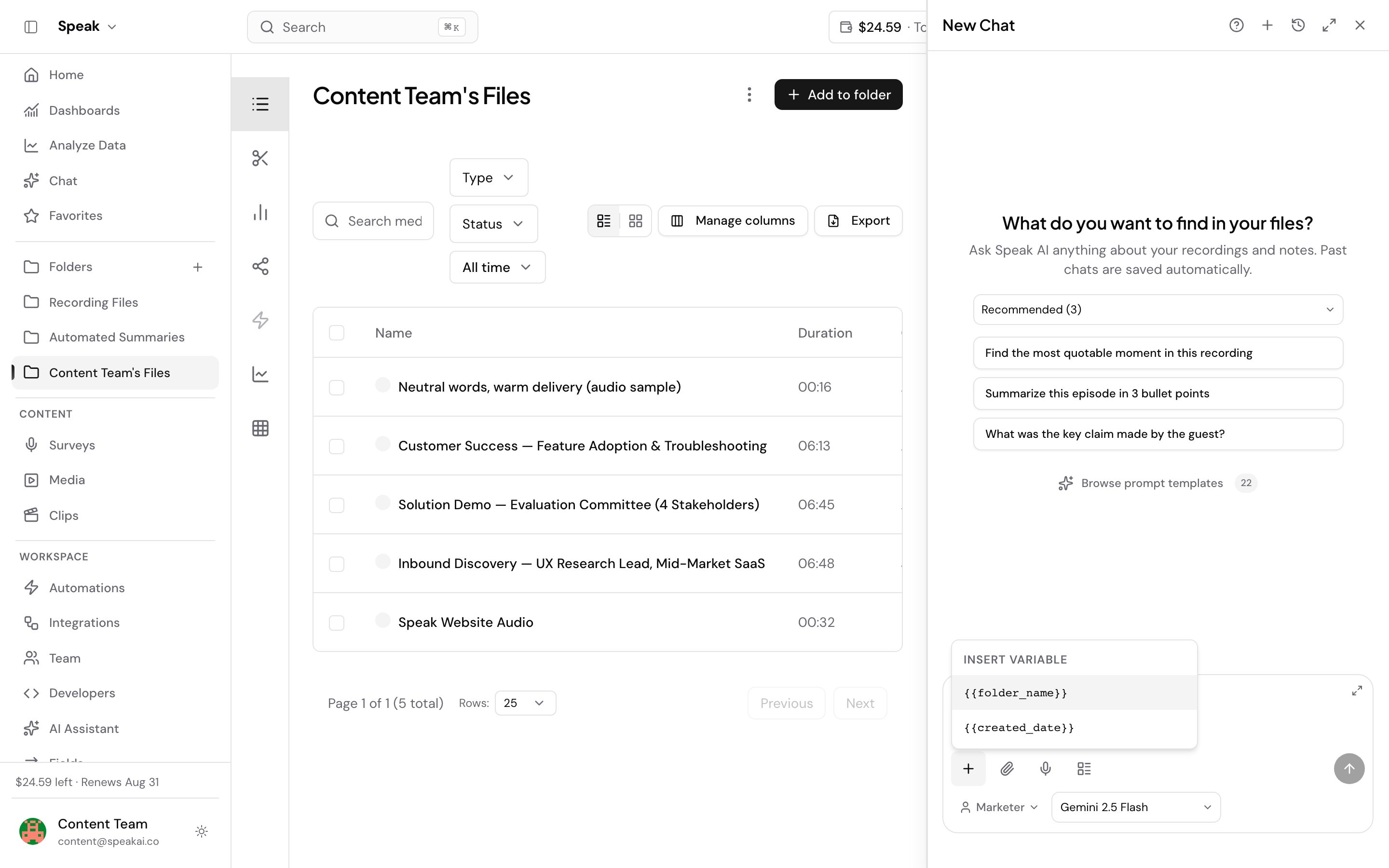
- Variable picker button, click the + icon in the chat toolbar to open a menu listing the tokens available for your current scope. Click any token to insert it at your cursor. The menu groups what it offers, with earlier steps’ output under From this run and the media’s own tokens and fields under From the media. A workspace with many fields also gets a Search fields box at the top of the menu.
- Type
{{directly in the input box. An autocomplete menu appears showing matching tokens. Use the arrow keys to navigate and press Enter to insert, or press Escape to dismiss.
Speak AI shows each token in the composer as a chip. A token the current prompt cannot resolve is marked is not a variable this prompt can resolve, so you catch a typo or an out-of-scope token before you run the prompt.
Example prompt using variables
Summarize {{media_name}} recorded on {{created_date}}. Write the summary in the voice of {{user_name}} at {{company_name}}.
The fastest way to reach us is the live chat in the app (the chat bubble in the bottom corner). You can also email success@speakai.co.
Want a hand setting this up? Book a free consult and we’ll do it together on your account.
Related: Automations · Actions · AI Chat prompts