
Connect the tools your recordings come from and the tools your results go to. Zoom and Vimeo bring media in, Google Calendar and Microsoft Calendar drive the Meeting Assistant, the Chrome extension captures the web, and Zapier connects everything else: 5,000+ apps sending files in and results out automatically. Developers get the API and webhooks directly.
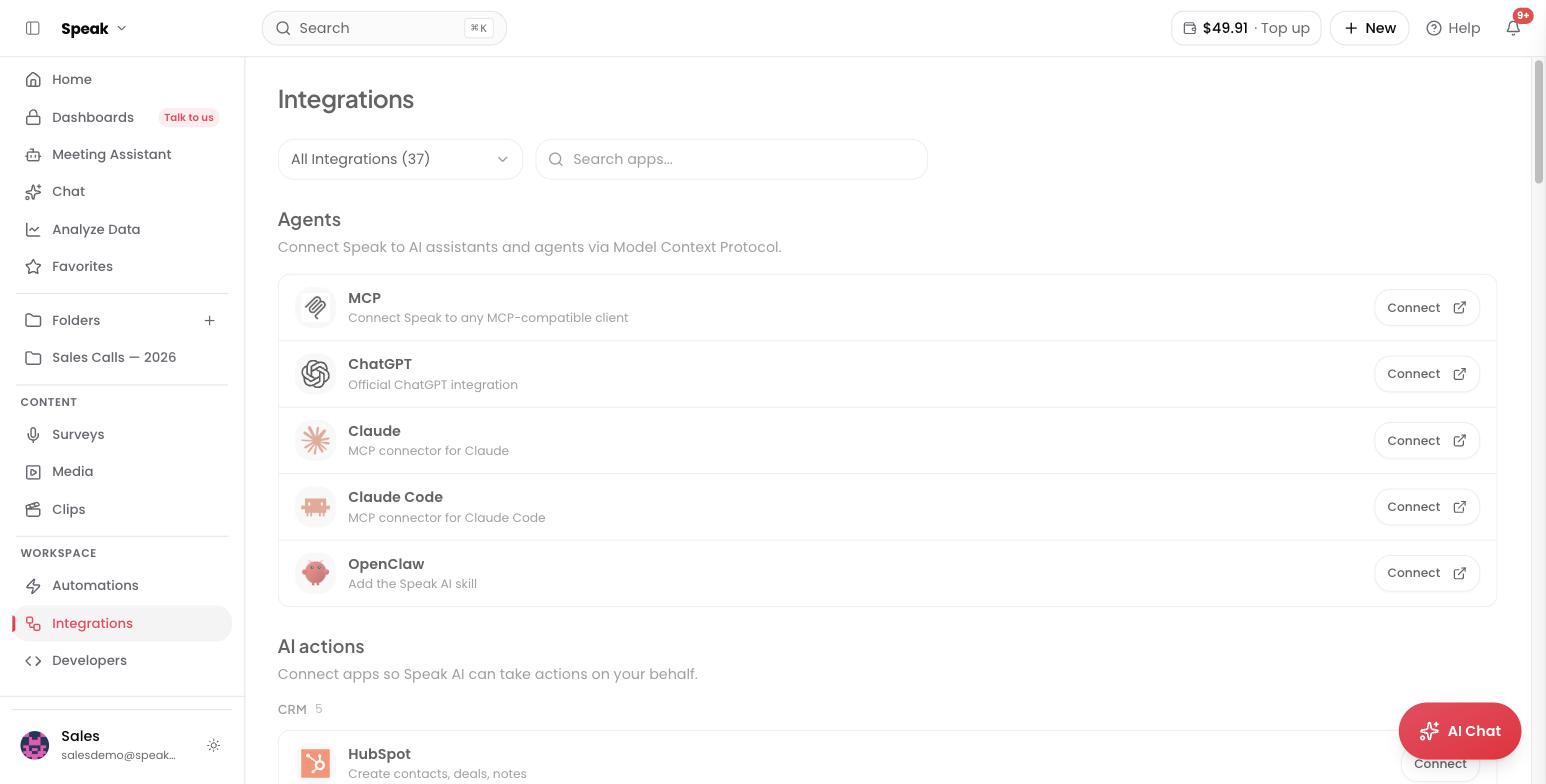
Find and connect an app
Open Integrations in the sidebar. Apps are grouped by category by default. Search by name, or filter to a category such as CRM, Communication or Storage. Anything you have already connected shows a green Connected badge.
Most apps connect through OAuth, so you sign in and approve access. Apps that use an API key instead open a dialog where you paste the key. Once a key-based app is connected, an Update key button appears on its row so you can rotate the key without disconnecting first.
Some rows also carry a lightning bolt button with a number on it, next to Connect. That app ships starter automations, ready made flows you can open and edit rather than building the same thing yourself. Google Drive, Zoom, OneDrive, SharePoint, Slack, ClickUp, HubSpot and Salesforce have them today.
What connects natively
- Google Drive watches a Drive folder and imports new audio and video files automatically. This suits teams that already save recordings to Drive.
- Zoom brings in each new cloud recording through an automation, once the account is connected. See the Zoom guide.
- Google Calendar tells the Meeting Assistant about upcoming meetings so it can join them. See the Google Calendar guide.
- Microsoft Outlook Calendar does the same for Outlook and Office 365. See the Microsoft Calendar guide.
- HubSpot and Salesforce log analyzed recordings on the matching contacts, companies and deals, and add CRM steps to your automations. See the HubSpot and Salesforce guide.
- Slack sends transcription results, notifications and media to your channels, and delivers Speak AI notifications back to you in Slack.
- Vimeo imports your video library for transcription and analysis. See the Vimeo guide.
- Chrome extension captures web content, YouTube videos and audio from any browser tab in one click. See the Chrome extension guide.
Get phone calls into Speak AI
Speak AI does not tap into your phone line, and neither the Chrome extension nor the mobile app records calls. You get call audio in one of four ways:
- Upload the recordings. If your phone system exports call recordings as audio files, upload them the same way you upload anything else.
- Route Twilio through Zapier. Twilio call recordings can be sent to Speak AI automatically with a Zap.
- Use Zapier for other phone systems. RingCentral, Aircall, Dialpad and similar tools connect the same way.
- Build it on the API. Upload call recordings programmatically from any system with the Speak AI API.
Once the audio is in, calls behave like any other media: full transcription, speaker identification, summaries, sentiment analysis, and questions you can ask in AI Chat.
What Zapier reaches
Zapier covers the apps that have no native connector, and it stays an option for the ones that do. Common pairings include:
- Zoom to import meeting recordings, if you prefer a Zap to the direct connection
- YouTube to transcribe uploaded videos
- Dropbox, OneDrive and Box to import from cloud storage
- Airtable to send transcription data into a structured base
- Google Sheets to export insights to a spreadsheet
- Gmail to process audio attachments
- Twilio to transcribe phone call recordings
- HubSpot and Salesforce to push insights into your CRM, if you prefer a Zap to the direct connection
Build your own connection
- Webhooks notify your systems in real time when media is created, analyzed or deleted. Inbound webhooks work the other way and start an automation from an outside event.
- API covers everything the app can do. Manage your keys under Developers > API Keys.
- MCP server connects Speak AI to assistants like Claude, ChatGPT, Cursor and VS Code through the Model Context Protocol, so they can read your transcripts and analysis directly.
Wiring Speak AI into a team workflow? Book a free consult.