
Selecting a model for a conversation
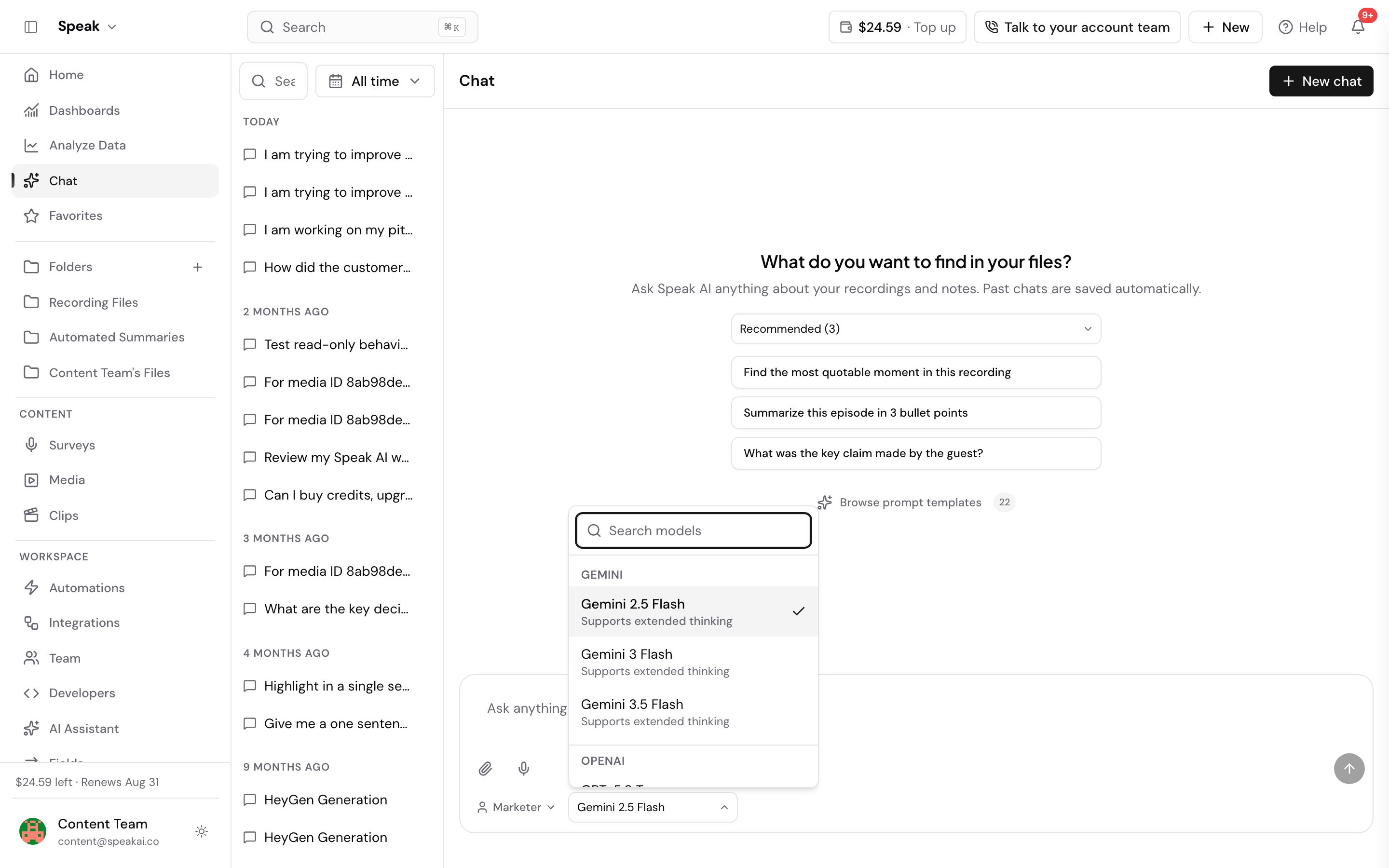 The chat input toolbar includes a model picker (the sparkle icon with the model name) that lets you choose which AI model powers the current conversation. The picker groups models by provider:
- Anthropic: Claude Sonnet 5, Claude Opus 4.8, Claude Sonnet 4.6
- OpenAI: GPT-5.6 Terra, GPT-5.6 Sol, GPT-5.5, GPT-5.4 mini
- Gemini: Gemini 3.7 Flash, Gemini 3 Flash, Gemini 3.5 Flash, Gemini 3.8 Flash
- xAI: Grok 4.5
- z.ai: GLM 5.2
Gemini 3.7 Flash is the model the free tier runs on. Every other model is premium, so on the free tier it shows a lock icon in the picker and stays unselectable until you upgrade.
Gemini 2.5 Flash is no longer offered in the picker. A chat or an automation that already stored it keeps working, so nothing you built stops running, but pick a current model when you next edit one.
Models that support extended thinking are marked with a sparkle icon next to their name in the dropdown.
While an audio or video analysis mode is on, the picker offers the Gemini models only, because those are the models that can take the recording itself. Turn the mode back to Transcript Only and the picker returns to the full list with your earlier choice still selected.
Choosing an assistant
Next to the model picker is an assistant picker (the person icon). Assistants give the model a persona and set of instructions that shape how it responds. The built-in assistants are:
- General, default, all-purpose responses
- Researcher, structured analysis and synthesis
- Marketer, copy and content-oriented responses
- Sales, deal and prospect-focused responses
- Recruiter, hiring and candidate-oriented responses
You can also create custom assistants with your own instructions. Click Create new assistant at the top of the assistant picker dropdown, or manage your assistants at Profile under the AI Assistant section. Custom assistants appear under Your Assistants in the picker.
Setting a workspace default model
To avoid picking a model every time, set a default at Profile > AI Assistant. Under the Default AI model section, choose the model you want from the dropdown and the setting saves immediately. Individual chats can still override the default using the model picker in the input toolbar.
The fastest way to reach us is the live chat in the app (the chat bubble in the bottom corner). You can also email success@speakai.co.
Want a hand setting this up? Book a free consult and we’ll do it together on your account.
Related: AI Chat · Attachments