
 Qualitative work slows down at the point where you have to name the themes in your data, tag every
response against them, and count the results. Speak AI does all three with one prompt: it reads the
files, writes the theme it finds into an AI field, and gives you a column
you can sort, filter, and export. This page walks through the whole run, from upload to a count in a
spreadsheet.
Qualitative work slows down at the point where you have to name the themes in your data, tag every
response against them, and count the results. Speak AI does all three with one prompt: it reads the
files, writes the theme it finds into an AI field, and gives you a column
you can sort, filter, and export. This page walks through the whole run, from upload to a count in a
spreadsheet.
Video walkthrough
The walkthrough analyzes a synthetic Spotify cancellation survey and identifies, classifies, and counts its themes from start to finish: watch the walkthrough.
Upload and organize the data
Bring in the data you want to analyze. Speak AI takes audio, video, and text, through the app, a CSV import of written responses, the Zapier integration, or the API. Upload from your dashboard or from the Quick Actions menu anywhere in the app. Uploads covers each route in full.
Put every file you want in the analysis into one folder. Choose the folder while you upload, or move the files into it afterwards.
Create the fields that hold your themes
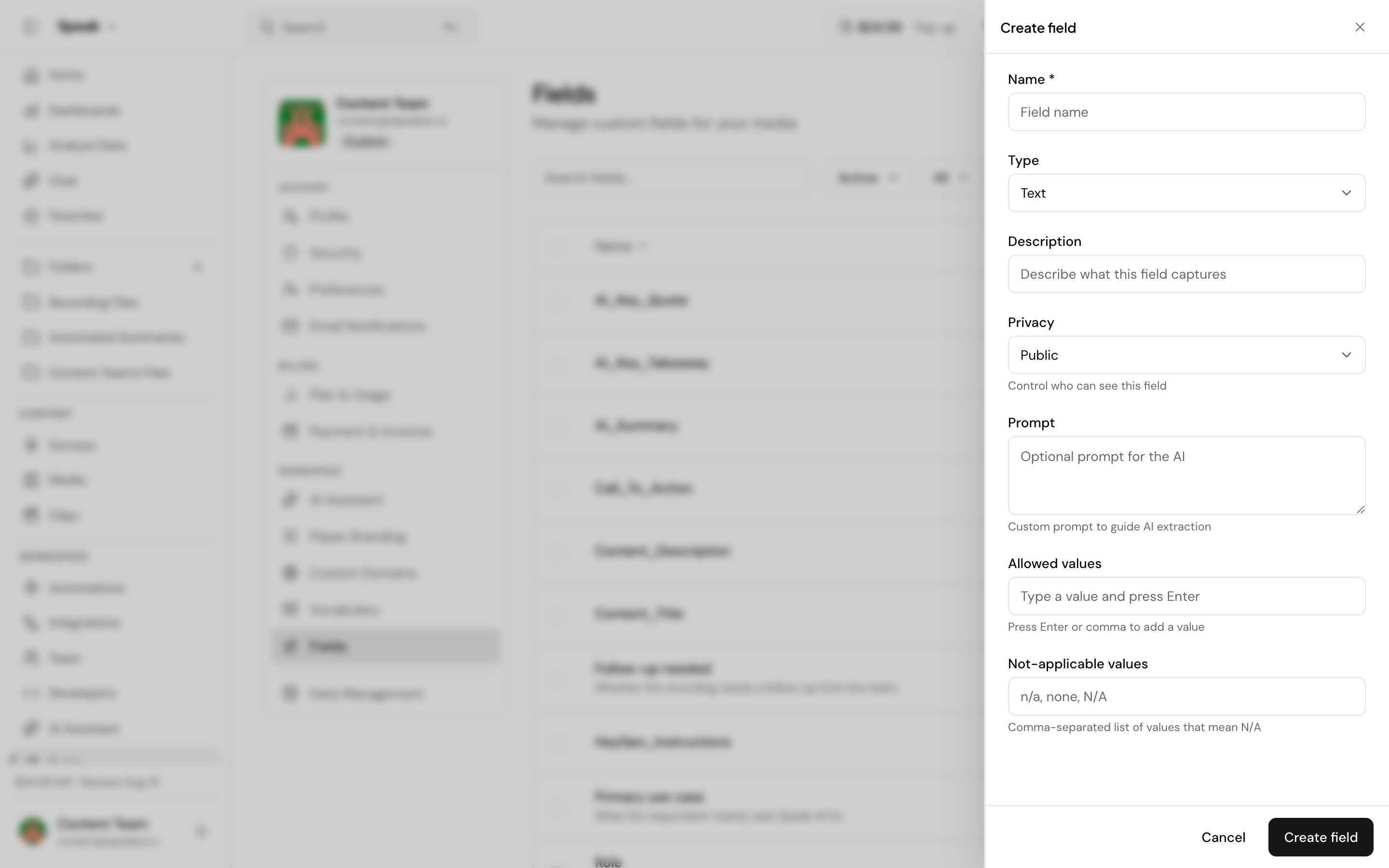
The analysis writes its answer into a field, so create the fields first at Settings → Fields. You can create as many as you need. AI fields explains the properties that control what each field accepts.
When you do not know the themes yet
Create a text field named Exploratory Themes and let the AI name what it finds. This is theme identification: you are looking for the language your data already uses. Once you can see which themes recur, turn them into a fixed list and run the process again to classify against it.
When you already know the themes
Name the field Themes or Standardized Themes and give the AI the list to choose from in the prompt. The AI picks one or several of the themes you listed instead of inventing wording. This is theme classification, and it is what makes the counting step possible, because every file uses the same labels.
Put the fields in view
Open the folder, select Columns in the top right, and drag the fields you created from the right side to the left. Speak stores the choice for your session. If the columns disappear after you clear your cache, add them back the same way.
Run the analysis
- Open the folder holding your data. Your folders are listed on the left.
- Select the files you want. If you select none, Speak analyzes every file in the folder.
- Select Prompt in the top right.
- Choose Map Response to Field and pick the field you created, so each answer lands in that column.
- Write your prompt and run it.
How long the run takes depends on how much data you selected. Results fill in the columns as each file finishes. To try different wording or an updated theme list, run it again the same way and the fields update with the new results. Batch analysis covers running one prompt across every file in a folder in more detail.
Prompt for identifying new themes
Review this [type of] data and give the main theme for why [question].
Be concise and return only the theme name.
Prompt for classifying against a list
Review this [type of] data and give me only one theme from this list:

1. Theme 1
2. Theme 2
3. Theme 3
4. Theme 4
5. Theme 5

Respond with nothing but the selected theme from the list above. Do not
include the number. For example, return only: "EXAMPLE THEME". Consistency
matters, because these are standardized themes we need to count.
Count the themes in a spreadsheet
Export the folder to CSV to do the counting. Select the files you want, choose More → Export → Media Details (.csv), then select Export All. Speak builds a single structured CSV of your data with the theme columns included. CSV is one of the formats the Premium Export Add-On unlocks, and Transcripts lists what each plan includes.
Open the file in Excel, Google Sheets, or your own tool, and the theme column gives you how many files fall under each theme, the share of the set each one accounts for, and which themes come up most and least often.
Automate it for every new file
To classify themes without running the prompt yourself, build the same prompt and field mapping into an automation. It then runs on each new file as it arrives, so the theme column is filled in by the time you open the folder.
Get help with your theme analysis
Book a paid session with a Speak AI specialist and go through your own data together:
Evaluating Speak AI for a team? Book a demo and see your own recordings analyzed.
Related: Insights · Categories