
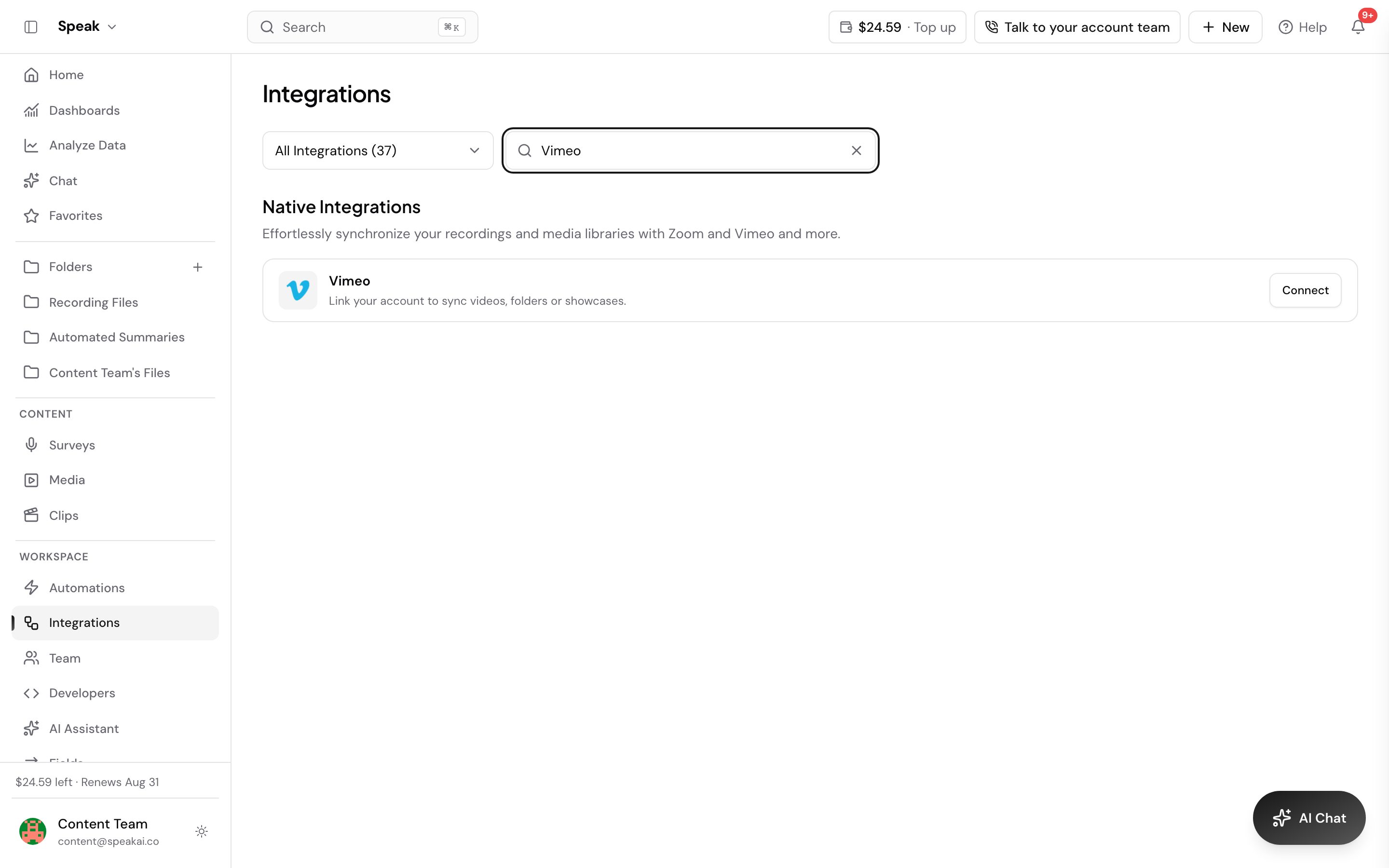
Connect Vimeo once and Speak AI pulls your videos in directly, so you never download a file just to upload it again. Each video you import is transcribed and analyzed like any other upload.
Connect your Vimeo account
- Go to Integrations in Speak AI.
- Select Manage under Vimeo.
- Select Connect. Speak AI sends you to Vimeo to authorize access.
- Sign in to Vimeo and grant access.
- Choose All Videos, All Folders, or All Showcases from the dropdown.
Your Vimeo account name appears at the top of the screen once authorization succeeds. If it does not, connect again, or reach us on the in-app chat.
Permissions Speak AI asks for
Vimeo shows these on the authorization screen:
- Access your video files
- Access your private videos, Showcases, Groups, Channels, and Portfolios
- Access your public videos, Showcases, Groups, Channels, and Portfolios
Disconnect your Vimeo account
Select Disconnect to remove your Vimeo information from Speak AI. Reconnecting later means going through authorization again.
What you get on an imported video
Every video you import behaves like a normal upload:
- An interactive transcript you can read, search, and edit. Order a human transcription when you need a cleaned-up version.
- Search across your whole library, with keyword, topic, and sentiment analysis synced to the timeline.
- Folders and tags to organize videos by project or use case.
- Clips and exports to share the moments that matter.
Want a hand setting this up? Book a free consult and we’ll do it together on your account.
Related: Integrations · Chrome extension