
A clip is a section of a recording saved as its own audio or video file. Use clips to pull a quote out of an interview for a social post, send one decision from a meeting without sending the whole recording, or turn a long episode into short segments you can publish.
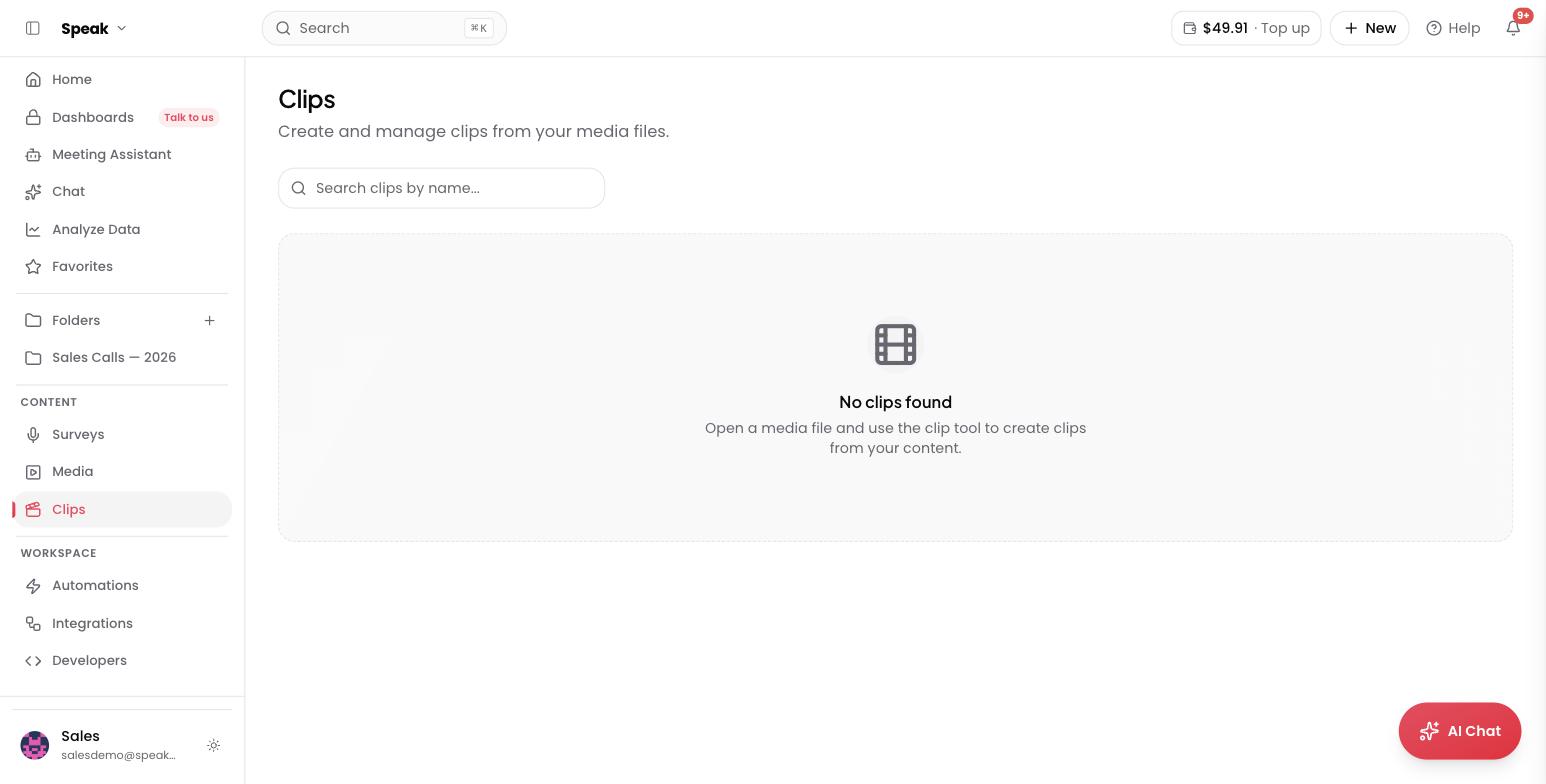
Create a clip
- Open the transcribed file
- Find the passage you want in the transcript
- Select the text, or note the start and end timestamps
- Open the clip tool and set the start and end time
- Name the clip and save it
Create a clip with AI Chat
You can describe the range you want in plain language in AI Chat instead of setting timestamps by hand:
- “Create a clip from 0:30 to 1:45”
- “Cut the section between 2 minutes and 5 minutes”
- “Make a 30-second clip starting at 1:00”
The AI Chat prompts guide has more examples.
Share a clip
Once a clip is saved you can:
- Share it with a direct link
- Embed it on a website with the embedded player
- Download it as a standalone file
- Post it to social media
Edit audio and video
You cannot cut or rearrange audio and video from inside the transcript. Clips are how you take a section out of a recording. When you need more than that, you have two routes:
- Fix the words. Click any word to correct it, find and replace across the whole transcript, and rename speakers. See editing transcripts.
- Move to a video editor. Export the transcript as SRT or VTT and import it into Adobe Premiere Pro, Final Cut Pro, or DaVinci Resolve. Premiere Pro XML export is also available.
If you want transcript-based editing inside Speak AI, send us a message and tell us what you need.
Want a hand setting this up? Book a free consult and we’ll do it together on your account.
Related: Sharing · Shareable libraries