
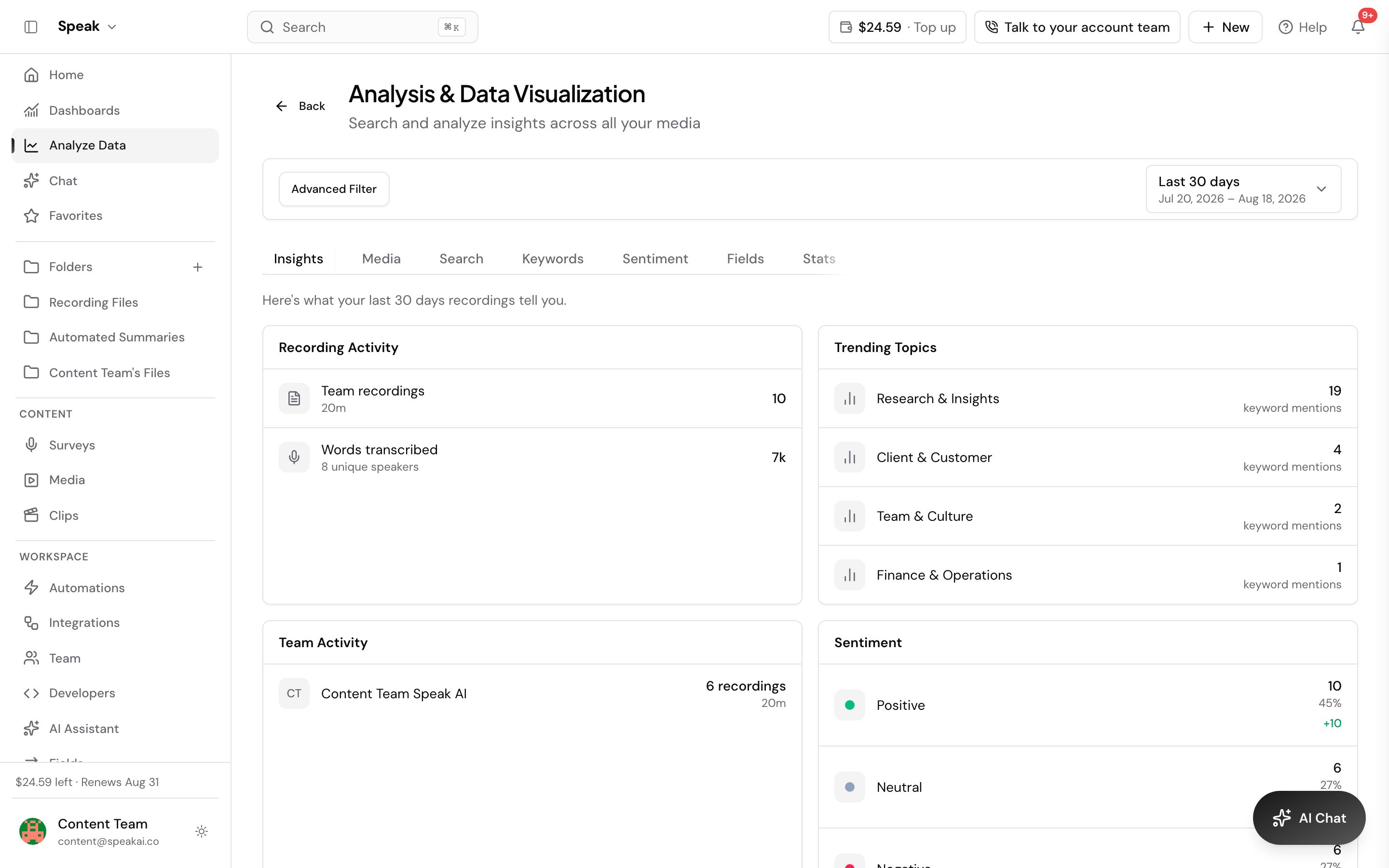
Every recording is analyzed the moment it’s transcribed: keywords, sentiment, entities, and topics extracted automatically, no prompt required. Read one file’s insights on its page, tune the categories to your domain, set keyword alerts for the phrases that matter, define AI fields for structured extraction, and use Explore to compare it all across your library, where themes show what recurs and what’s changing.
Keywords and topics
The terms and subjects mentioned most often in a recording. Read them first to tell what a conversation was about before you open the transcript. Explore and folder statistics also render keywords as a word cloud, where the largest words are the most frequent. Topics are extracted from audio and video only.
Sentiment
Speak scores the emotional tone of your content at both the document level and the individual sentence level:
- Positive: optimistic, supportive, or enthusiastic language
- Negative: critical, frustrated, or concerning language
- Neutral: factual, informational statements
- Compound score: an overall score from -1 (most negative) to +1 (most positive)
Sentiment scores explains the bands each score falls into.
Named entities
Speak identifies and labels the specific things mentioned in your content:
- People: names of individuals mentioned
- Organizations: companies, institutions, brands
- Locations: cities, countries, addresses
- Products: product and brand names
- Dates and times: specific dates, deadlines, time references
- Money: dollar amounts, pricing, financial figures
Entities are useful as a filter. Narrow your library to files that mention a competitor, then read the sentiment on just those files to see how people talk about them.
Speaker analytics
For recordings with more than one speaker, Speak tracks:
- Speaking time: how long each person spoke
- Word count: total words per speaker
- Words per minute: speaking pace for each person
- Speaking percentage: share of the conversation
Categories
Speak sorts content into a set of default categories that work with no configuration. You can add your own keywords to any of them so specific terms are always captured. See Categories for the full list and the steps.
You can also create categories of your own, such as “Product Feedback”, “Action Items”, or “Customer Complaints”:
- Go to your account settings
- Find Custom Categories
- Add your categories and define what each one means
- New media is analyzed against your custom categories
Speak can also suggest categories based on the content you already have.
Where insights appear
- Media detail page: the full breakdown for one file
- Folder statistics: aggregate insights across every file in a folder
- Explore: cross-media analytics and trends
- AI Chat: ask questions about insights, such as “What were the most negative moments?”
- Exports: include insights in CSV, PDF, and other formats
Analyzing a real dataset? Book a demo and see your own recordings analyzed.