
You need an account and one of the apps below, connected or ready to connect, on the Integrations page.
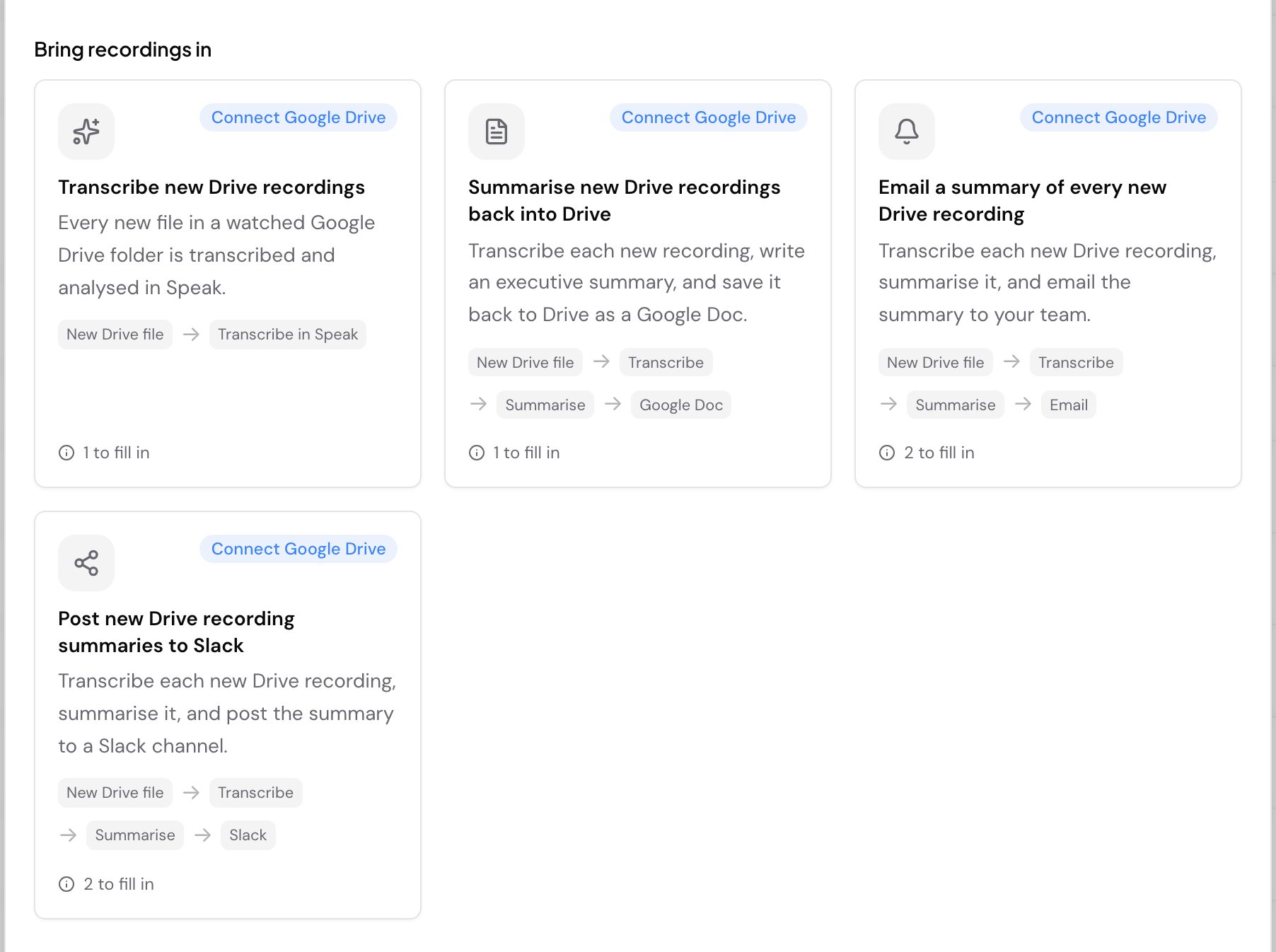
Speak AI ships ready made automations for several of the apps it connects to, so you start from a working flow instead of an empty canvas. Picking one opens the automation builder with its trigger, filters and actions already filled in, and nothing runs until you save it.
Where do you find starter automations?
Starter automations sit on the Integrations page, on the row of the app they belong to. An app that has them carries a small lightning bolt button with a number on it, just to the left of Connect. The number is how many that app ships.
Select the button and a dialog opens titled after the app, for example Google Drive automations. A line under the heading counts how many of them you can use right now, in the form “3 of 6 ready to use”, because whether one is ready depends on what you have connected.
Which apps ship them?
These apps ship starter automations today: Google Drive, Zoom, OneDrive, SharePoint, Slack, ClickUp, HubSpot and Salesforce. Apps with none show no button on their row. The HubSpot and Salesforce ones are listed on the HubSpot and Salesforce page.
The dialog groups them under two headings:
- Bring recordings in starts from a new file or recording in the other app and transcribes it in Speak AI.
- Send results out starts from a recording Speak AI has finished analyzing and files the result somewhere, such as a Slack channel, a Drive folder, a ClickUp list or your own endpoint. ClickUp’s one card, Send each recorder response to ClickUp as a task, sits here: it writes a brief from each recorder response and adds it as a task, and it counts two things to fill in, the recorder to watch and the ClickUp list for the tasks.
What is on each card?
Each card names the automation, describes what it does in a sentence, and draws the flow as a short chain, for example New Drive file, then Transcribe in Speak. Underneath, the card tells you how much setup is left: Nothing to configure, or a count such as “2 to fill in” for the folders, channels and URLs only you can supply.
A card that is ready to use carries no badge. The rest tell you why:
- Connect Google Drive, or whichever app it needs. The automation uses an app you have not connected yet. Select the card and the connect flow starts for that app, then the card re-checks itself.
- Needs attention. The app is connected, but that connection cannot run automations right now, and the card names the reason. The card does not open until you fix the connection on the Integrations page.
- Coming soon. The automation needs a trigger or an action Speak AI has not released yet. These cards do not open either.
An automation that needs two apps counts both. A Zoom template that files transcripts into Google Drive needs Zoom and Google Drive connected before it turns ready.
How do you use one?
- Open Integrations in the sidebar.
- Find the app, then select the lightning bolt button on its row.
- Select a card that is ready to use. The automation canvas opens with the flow already built.
- Fill in whatever the card counted, such as the folder to watch or the channel to post to.
- Save it, then turn it on.
Everything in a starter automation is editable. Change the trigger, add filters, swap the prompt, or add another action before you save, and it becomes a normal automation you can edit again later. Starting from a card does not link the automation back to it.
Why is a card missing or greyed out?
The dialog reads your own connections, so two people on the same team can see different cards as ready, and reconnecting an app changes what you see without reloading the page. If the job you want is not there at all, that app ships nothing for it yet. Build it from scratch instead, starting from Triggers.
Want a hand with your first one? Book a free consult and we’ll build it with you on your own data.
Related: Automations · Triggers · Actions · Filters · Integrations