
A text note is a document you upload instead of a recording: a transcript from another tool, survey responses, meeting notes, a report. Speak AI analyzes it the same way it analyzes a transcript, so you get keywords, sentiment, named entities, and AI Chat without paying to transcribe anything.
Upload a text file
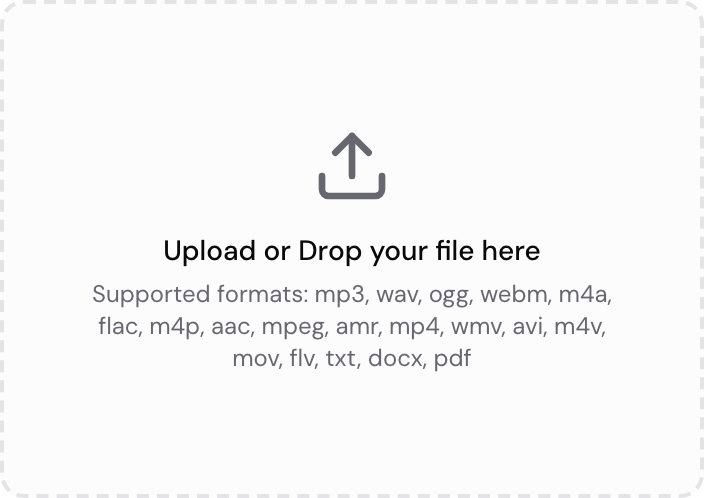
Text files go through the same upload window as audio and video. Open Upload, drop the file in or browse for it, and Speak AI reads the text out of it and analyzes it.
These file types work:
- TXT, plain text
- DOCX, Word documents
- PDF, up to 50MB per file
- PNG and JPEG, read with OCR, for a scan or a photo of a page
Speak AI builds an insight panel beside the text. Select any extracted insight to highlight every mention of it. Explore Insights, beside the insights search bar, opens the Explore page for deeper analysis and visualization of the same note.
Break the text into paragraphs rather than one continuous block. Clear paragraph breaks help Speak AI detect topics accurately.
Bring in transcripts you already have
Already transcribed a recording somewhere else, in Zoom or by a human transcriptionist? Analyze that text without paying for transcription twice:
- Save it as a TXT or DOCX file and upload it. You can then run AI Chat, sentiment, and named entity recognition on it exactly as you would on a media file.
- Import in bulk with CSV import, one row per note. Each row becomes its own text note, which suits survey responses and other short-answer sets. This is the route to take when you have the text in a spreadsheet rather than in separate documents.
If you only have the text on screen
There is no in-app editor to type or paste a note into. Paste your text into a plain text file first, save it as .txt, and upload that. For many short pieces of text at once, put them in a spreadsheet and use CSV import instead of making a file for each one.
Questions about a specific file? Send us a message on live chat and we will take a look.
Want a hand setting this up? Book a free consult and we’ll do it together on your account.
Related: Uploads · CSV import