
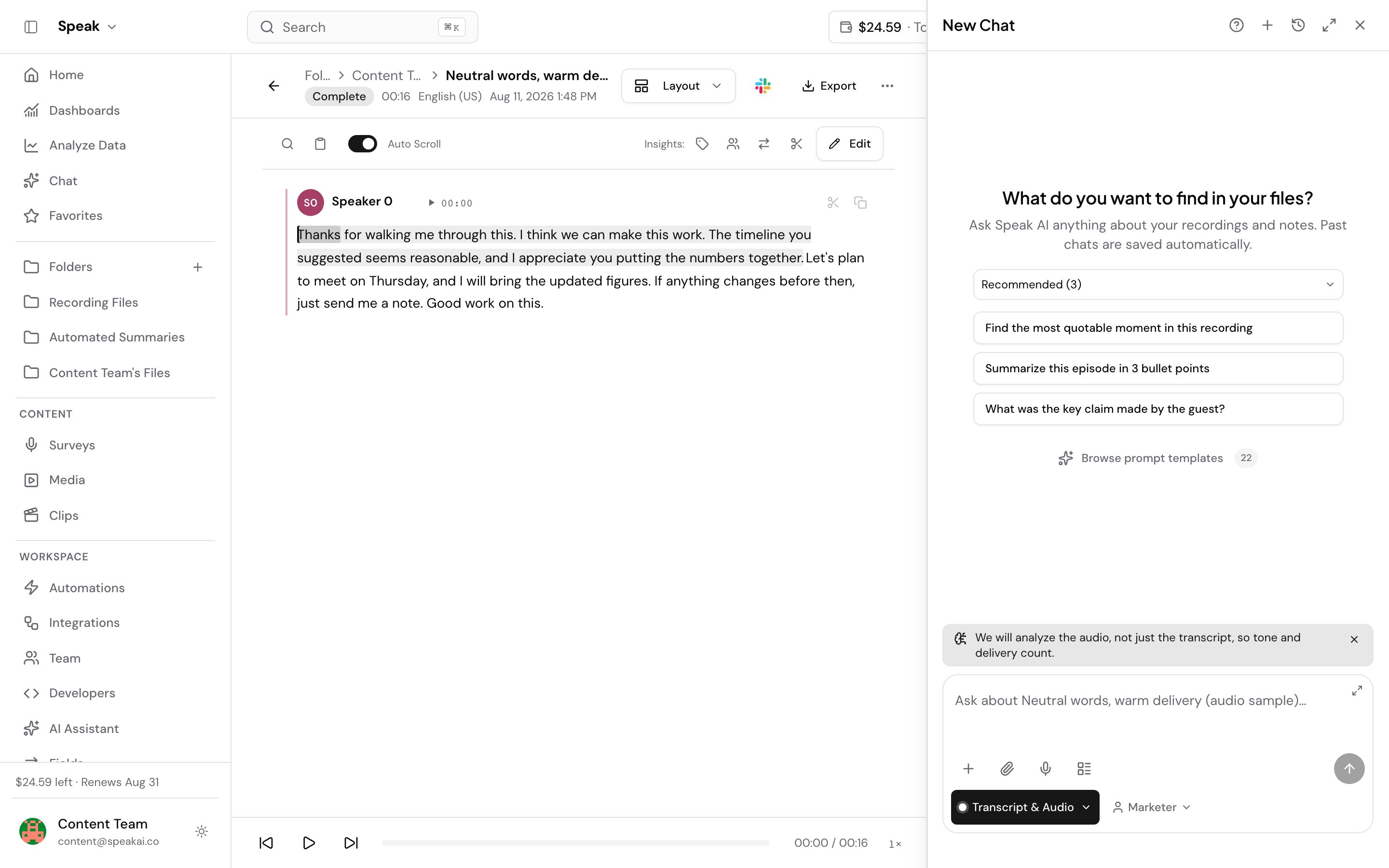
By default, AI Chat answers from the transcript. Audio analysis sends the recording itself to the model, so the answer accounts for how something was said and not only what was said.
Reach for it when the words alone do not carry the answer:
- How hesitant a customer sounded before agreeing to a price.
- Whether an apology landed as sincere or rehearsed.
- Where a speaker sped up, trailed off, or went quiet.
- Which moments in an interview carried real enthusiasm.
- What else was audible, like a siren, a doorbell or noise that made a stretch hard to hear.
If your question is about something on screen, a slide, a demo, a shared document, you want video analysis instead.
Audio analysis is a premium feature. It is off unless your account has been enabled for it, and it costs credits on top of a normal chat.
Get it enabled on your account
Audio analysis is switched on per account by the Speak team. Until it is on, the controls below do not appear in chat and the option is absent from automations.
Book a demo and we will turn it on with you. Bring a recording you already know well, so you can compare a transcript answer against one where the model actually listened.
You can also use the live chat in the app, the chat bubble in the bottom corner, or email success@speakai.co.
Analyze a recording in chat
The controls appear only when your chat is scoped to one file. A folder chat or a library-wide chat has no single recording to analyze, so nothing is shown.
- Open a processed audio file and select AI Chat.
- In the chat toolbar, open Analysis mode and choose Transcript & Audio.
- Type your question and send.
Analysis mode starts on Transcript Only, so a chat costs nothing extra until you pick one of the other modes.
If a mode is not available for the file, its row stays in the menu but greys out. Hover or tap it to see why. When the file supports no analysis at all, the menu offers Transcript Only on its own.
While a mode is on, the chat confirms what it is doing: “We will analyze the audio, not just the transcript, so tone and delivery count.” Close that banner to go back to Transcript Only.
The model picker stays available while a mode is on, but it lists the Gemini models only, because those are the ones that can take the recording itself. Whatever you pick there applies to the analysis turns; switch back to Transcript Only and the model you were using before comes back. See Models.
Audio analysis on a video file
A video can be analyzed as audio only. Speak takes the audio track and analyzes that instead of the video.
On a video, choose Transcript & Audio under Analysis mode. It is cheaper and reaches much longer files, but everything on screen is discarded. It also takes longer to come back than a normal chat, because the audio has to be separated out first.
How much cheaper depends on length. The saving is largest on recordings under 45 minutes. Past that a video is already read in less detail, so the gap narrows.
Transcript & Audio works on more video files than a full pass does, including MKV, M4V, M2TS, MTS, TS and OGV. If a video is refused on format alone, try Transcript & Audio before re-uploading it.
What it costs
Analysis is charged in credits on top of the normal chat cost, and length is the only thing that moves the price. The recording is metered by the second, so a large stereo master and a small mono file of the same length cost the same. Bitrate and sample rate make no difference.
Your question and the answer are charged on top at the normal chat rate, and there is a small flat amount per pass, which is why a very short clip is not close to free.
The charge is worked out from what the model actually processed, once the answer comes back. To see what it comes to on your own recordings, run one representative file and check your credit balance before and after. That is worth doing before you turn analysis on across a busy folder. A pass that cannot run is not charged.
Which files qualify
Analysis uses your recording as it is, so it has to already be in a format the model accepts: MP3, WAV, AIFF, AAC, OGG and FLAC.
A recording saved as .mpeg counts as a video file even when it holds nothing but sound, so audio
analysis is not offered on it. Re-upload it as .mp3 and the option appears.
Speak accepts more formats for upload and transcription than analysis can use, so a file can play perfectly in Speak and still be refused here. When that happens the app tells you why rather than failing part-way through an answer.
The file also has to have finished processing. Text notes have no audio and are never offered.
How long a recording can be
Each pass has a length limit set on your account, and audio reaches much further than video. If you work with longer recordings regularly, that limit can be raised.
There is a second ceiling above it that a raised limit cannot pass: a single audio pass tops out around 9.5 hours, and closer to 8.4 hours on accounts pinned to a specific data region. Past that, split the recording. The message tells you which of the two limits you have hit, so you know whether to ask for a higher limit or to shorten the file.
When a file cannot be analyzed
Speak checks before it sends, so you are never charged for a call that was going to fail. You may see:
| What you see | What it means |
|---|---|
| The file has not finished processing yet | Wait for transcription to finish, then try again |
| This file format cannot be sent for audio or video analysis | Re-upload as MP3 or WAV |
| The file is longer than the analysis limit on this account | Raise the limit or trim the file |
| The file is too large for audio or video analysis | Split it into shorter files |
| The file is too large to be analysed directly, so the transcript was used instead | Nothing to do, the answer came from the transcript |
| The audio track could not be extracted from this video | Switch that pass to Transcript, Audio & Visual, or re-upload the file |
| Text notes have no audio or video to analyse | Analysis needs a recording |
| Audio and video analysis is not enabled for this account | Ask us to turn it on |
| The stored file could not be located | Contact the team, the file needs re-uploading |
| The file duration is unknown, so analysis cost cannot be estimated | Re-upload the file |
| Audio and video analysis is not available in your data region yet | Contact the team to check when your region is covered |
| Audio and video analysis is temporarily unavailable | Wait and try again, then contact the team if it persists |
If analysis was on but the recording could not be used, you still get an answer from the transcript and the chat says so: “This answer came from the transcript. The media could not be analysed.” You are not charged for the analysis that did not happen.
Use it in an automation
A Speak AI Chat step in an automation can analyze audio the same way, so every file that arrives gets the same treatment without anyone opening chat.
In the step’s configuration, set Analysis input to Transcript + audio.
Picking anything other than transcript only narrows the AI Model field to the models that can listen to the recording. Leave it empty and Speak picks one for you. If you already had a model selected that cannot take audio, switching the input clears it, so re-pick from the narrowed list.
Three things to know before turning this on across a folder:
- It applies to a step handling exactly one file. A step that accumulates several files, or runs across a whole folder at once, falls back to the transcript.
- The cost applies per file on every run. On a busy watch folder that adds up quickly, so price a representative file in chat first.
- On a video file, the step has to extract the audio track first. The run pauses while that happens and picks up on its own once the track is ready, so a run sitting on “Extracting the audio track before analysis” is working, not stuck.
Does audio analysis replace the transcript?
No. The transcript is still produced and still sent. Audio analysis adds the recording alongside it, so the model has both the words and the delivery. Turning it off returns you to a transcript answer with no other change.
Why is the option missing on my file?
Three common reasons. Your account has not been enabled for audio analysis yet. The chat is scoped to a folder or your whole library rather than one file. Or the file is still processing, or is a text note, and so has no audio to send.
Can I use audio analysis on a video?
Yes. Choose Transcript & Audio under Analysis mode on a video file. Speak extracts the audio track and analyzes that, which costs far less than a full video pass and works on longer files. If you need what is on screen, use video analysis.
How much does audio analysis cost?
Length decides it, so there is no flat figure, and the same recording costs more as video. The reliable way to size it for your own material is to run one representative file and compare your credit balance before and after. See what it costs.
Want a hand setting this up? Book a free consult and we’ll do it together on your account.
Related: Video analysis · AI Chat · Models · Automations · Credits