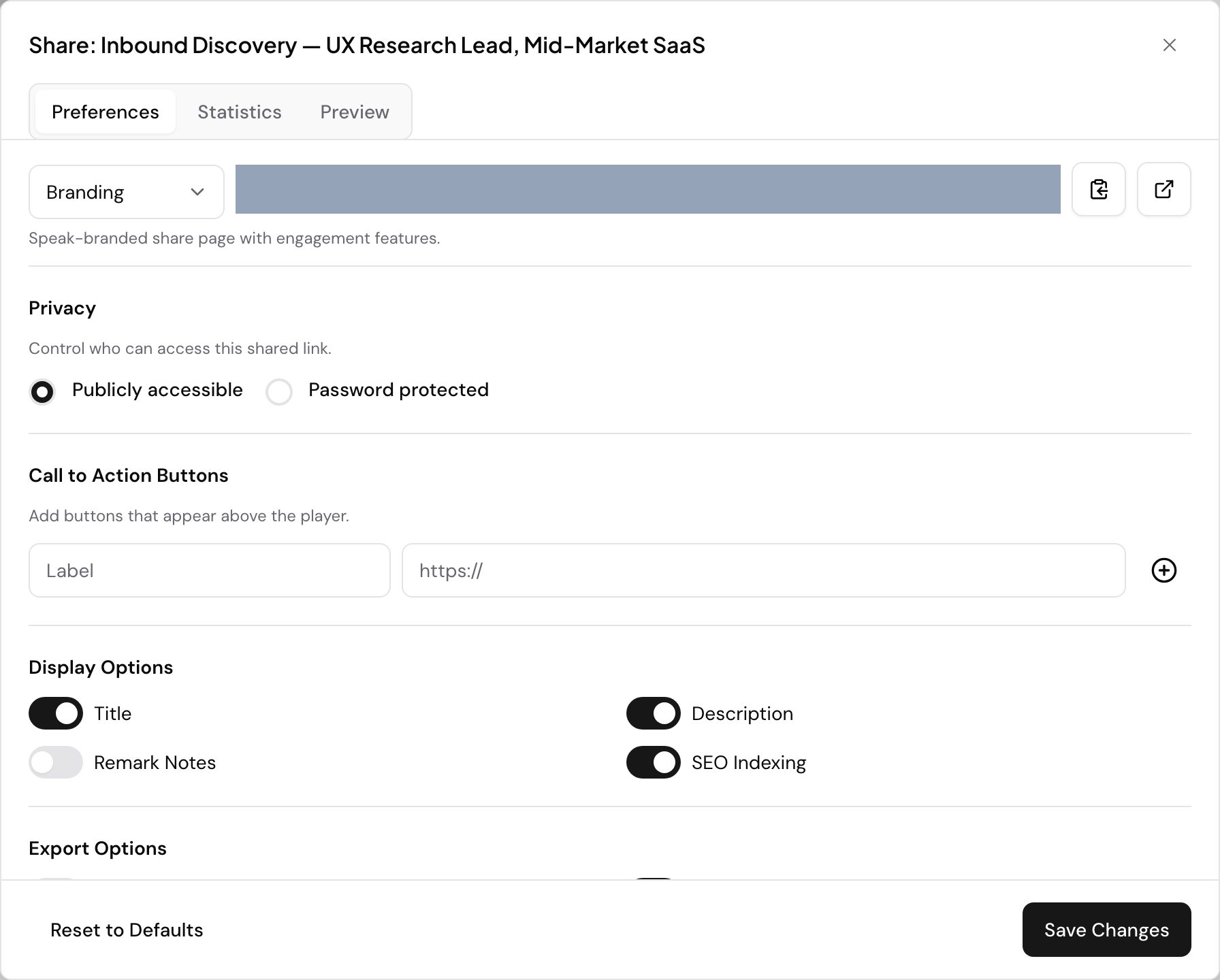
Sharing options
Public link
Generate a shareable link that anyone can use to view your recording, transcript, and insights:
- Open your media file
- Click Share
- Click Generate Public Link
- Copy the link and share it
Recipients can view the media player with transcript, search within the content, and see insights.
Embeddable player
Embed a media player on your website or blog:
- Open your media file
- Click Share
- Copy the Embed Code (iframe)
- Paste it into your website’s HTML
The embedded player includes audio/video playback, interactive transcript, and search functionality.
Share to Slack
Send a recording directly to a Slack channel if you have the Slack integration connected.
Share to WordPress
Publish your transcript and player directly to your WordPress site as a post or page.
Access control
- Private: Only you and your team members can access
- Public link: Anyone with the link can view
- Password protected: Require a password to access shared content
- Team sharing: Share with specific team members or groups
Sharing folders
You can also share entire folders, giving recipients access to all media within that folder. This is useful for sharing a collection of interviews, meeting recordings, or research data with collaborators.
Custom domains
For a branded experience, you can set up a custom domain for your shared content. Instead of sharing links from player.speakai.co, your content appears on your own domain. Contact our team to set this up.
Overview
Speak AI provides a variety of ways to share your uploaded videos, ensuring you can reach your intended audience effectively. Whether you need to collaborate privately with your team, share with external stakeholders, or embed content on your website, Speak AI offers flexible solutions.
This flexibility allows you to control access and distribute your video content smoothly, catering to different sharing needs and platforms.
How It Works
You can share videos through several methods:
- Adding team members to a shared folder.
- Generating a unique, shareable link.
- Embedding the media player directly onto a website.
Getting Started
To access this feature, go to Media Library → Share Options in your dashboard.
Prerequisites
- An uploaded video file.
- Permissions to share (Owner or Editor role).
Step-By-Step Guide
Follow these steps to share your videos:
-
Shareable Link:
Open the media file, click Share, and toggle Enable Shareable Link. Copy the generated URL to send to anyone, including those without a Speak AI account.
-
Team Folder Access:
Move the video into a Shared Folder. This automatically grants access to all team members assigned to that specific folder.
-
Embed:
Within the Share menu, select Embed. You can customize the player’s appearance (colors, size) and then copy the provided iframe code to integrate it into your website or Learning Management System (LMS).
-
Export:
Download the video with captions burned directly into the file. This creates a standalone video file suitable for sharing outside of the platform.
Troubleshooting
Here are some common issues and their solutions:
-
Start Time:
To have a shareable link start the video at a specific point, append
?t=SECONDSto the URL. For example, to start at 2 minutes (120 seconds), use?t=120.
Related Features
- Embed Player
- Folder Permissions
Pro Tips
Consider using the Embed option to present your video with an interactive transcript. This allows viewers to easily search the text and jump directly to specific moments within the video.
Next Steps
Ready to share your videos? Here’s what to do next:
- Login to your account and navigate to the Media Library.
- Select a video you wish to share.
- Explore the sharing options (Shareable Link, Team Folder, Embed) to find the best fit for your needs.
- Try embedding a video on a test page to see it in action.
Sharing media: embed players and public links
Sharing options
Public link
Generate a shareable link that anyone can use to view your recording, transcript, and insights:
- Open your media file
- Click Share
- Click Generate Public Link
- Copy the link and share it
Recipients can view the media player with transcript, search within the content, and see insights.
Embeddable player
Embed a media player on your website or blog:
- Open your media file
- Click Share
- Copy the Embed Code (iframe)
- Paste it into your website’s HTML
The embedded player includes audio/video playback, interactive transcript, and search functionality.
Share to Slack
Send a recording directly to a Slack channel if you have the Slack integration connected.
Share to WordPress
Publish your transcript and player directly to your WordPress site as a post or page.
Access control
- Private: Only you and your team members can access
- Public link: Anyone with the link can view
- Password protected: Require a password to access shared content
- Team sharing: Share with specific team members or groups
Sharing folders
You can also share entire folders, giving recipients access to all media within that folder. This is useful for sharing a collection of interviews, meeting recordings, or research data with collaborators.
Custom domains
For a branded experience, you can set up a custom domain for your shared content. Instead of sharing links from player.speakai.co, your content appears on your own domain. Contact our team to set this up.
Need help? Contact our support team or check out our other guides.
Evaluating Speak AI for a team? Book a demo and see your own recordings analyzed.