
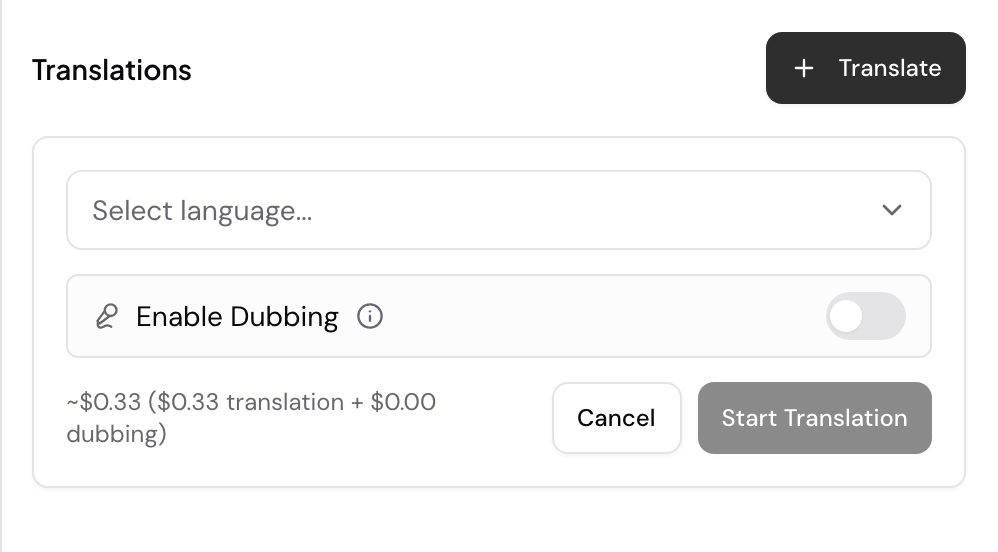
Translation runs on a finished transcript, so transcribe the file first and then translate the text into any of the 111 supported languages. Your original transcript is kept, so you can switch back to the source at any time.
Translate a file
- Open the transcribed media file.
- Open the More actions menu, the three dots at the top right, and select Translate. A dialog opens headed Translate to Another Language.
- Pick your Target Language. Add terms under Glossary if particular names must carry across unchanged, and turn on Enable Dubbing if you want a translated voiceover as well.
- Select Start Translation.
- Speak AI saves the translation alongside the original, in the same folder, and alerts you when it is ready.
To translate a batch, select the files from the folder view and translate them in one action rather than opening each file.
Read the translation against the original
Your original transcript is kept, so you can put the two next to each other rather than switching between files.
- Open the translated file.
- In the toolbar above the transcript, select the languages icon, Show the original transcript.
- On a wide screen the original opens beside the translation, and you can drag the divider between them to resize. On a phone or tablet it opens in place of the translation.
- Select the icon again to hide it.
The original is read only. Editing, speaker changes and clips stay on the translation, and a banner across the original pane says so. Starting an edit closes the original.
When the control is greyed out, hover it and Speak AI tells you why. The original is unavailable if it has been deleted, if it is still processing, if it holds no transcript, if your folder access does not reach it, or if the file is a text note, because translating a note replaces its text rather than keeping a second copy.
Confidence marks on the original describe the transcription, not the translation. See Accuracy.
Translation status
Each translation carries its own status, separate from the file’s processing status. Read it on the Translations list of the file, and in the dialog when you translate a folder.
| Status | What it means |
|---|---|
| Queued | Speak AI has accepted the translation and it is waiting to start |
| Waiting for transcript | The file is still being transcribed. The translation starts on its own when the transcript is ready |
| Pending Payment | Your balance does not cover this run. Top up your credit to start it |
| Processing | The text is being translated |
| Dubbing | The text is finished and the translated voiceover is being generated |
| Complete | The translation is ready |
| Failed | The run did not finish. Start it again, and write to us if it fails twice |
| Source not found | Speak AI cannot find the file this translation was for |
How translation is billed
Translation is measured by character count, and your plan includes a set number of translated characters. Check what you have left under Profile > Usage. See Credits for how the rest of your usage is counted.
Getting a better translation
- Clean the transcript first. Errors in the source text carry into every language you translate it into, so fix them in the editor before you start.
- Label your speakers. Speaker names carry over, which keeps a multi-person conversation readable in the translated version.
- Check specialized terms by hand. Drug names, legal terms and product names are the ones worth reading through after a translation finishes.
Dubbed audio
Speak AI can also generate a translated voiceover of your recording rather than translated text only. Turn it on with Enable Dubbing in the translation dialog. It is available in a subset of the translation languages, listed alongside every other language capability on Supported languages.
Dubbing is not available for audio-only files, for files longer than 2.5 hours, or for files larger than 1 GB. The dialog tells you which of these applies when the option is greyed out.
Video walkthrough
Want a hand setting this up? Book a free consult and we’ll do it together on your account.
Related: Transcription · Accuracy