
The Speak Upload action ingests a file into Speak AI and transcribes it automatically inside an automation, with no manual upload. Pair it with the Catch inbound webhook trigger to send a file URL from an outside tool and have Speak AI transcribe it hands-free. For how to build and trigger automations, see How to use automations in Speak AI.
When you can add Speak Upload
The Speak Upload action appears in the step list once a trigger earlier in the automation passes data downstream, such as the Catch inbound webhook trigger. Add the webhook trigger first, then add Speak Upload as a later step.
Configure the Speak Upload step
Open the step to set these fields:
- Name: an optional name for the uploaded media. You can use a token here, for example a value from the webhook payload.
- Folder: the destination folder for the media. This is required.
- Source: choose From URL or Uploaded file. To ingest a file URL from the webhook, choose From URL.
- File URL: the link to the file to upload. Use the captured value picker to insert a value from the webhook payload, for example a token like
{{trigger.payload.<path>}}. - Processing language: the language used to transcribe the file. Pick from the language list.
Map custom fields
Below the main form, the Map custom fields section lets you write captured webhook values into your custom fields on the media. The empty state reads Map a captured webhook value into one of your custom fields. Use this to carry metadata, such as a contact name or record ID, straight from the request onto the transcribed media.
How the flow runs end to end
- An external tool POSTs a request, including a file URL, to your inbound webhook URL.
- The Speak Upload step reads the File URL from the payload, uploads the file into the chosen Folder, and transcribes it in the selected Processing language.
- Any values set in Map custom fields are written onto the new media.
You can watch each run land under the trigger’s Recent deliveries list, where a successful run shows the Ran status.
Which actions send results to another app?
These actions write into a connected app, so an automation can finish its work where your team already looks:
- Create Google Doc from text, which writes a step’s answer into a new Google Doc.
- Upload to Google Drive, which files the recording or its transcript into a Drive folder.
- Upload to SharePoint, which does the same for SharePoint.
- Send a Slack message, which posts to a channel.
- Create a ClickUp task, which adds a task to a ClickUp list.
- HubSpot and Salesforce steps, such as Log the recording to HubSpot, which log recordings and update CRM records. See HubSpot and Salesforce.
The step picker lists them with your connected apps first. Connect the app on the Integrations page before the step can run, and the step runs on the automation owner’s connection, not on the connection of whoever triggered the run.
Configure the Create a ClickUp task step
Create a ClickUp task turns a run into a task in ClickUp, for example a brief written from each recorder response. Open the step to set these fields:
- ClickUp list to add the task to: pick a list. The picker also shows workspaces, spaces and folders, and the step refuses to save against those, because a task needs a list. The message reads “Choose a ClickUp list for the task, not a workspace, space or folder.”
- Task name: required, and the title the task carries in ClickUp.
- Task description: optional, and the body of the task.
- Attach the recording to the task: a switch that adds the recording file itself. The hint under it reads “Adds the recording file to the task. Recordings over 100MB are not attached.”
Task name and Task description both take tokens, so the task is built from the recording
instead of static text. Insert a custom field with {{field.<slug>}}, a media variable such as
{{media_name}}, or an earlier step’s answer from the token picker. A field token on a run with no
media resolves to nothing and is dropped rather than sent to ClickUp, so check the name is not built
only from tokens that can come up empty.
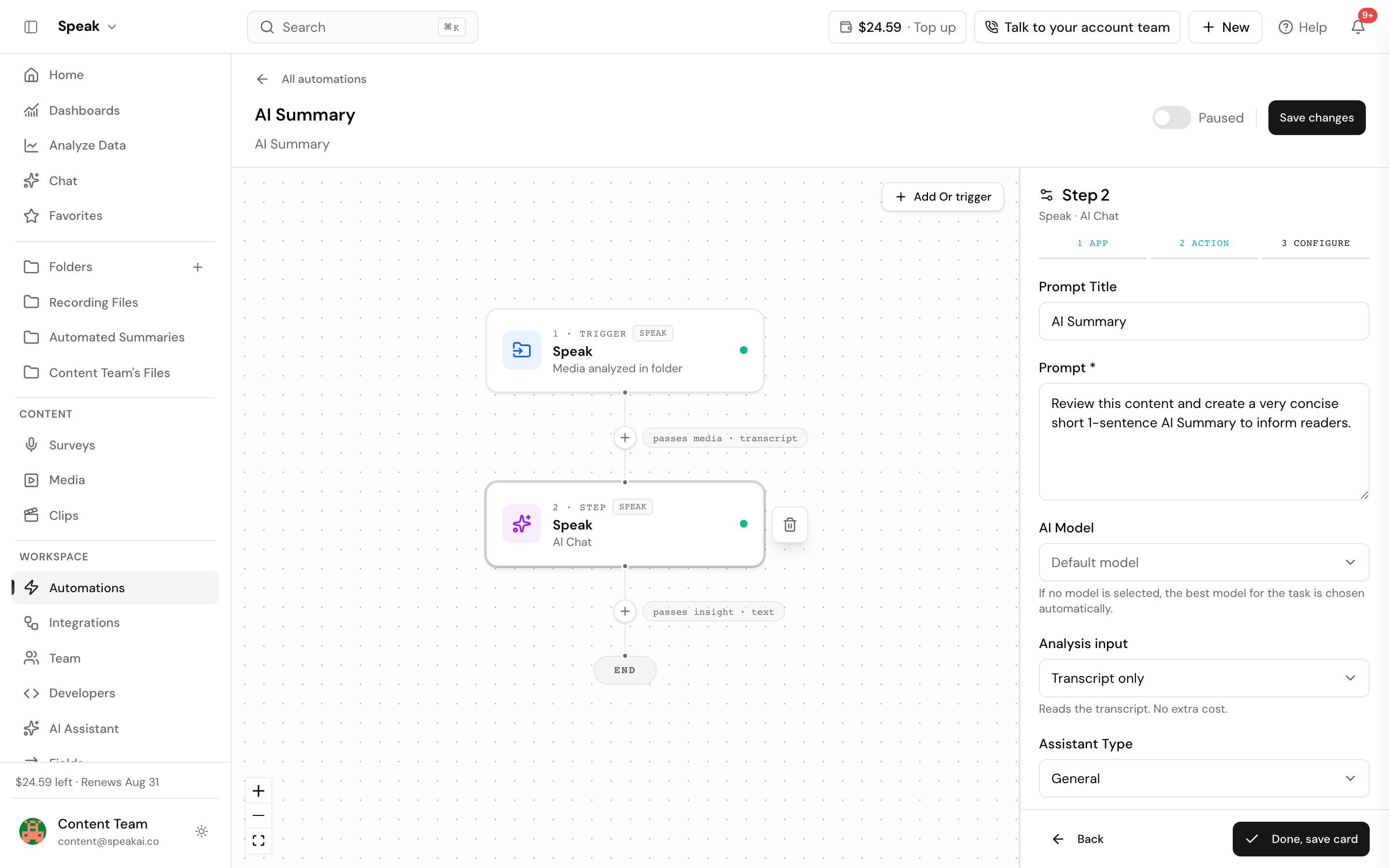
Extract fields on a Speak AI Chat step
A Speak AI Chat step can write its answers straight into your custom fields. Open the step and pick the fields under Extract Fields (optional).
One step extracts up to 25 fields. The picker keeps count at the bottom of the list, reading “3 of 25 selected” as you go. At the cap the fields you have not picked grey out, Select all fills only the room that is left, and a note appears under the picker: “This AI step can extract up to 25 fields. Add another AI step for the rest.”
The fields you already picked stay clickable at the cap, so you can deselect one to free a slot without clearing the whole list.
To pull more than 25 fields off the same file, add a second Speak AI Chat step and split the rubric across the two.
Can one AI step read another AI step’s answer?
A Speak AI Chat step can use an earlier AI step’s answer inside its own prompt, so you can chain several AI steps in one automation. Each AI step publishes its answer as a token, and any later step can insert it.
Open the later step, put the cursor in Prompt, and pick the earlier step’s answer from the token picker. The token names the step it reads, so it looks like this:
{{step.a1b2c3d4e5f6.answer}}Always insert the token from the picker rather than typing it. The picker offers only the steps
that actually run before this one, and it fills in the right step id for you. Tokens saved before
this changed counted step positions instead, like {{step.0.answer}}, and those keep working in the
automations that already hold them.
Use it to split a long rubric into stages, for example scoring a call in one step and drafting the follow-up email from that score in the next:
Write a follow-up email to the customer based on this call review:

{{step.a1b2c3d4e5f6.answer}}
Speak AI blocks you from removing a step whose answer a later step still references, and names the step to fix first by its action, for example “Speak AI Chat reads this step’s output. Update it first.” Clear the token from that later step, then remove the earlier one.
A step whose token resolves to nothing still runs and still counts toward your usage, so check the earlier step produced an answer before you rely on it.
Set the analysis input on a Speak AI Chat step
A Speak AI Chat step reads the transcript by default. If your account is enabled for audio analysis or video analysis, the step also offers an Analysis input field:
- Transcript only, the default. Reads the transcript. No extra cost.
- Transcript + audio. Also hears tone and delivery. Costs extra per hour of media.
- Transcript + audio + visual. Also sees what is on screen. Costs extra per hour of media.
You set the input on the step, before you know what arrives, so a folder of mixed files can send an audio recording to a step set to Transcript + audio + visual. Speak analyzes the audio on those files instead of stopping the step, and charges the audio rate for them.
Setting anything other than transcript only narrows the AI Model field to the Gemini models, which are the ones that can read the recording. The hint under the field says so: “Only models that can analyse audio and video are listed. If none is selected, the best one for the task is chosen automatically.” Leave the field empty and Speak picks a capable model for you. If you already had a model selected that cannot take the recording, switching the input clears it, so re-pick from the narrowed list.
The option applies to a step handling exactly one file. A step that accumulates several files, or runs across a whole folder at once, falls back to the transcript. The cost applies per file on every run, so price a representative file in AI Chat before turning it on across a busy watch folder.
Transcript + audio on a video file extracts the audio track before the model reads it. The run pauses while that happens and resumes on its own once the track is ready, so a run showing “Extracting the audio track before analysis” is still working.
A run does not wait forever when that track never arrives. Speak retries the step a few times, then stops it and settles the answer card with “The audio for this file could not be prepared in time, so this automation step was stopped.” Run the automation again once the file plays back correctly.
The fastest way to reach us is the live chat in the app (the chat bubble in the bottom corner). You can also email success@speakai.co.
Want a hand setting this up? Book a free consult and we’ll do it together on your account.
Related: Automations · Filters · Branches · Web search