
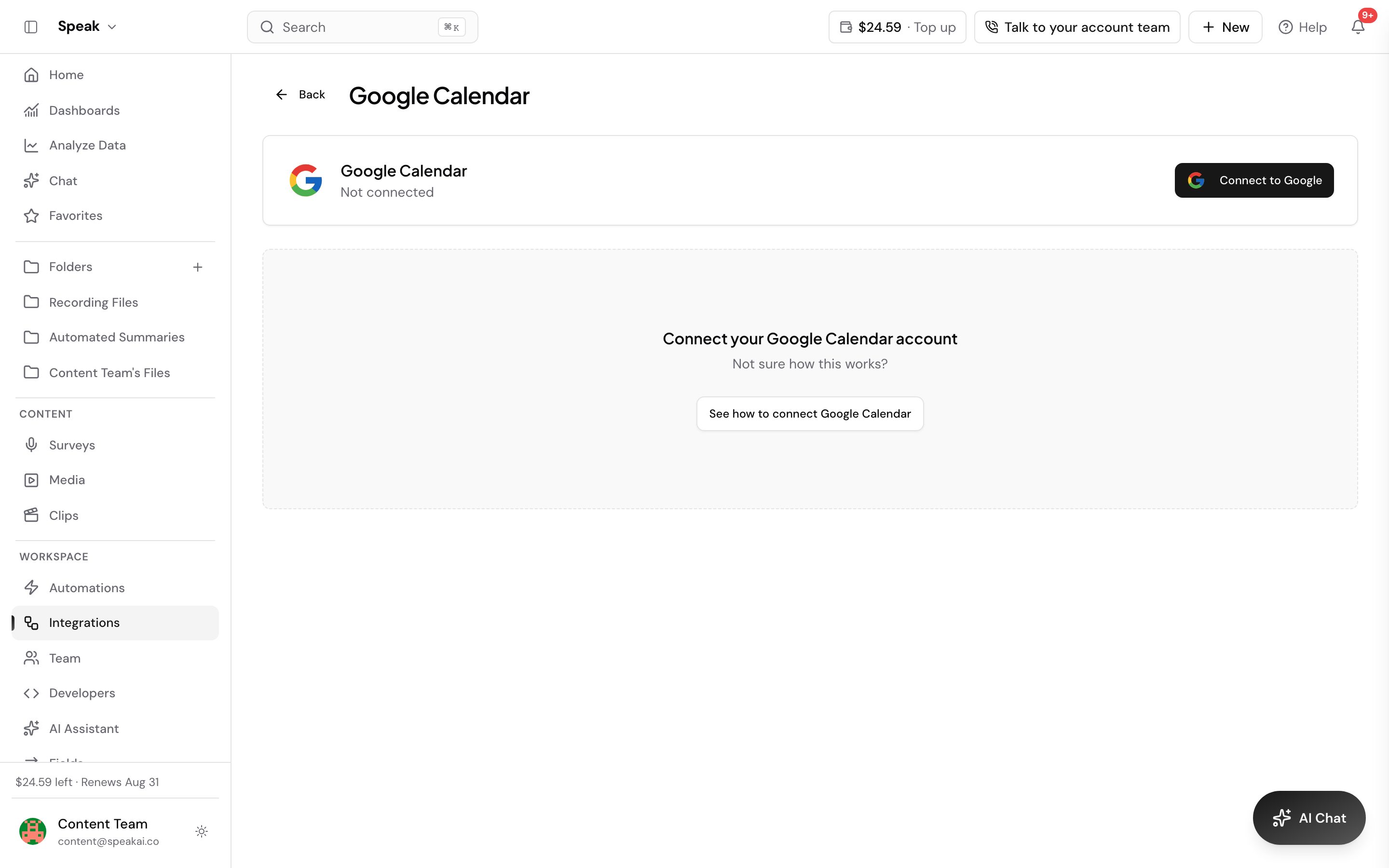
Connect Google Calendar once and the Meeting Assistant sees your schedule and joins the calls you choose on Zoom, Google Meet, Microsoft Teams, or Webex. It records, transcribes, and summarizes each one into your library.
- No bot invites to remember: auto-join handles it from your calendar
- You decide which meetings it joins: everything, only ones you organize, or none by default
- Recordings land in the folder you choose, transcribed with speakers labeled
Connect your calendar
- In Speak AI, open Meeting Assistant from the sidebar.
- Select Connect to Google (or Connect Calendar in the banner).
- Sign in with Google and allow calendar access. Speak AI reads event times and join links, nothing else.
Your upcoming meetings appear once the calendar syncs. From here the assistant can join automatically or wait for you to send it per meeting.
Choose which meetings it joins
- Open Assistant Preferences (top right of the Meeting Assistant page), then the Auto Join Settings tab. It only appears once a calendar is connected.
- Each meeting platform has its own dropdown. Pick the rule that fits: All Meetings, None (Manual only), Only when I’m the host, Only meetings where I invite the assistant, or When team members attend (not as host). Auto-join explains what each one does.
- To keep it out of specific meetings company-wide, an admin can add exclusions.
Which meeting does a recording belong to?
Each recording is matched to its calendar event, named after it, and filed by your folder routing rules, so a Tuesday of back-to-backs sorts itself.
Why didn’t the assistant join?
The usual causes, in order: the meeting had no join link on the calendar event, auto-join rules excluded it, or the calendar disconnected (you’ll see Calendar is disconnected on the Meeting Assistant page; reconnecting fixes it). Still stuck? Book a free consult and we’ll get it joining your next call.
Related: Meeting Assistant · Auto-join · Microsoft Calendar · Summaries