
AI Chat answers questions about your recordings: one file, a whole folder, or your entire library. Ask for summaries, themes, action items, or charts, and get answers grounded in your own transcripts. It can also hear the recording or watch the video instead of only reading the transcript. It acts on your workspace too: creating clips and renaming speakers. To run one prompt on every file in a folder, see batch analysis. Save the prompts your team uses so everyone analyzes the same way, choose your model, attach files for context, and connect your other tools so the assistant can use them mid-conversation.
Start a chat
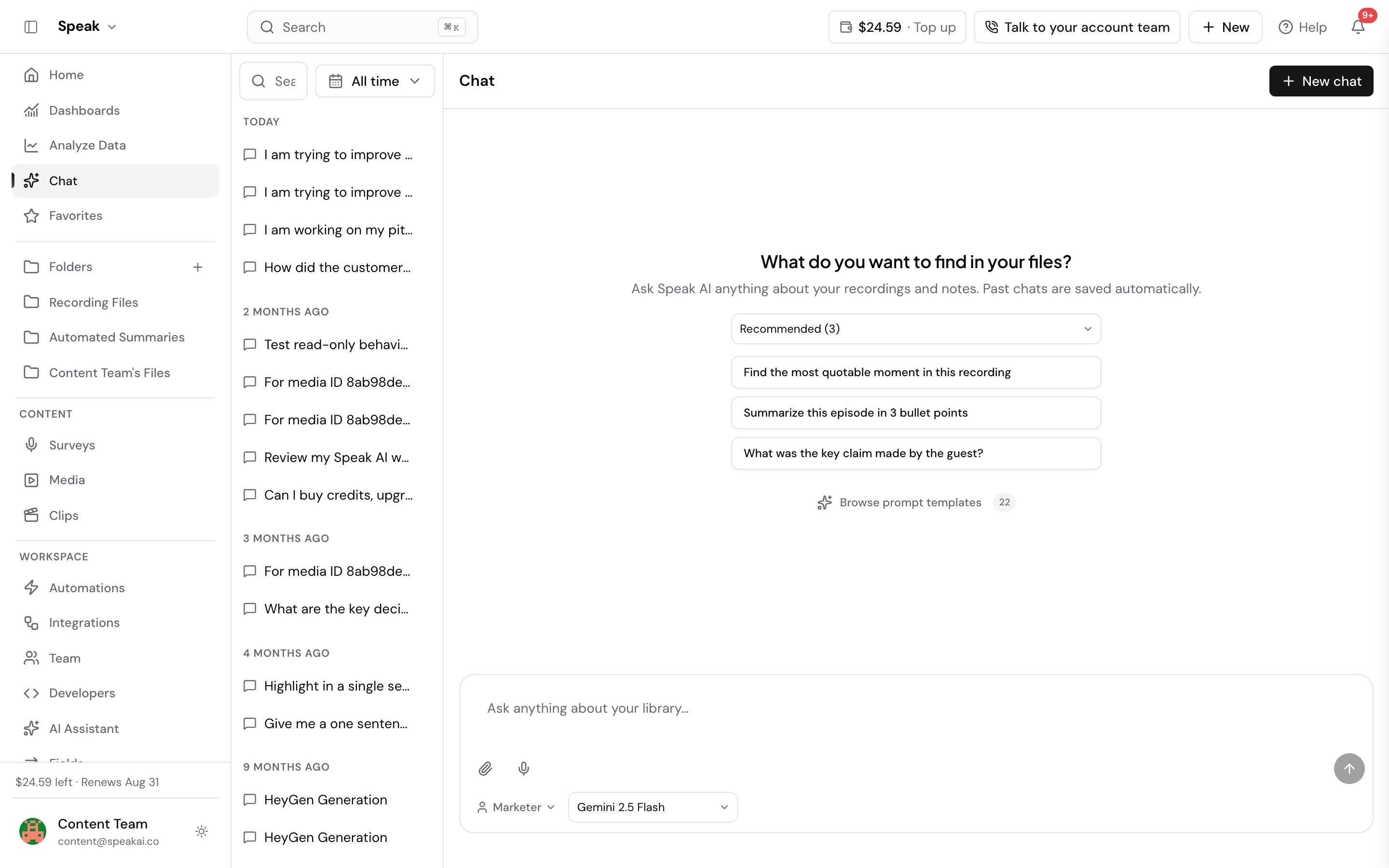
Open any file in Speak and select AI Chat. A window opens and asks “What do you want to find in your files?”, with suggestions you can run straight away. On a recording those start as:
- Summarize this recording in a few sentences
- What were the main topics discussed?
- Find any action items or decisions mentioned
The suggestions change to suit the file, and you can browse them by category: All, Favorites, Recent, Recommended and Templates.
To ask something else, type your question into the input box and press Enter. Prompts covers how to phrase a prompt and how to save the ones you use often.
What you can ask for
- Answers about your content: key takeaways, action items with owners, what was said about a topic, the questions that came up.
- Clips: describe the section you want and Speak cuts it into a clip.
- Speaker and transcript edits: rename a speaker, replace a word, strip filler words.
- Exports: download a transcript as PDF, Word, or plain text.
- Search across a folder: count files, filter by date, tag, or custom field.
- Charts: pie, bar, and doughnut charts built from your AI fields.
Prompts has worked examples of each.
Going back to an earlier conversation
Select Chat in the sidebar and Speak reopens your most recent conversation rather than an empty one, so you can carry on where you stopped. Start a fresh conversation with New chat.
Opening AI Chat on a particular file or folder always starts a new conversation scoped to it, and so does opening chat from a shared embed. Only the sidebar entry resumes.
When Speak emails you that a chat you asked for has finished, the link in that email opens the conversation it ran, not a new one.
File level versus folder level
Where you open AI Chat decides what it can do.
On a file, every tool is available. Create clips, rename speakers, edit transcript text, export, and ask questions about that one recording.
On a folder, you search across files, generate charts, export several files at once, and ask questions that span the whole set. A folder prompt gives one combined answer. To get one answer per file instead, see batch analysis.
Actions the assistant takes for you
AI Chat does more than answer. It uses the same tools the Speak platform exposes, so it can create folders, manage recorders, toggle automations, build embeds, and update media details. When you make a request, the assistant picks the right tool and runs it for you.
You can watch it work. Each step it takes, searching your library, calling a tool, planning, appears as a card in the chat that you can expand.
When a request is ambiguous, the assistant pauses and asks a clarifying question. You get a card with the question and, where they apply, suggested answers you can tap. You can type your own reply instead, or skip the question and let the assistant use its best guess.
Actions you cannot undo, such as deleting media or removing items in bulk, need your explicit approval. The assistant stops and asks “Confirm: run [action]?”, showing exactly what it is about to do. Select Approve to go ahead or Cancel to stop. Nothing is deleted until you approve it.
An approval does not wait indefinitely. Leave the card long enough and the request expires on its own: Approve and Cancel disappear, and the card reads “Expired, please ask again.” Nothing ran, so ask for the same thing again and approve the new card.
Agent modes
The assistant works in one of several modes depending on what you asked for: help for questions, task for workspace actions, research for pulling information together across recordings, and sales. The active mode shows as a badge next to the chat title, so you can tell how the assistant is treating your request.
Prompt templates
Speak ships a library of prompt templates grouped by job, covering things like customer feedback synthesis, key themes, meeting overviews, customer pain points, follow-up planning, and strategic insights. Open them from the prompt library icon in the chat. You can also save your own as assistant templates, which Prompts explains.
Models
Pick which model powers a conversation from the model picker in the chat toolbar. Speak offers models from Anthropic, OpenAI, Gemini, xAI and z.ai, each shown with its provider logo. Speak routes each task to a strong default, and you can set your own default under your profile. On the free tier, premium models show a lock icon and an upgrade prompt, and you use the free model. See Models.
What AI Chat costs
Your 7-day free trial includes AI Chat, so you can try it before you pay.
Usage is based on how much text is processed: the transcript sent to the model, including speaker names and timestamps, plus the response that comes back. That is deducted from your plan’s credits. Older character-based plans count it toward their monthly AI Chat characters instead. Either way, your plan’s allowance resets at the start of each billing cycle and does not roll over, while a Speak Credit balance you top up yourself never expires.
If a prompt fails to generate an output, it does not count. Check what you have left under Billing > Plan & Usage in your profile, which you reach from the profile menu at the bottom of the sidebar.
Rate limits and slow prompts
AI Chat accepts 15 requests per minute. If you need a higher limit for enterprise use, contact the team.
Large files can take a few minutes to process. If a prompt runs longer than 10 minutes, delete it and run it again at no extra cost.
The fastest way to reach us is the live chat in the app, the chat bubble in the bottom corner. You can also email success@speakai.co.
Evaluating AI analysis for a team? Book a demo and ask AI Chat about your own recordings.