
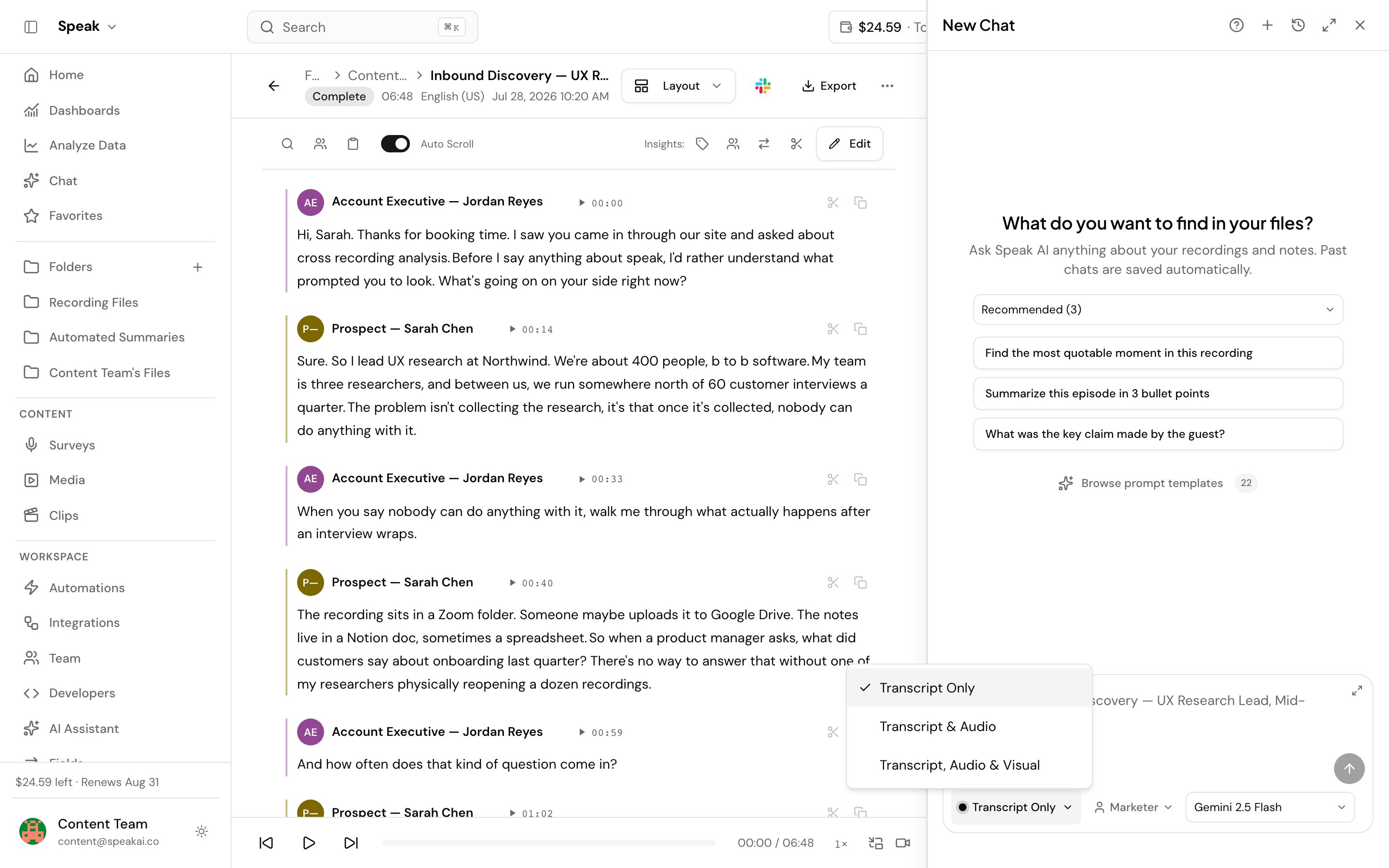
By default, AI Chat answers from the transcript. Video analysis sends the recording itself to the model, so the answer accounts for what was on screen as well as what was said.
Reach for it when the words alone do not carry the answer:
- Whether a demo actually showed the feature the rep described.
- Which slide was up when an objection came.
- What a participant reacted to before they spoke.
- What a shared document or dashboard displayed during the call.
If your question is only about how something was said, tone, pacing, hesitation, audio analysis answers it for considerably less.
Video analysis is a premium feature. It is off unless your account has been enabled for it, and it costs credits on top of a normal chat.
Get it enabled on your account
Video analysis is switched on per account by the Speak team. Until it is on, the controls below do not appear in chat and the option is absent from automations.
Book a demo and we will turn it on with you. Bring a recording where the important part is visual, a product demo or a screen share, so you can see the difference against a transcript answer.
You can also use the live chat in the app, the chat bubble in the bottom corner, or email success@speakai.co.
Analyze a video in chat
The controls appear only when your chat is scoped to one file. A folder chat or a library-wide chat has no single recording to analyze, so nothing is shown.
- Open a processed video file and select AI Chat.
- In the chat toolbar, open Analysis mode and choose Transcript, Audio & Visual.
- Type your question and send.
Analysis mode starts on Transcript Only, so a chat costs nothing extra until you pick one of the other modes. The remaining option, Transcript & Audio, discards the picture and is covered in audio analysis.
If a mode is not available for the file, its row stays in the menu but greys out. Hover or tap it to see why. When the file supports no analysis at all, the menu offers Transcript Only on its own.
While a mode is on, the chat confirms what it is doing: “We will analyze the video, not just the transcript, so what is on screen counts.” Close that banner to go back to Transcript Only.
The model picker stays available while a mode is on, but it lists the Gemini models only, because those are the ones that can take the recording itself. Whatever you pick there applies to the analysis turns; switch back to Transcript Only and the model you were using before comes back. See Models.
What it costs
Analysis is charged in credits on top of the normal chat cost. Video costs more per minute than audio, because the picture is read as well as the sound.
Length is what moves the price, not picture quality. A 4K recording and a 480p one of the same length cost the same, because Speak reads the video as still frames taken a second apart rather than at the file’s own frame rate.
Length also decides how closely those frames are read, and that makes the pricing less obvious than it looks. Up to 45 minutes, Speak reads them in more detail, which is much better at picking out on-screen text. Past 45 minutes it steps down to a coarser read so that longer recordings fit at all. That step down outweighs the extra length, so an hour-long video can cost less than a 45-minute one.
Your question and the answer are charged on top at the normal chat rate.
The charge is worked out from what the model actually processed, once the answer comes back. To see what it comes to on your own material, run one representative file and compare your credit balance before and after. Do that before turning analysis on across a busy folder, where the cost applies to every file on every run. A pass that cannot run is not charged.
If the answer does not depend on the picture, run it as Transcript & Audio instead, which costs considerably less.
Which files qualify
Analysis uses your recording as it is, so it has to already be in a format the model accepts: MP4, MOV, MPEG, MPG, AVI, WebM, WMV, FLV and 3GP.
Speak accepts more formats for upload and transcription than analysis can use, so a file can play perfectly in Speak and still be refused here. When that happens the app tells you why rather than failing part-way through an answer.
If a video is refused on format alone, Transcript & Audio may still work on it. That mode works on containers this list turns down, including MKV, M4V, M2TS, MTS, TS and OGV. See audio analysis.
The file also has to have finished processing. In chat, Transcript, Audio & Visual greys out on an audio-only file and the hint reads “Visual analysis needs a video file.” Where the mode is set ahead of the file, in an automation step or through the API, Speak analyzes the audio instead of stopping the run, and charges the audio rate for it.
How long a video can be
Each pass has a length limit set on your account. If you work with longer recordings regularly, that limit can be raised.
There is a second ceiling above it that a raised limit cannot pass: a single Transcript, Audio & Visual pass tops out at 2.5 hours of video. Past that, split the recording or run it as Transcript & Audio, which reaches much further.
The message tells you which of the two you have hit, so you know whether to ask for a higher limit or to shorten the file.
When a file cannot be analyzed
Speak checks before it sends, so you are never charged for a call that was going to fail. You may see:
| What you see | What it means |
|---|---|
| The file has not finished processing yet | Wait for transcription to finish, then try again |
| This file format cannot be sent for audio or video analysis | Re-upload as MP4 or MOV |
| The file is longer than audio and video analysis supports | Trim it, or switch that pass to Transcript & Audio |
| The file is longer than the analysis limit on this account | Raise the limit or trim the file |
| The file is too large for audio or video analysis | Split it into shorter files |
| The file is too large to be analysed directly, so the transcript was used instead | Nothing to do, the answer came from the transcript |
| The file duration is unknown, so analysis cost cannot be estimated | Re-upload the file |
| Audio and video analysis is not available in your data region yet | Contact the team to check when your region is covered |
| Audio and video analysis is temporarily unavailable | Wait and try again, then contact the team if it persists |
| Audio and video analysis is not enabled for this account | Ask us to turn it on |
| The stored file could not be located | Contact the team, the file needs re-uploading |
If analysis was on but the recording could not be used, you still get an answer from the transcript and the chat says so: “This answer came from the transcript. The media could not be analysed.” You are not charged for the analysis that did not happen.
Use it in an automation
A Speak AI Chat step in an automation can analyze video the same way, so every file that arrives gets the same treatment without anyone opening chat.
In the step’s configuration, set Analysis input to Transcript + audio + visual.
Picking anything other than transcript only narrows the AI Model field to the models that can read the recording. Leave it empty and Speak picks one for you. If you already had a model selected that cannot take video, switching the input clears it, so re-pick from the narrowed list.
Two things to know before turning this on across a folder:
- It applies to a step handling exactly one file. A step that accumulates several files, or runs across a whole folder at once, falls back to the transcript.
- Video is the most expensive option and the cost applies per file on every run. On a busy watch folder that adds up fast, so price a representative file in chat first.
Should I use video analysis or audio analysis?
Use video when the answer depends on something visible: a slide, a demo, a document on screen, a reaction. Use audio when it depends on how something was said. Audio costs less and handles much longer recordings, so if you are unsure, try audio first and move up if the answer misses something visual.
Why is the option missing on my file?
Four common reasons. Your account has not been enabled for video analysis yet. The chat is scoped to a folder or your whole library rather than one file. The file is still processing. Or the file is audio-only, in which case there is no video to watch and only audio analysis applies.
How much does video analysis cost?
Length decides it, so there is no flat figure, and analyzing the same recording as audio only costs considerably less. The reliable way to size it for your own material is to run one representative file and compare your credit balance before and after. See what it costs, which also explains why a 45-minute video can cost more than an hour-long one.
Does video analysis look at every frame?
No. The video is read as a series of still frames taken about a second apart, not at the file’s own frame rate, and the soundtrack is read in full alongside them. That is what lets a pass cover hours of video, and it is why picture quality does not change the price.
The practical limit is fast movement. Anything that appears and goes between one second and the next can fall between the frames, so a quick cursor movement, a slide that flashes past, or a number that is on screen for a moment may not be picked up. If a specific moment matters, point at it in your question rather than expecting it to surface on its own.
Want a hand setting this up? Book a free consult and we’ll do it together on your account.
Related: Audio analysis · AI Chat · Models · Automations · Credits