
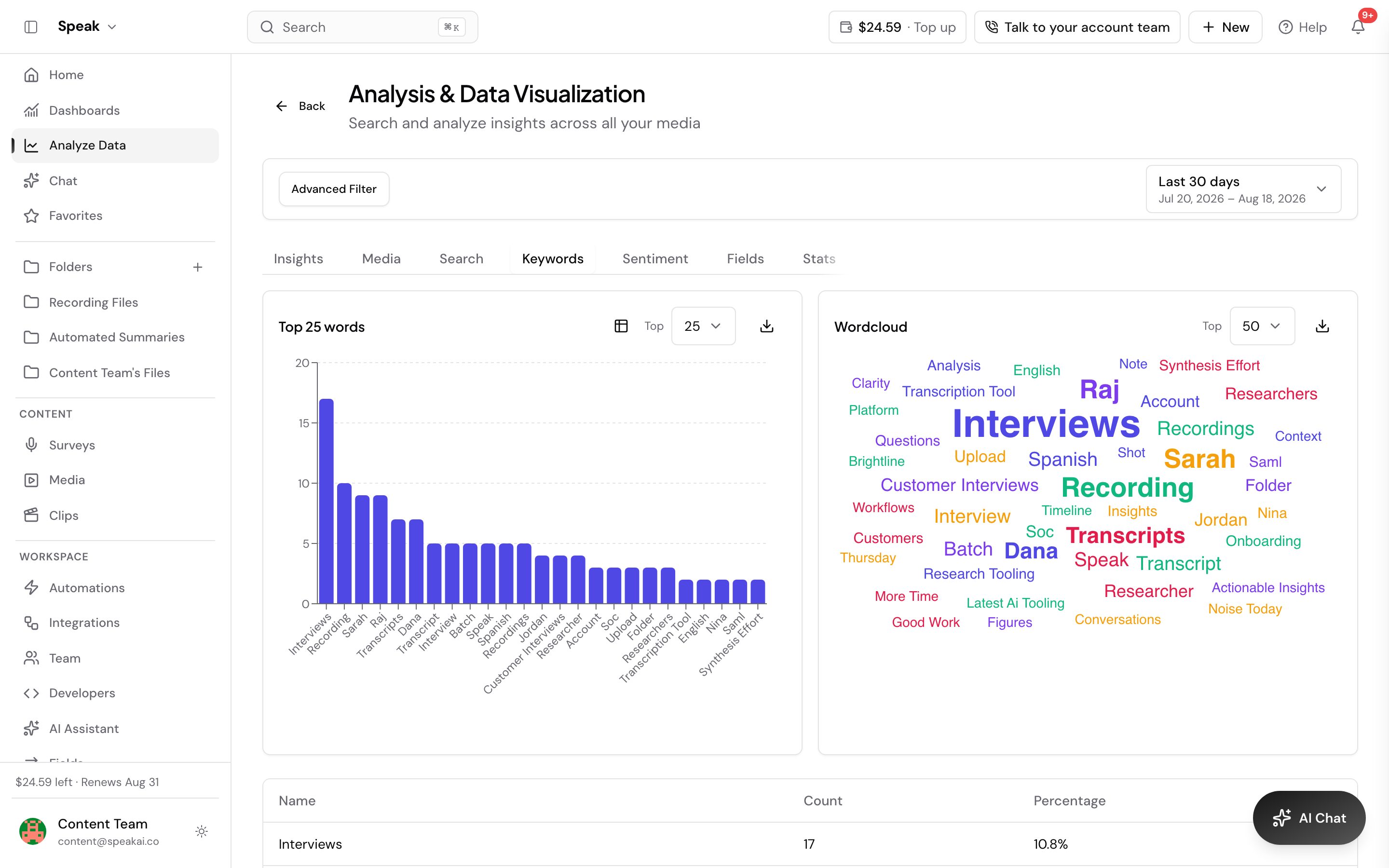
Keyword alerts tell you when a word or phrase you care about shows up in a new transcript, so you can act on an escalation, a competitor mention, or a churn signal the day it happens instead of finding it weeks later. Set them up in Settings → Keywords in your Speak AI dashboard. There are two ways to send the notification: through Zapier, or through a keyword set in Speak.
Alert through Zapier
Use this route when you want the alert to land in a tool you already work in, such as Gmail or Slack:
- Trigger: set up a Zapier trigger on Speak AI’s New Media Processed event.
- Filter: add a Zapier filter step that continues only if the
Keywordsfield from Speak contains the term you want to watch. - Action: send an email through Gmail, or post a channel message through Slack, to whoever needs to see it.
Alert through a keyword set
Some plans include email alerts on keyword sets, with no other tool involved:
- Go to the Insights or Keywords settings in your account.
- Create a Keyword Set with the terms you want to monitor.
- If your plan includes it, turn on Email Notifications for that keyword set.
Test each alert with a term you know appears in a recent file before you rely on it.
Want a hand setting this up? Book a free consult and we’ll do it together on your account.
Related: Insights · Categories