Skip to content

Insight data

Move insight data into Tableau, Salesforce or a spreadsheet on demand, or on a schedule through a Speak AI automation.

Updated View as MarkdownAsk ClaudeOpen in ChatGPTllms.txt

Exporting Your Data

Overview

Easily move your valuable insights from Speak AI to your favorite tools. Whether you need to analyze data in Tableau, update your Salesforce records, or crunch numbers in Excel, we’ve got you covered.

This feature allows you to use your Speak AI data in a way that best suits your workflow, enabling deeper analysis and integration with your existing business processes.

How It Works

You have two primary methods for getting your data out of Speak AI:

  • Manual Export: Perfect for quick, one-off data dumps.
  • Automated Integration: For real-time data transfer and smooth workflow automation.

Getting Started

To access this feature, go to Dashboard Settings → Export Data in your dashboard.

Methods

Choose the method that best fits your needs:

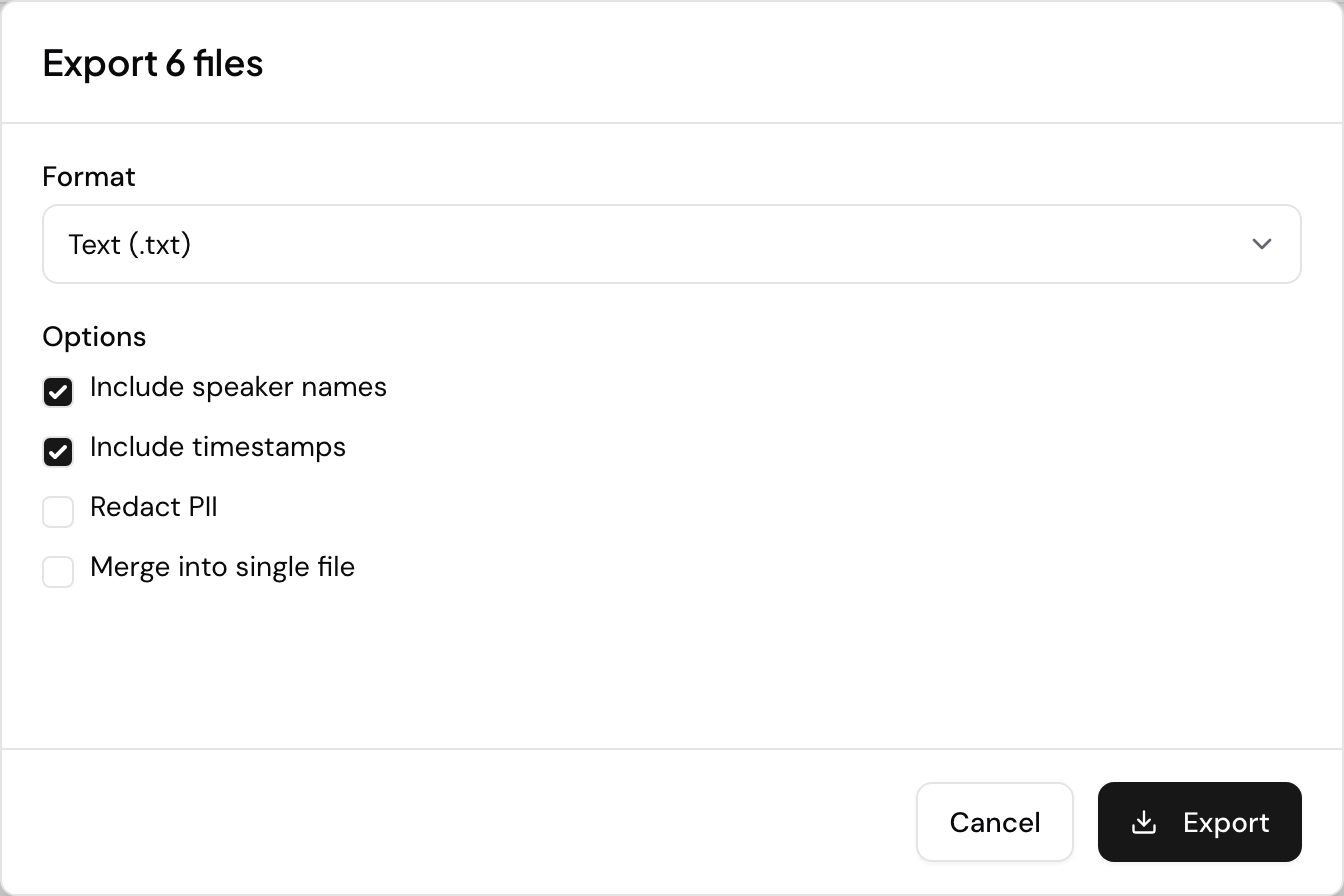
  • Manual Export: Navigate to Dashboard Settings → “Export Data”. This will retrieve all your transcripts, sentiment scores, and entities in a ZIP or CSV format.
  • Zapier: Connect Speak AI to hundreds of other apps. Use “New Analysis” as a trigger and actions like “Create Row in Google Sheets” or “Update HubSpot Contact” as your action.
  • API: For developers, you can programmatically pull JSON data by polling the GET /media/{id}/insight endpoint.
  • Integrations
  • API Access

Pro Tips

The API offers the most detailed data, including word-level timestamps. CSV exports may aggregate this information.

Troubleshooting

Zapier Error: If you encounter a Zapier error, check if your Speak AI API Key has been regenerated, as this can break the connection.

Next Steps

Ready to get started? Here’s what to do next:

  • Login to your account and navigate to Dashboard Settings → Export Data.
  • Try a manual export to see your data in CSV format.
  • Explore Zapier or the API for automated data transfer.

Exporting insights data and automating transfers

Exporting Your Data

Overview

Easily move your valuable insights from Speak AI to your favorite tools. Whether you need to analyze data in Tableau, update your Salesforce records, or crunch numbers in Excel, we’ve got you covered.

This feature allows you to use your Speak AI data in a way that best suits your workflow, enabling deeper analysis and integration with your existing business processes.

How It Works

You have two primary methods for getting your data out of Speak AI:

  • Manual Export: Perfect for quick, one-off data dumps.
  • Automated Integration: For real-time data transfer and smooth workflow automation.

Getting Started

To access this feature, go to Dashboard Settings → Export Data in your dashboard.

Methods

Choose the method that best fits your needs:

  • Manual Export: Navigate to Dashboard Settings → “Export Data”. This will retrieve all your transcripts, sentiment scores, and entities in a ZIP or CSV format.
  • Zapier: Connect Speak AI to hundreds of other apps. Use “New Analysis” as a trigger and actions like “Create Row in Google Sheets” or “Update HubSpot Contact” as your action.
  • API: For developers, you can programmatically pull JSON data by polling the GET /media/{id}/insight endpoint.
  • Integrations
  • API Access

Pro Tips

The API offers the most detailed data, including word-level timestamps. CSV exports may aggregate this information.

Troubleshooting

Zapier Error: If you encounter a Zapier error, check if your Speak AI API Key has been regenerated, as this can break the connection.

Next Steps

Ready to get started? Here’s what to do next:

  • Login to your account and navigate to Dashboard Settings → Export Data.
  • Try a manual export to see your data in CSV format.
  • Explore Zapier or the API for automated data transfer.

Need help? Contact our support team or check out our other guides.

Need help? Contact our support team or check out our other guides.

Overview

When you export your media data, you can automatically include valuable insights like sentiments, brands, and keywords. This helps you quickly analyze your media content without extra steps.

By having this information directly in your CSV export, you can easily review and process your media data for reporting, analysis, or further action.

How It Works

To include insight categories in your CSV export, ensure your media files have been analyzed and insights have been generated.

Once analysis is complete, simply click the Export button and select CSV.

The resulting CSV file will automatically include columns such as Insight Category and Insight. For each detected insight, a new row will be created, showing its corresponding category (e.g., “Brands”, “Locations”, or your custom category names).

There’s no need to select a manual checkbox; the insights are included by default if they exist.

Getting Started

To access this feature, go to Export in your Folder or Media View Page.

Next Steps

Ready to get started? Here’s what to do next:

  • Login to your account and navigate to the Export section.
  • Ensure your media files have been analyzed to generate insights.
  • Export your data to CSV to see the included insight categories.

Need help? Contact our support team or check out our other guides.

Overview

Exporting your media details allows you to gain deeper insights into the keywords associated with your content. This helps you understand what topics are being discussed and how they are represented in your media files.

By accessing this data, you can refine your content strategy, improve SEO, and better analyze the performance of your media assets.

How It Works

There are two main ways to export keyword data, depending on the level of detail you require.

Getting Started

To access this feature, go to Media Settings → Export Options in your dashboard.

Comprehensive Export

For a full breakdown of every keyword occurrence:

  1. Choose CSV Export instead of a simple summary.
  2. Ensure your media has been processed for insights.

The resulting CSV will have rows for each keyword detected, with columns for Insight Type (Keyword) and the specific Insight (the keyword itself).

Standard Export

When you select Export Media Details, the system generates a summary. Basic keywords are often aggregated.

Additional Keyword Options

If you need a list of just the keywords without timestamps, you can use the Word Cloud export or copy the list from the Insights tab.

Next Steps

Ready to get started? Here’s what to do next:

  • Login to your account and navigate to Media Settings → Export Options.
  • Choose your desired export type (CSV for comprehensive, or standard export for a summary).
  • Analyze the exported data to understand your media’s keyword performance.

Need help? Contact our support team or check out our other guides.

Want a hand setting this up? Book a free consult and we’ll do it together on your account.


Related: Exports · Transcripts

Navigation

Type to search…

↑↓ navigate↵ selectEsc close