
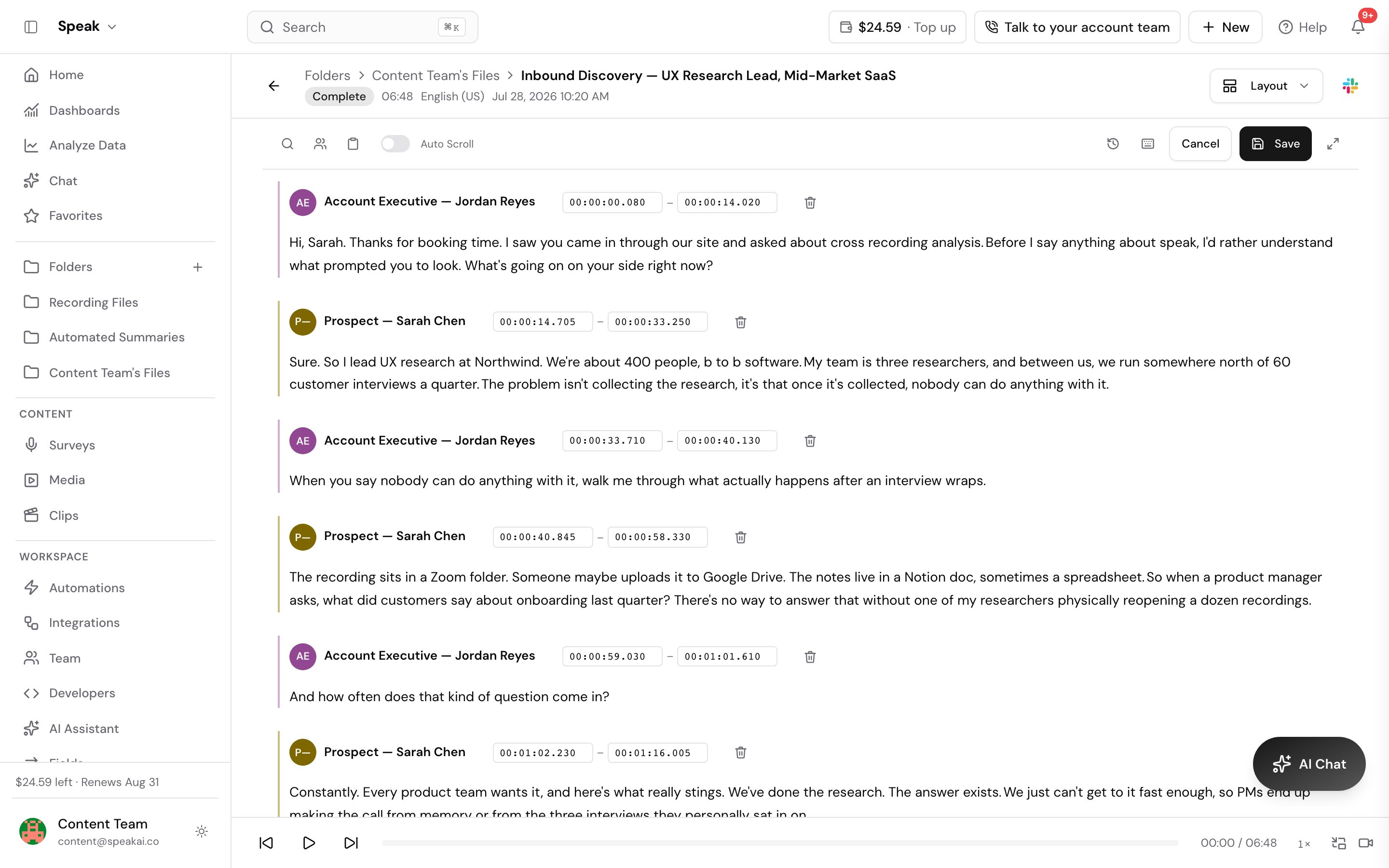
 Open a transcribed file and click into the transcript to start editing. You can correct wording,
split and merge paragraphs, and relabel speakers. Every change saves back to the transcript that
search, insights and AI Chat read from, so a fix you make once carries through the rest of the
product. Click any sentence to move the player to that point and check the audio as you read.
Open a transcribed file and click into the transcript to start editing. You can correct wording,
split and merge paragraphs, and relabel speakers. Every change saves back to the transcript that
search, insights and AI Chat read from, so a fix you make once carries through the rest of the
product. Click any sentence to move the player to that point and check the audio as you read.
A transcript cannot be saved empty. Delete every paragraph and Save stops with “Cannot save empty transcript” and “Add at least one paragraph before saving.” Nothing is lost: the saved transcript is still the one you started from, so undo or reload the file to get it back.
Keyboard shortcuts
While you are editing the transcript:
| Shortcut | What it does |
|---|---|
| Click on text | Start editing that section |
| Click any sentence | Jump the player to that point |
| Enter | Split into a new paragraph at the cursor |
| Tab | Jump to the next sentence |
| Cmd/Ctrl + J | Merge the paragraph into the one above |
| Cmd/Ctrl + Shift + D | Duplicate the paragraph |
| Cmd/Ctrl + Z | Undo |
| Cmd/Ctrl + Y or Cmd/Ctrl + Shift + Z | Redo |
| Cmd/Ctrl + F | Find text in the transcript |
| Cmd/Ctrl + S | Save your changes |
| Esc | Exit full-screen view |
When the speaker menu is open:
| Shortcut | What it does |
|---|---|
| Up and Down arrows | Move through the speaker suggestions |
| Enter | Confirm the highlighted speaker name |
| Esc | Close the speaker menu |
Fixing the same mistake everywhere
For a recurring error, such as a name the engine misheard, press Cmd/Ctrl + F and step through each instance. For a change that runs the length of the file, ask AI Chat instead: “Replace ‘gonna’ with ‘going to’” or “Change Speaker 1 to John Smith”.
Relabel the speakers before you start on the wording. A transcript with real names is easier to follow while you work, and it makes later questions like “What did John say about the budget?” answerable. See Speaker identification.
Insights beside the transcript
The panel to the right of the transcript shows what Speak AI found in the text. It is split into tabs, so select the one you want:
- Insights: the narrative summary of the file
- Keywords: the keywords and entities detected, including brands, people and locations
- Sentiment: positive and negative highlights
- Speakers: who spoke, and for how long. See Speaker identification.
- Fields: structured values saved against the file. See Custom categories.
- Clips: the clips you have cut from this file
- Labels: every labelled passage, grouped by label
- Comments: comment threads on passages and on the whole file
Files captured through a recorder get an extra Survey tab holding the respondent’s answers.
Labels, comments and other people’s edits
Labels and comments on a passage move with their words when you save. If your edit changed a labelled passage too much to follow, the editor warns you before you save, and the label is marked Needs review so someone can place it again. Nothing is deleted.
If a teammate saved the transcript after you opened it, your save stops with “This transcript changed since you opened it. Reload to keep editing.” Reload the file to get their changes, then make yours again. Your save never overwrites theirs.
Following the audio while you read
- Click any word to move playback to that point.
- Turn on auto-scroll to keep the current line in view during playback.
- Use the search bar to find a term and step through each occurrence.
Change a video’s thumbnail
A video’s thumbnail is the picture on its card in your media library and on the player before the video starts, on a shared media page too. Speak AI picks one for you. To use your own:
- Open the video.
- Hover over the player and click the pencil at its top left, or open the More actions menu, the three dots at the top right, and click Change thumbnail.
- Pick one:
- Click Upload image and choose a JPEG, PNG or WebP file of up to 10 MB. Once you have set one, the button reads Replace image.
- Pause the video on the moment you want, then click Use frame at followed by the time it is paused on. The button reads Making thumbnail… while Speak AI takes the frame, which can take up to a minute.
“Thumbnail updated” confirms the change, and the preview in the dialog is marked Custom.
- Only videos uploaded to Speak AI have a thumbnail you can change. YouTube videos do not.
- You need permission to edit media.
- There is no way back to the automatic thumbnail. Upload another image or pick another frame instead.
- “Couldn’t get that frame. Try a different moment.” means the frame could not be taken. “This video is busy. Try again in a minute.” means a frame is still being made for it or the service is busy.
Want a hand setting this up? Book a free consult and we’ll do it together on your account.
Related: Transcription · Accuracy