Skip to content

Categories

Every analysis extracts keywords, topics, sentiment, entities, brands and emotions by default, with no configuration required.

Updated View as MarkdownAsk ClaudeOpen in ChatGPTllms.txt

Overview

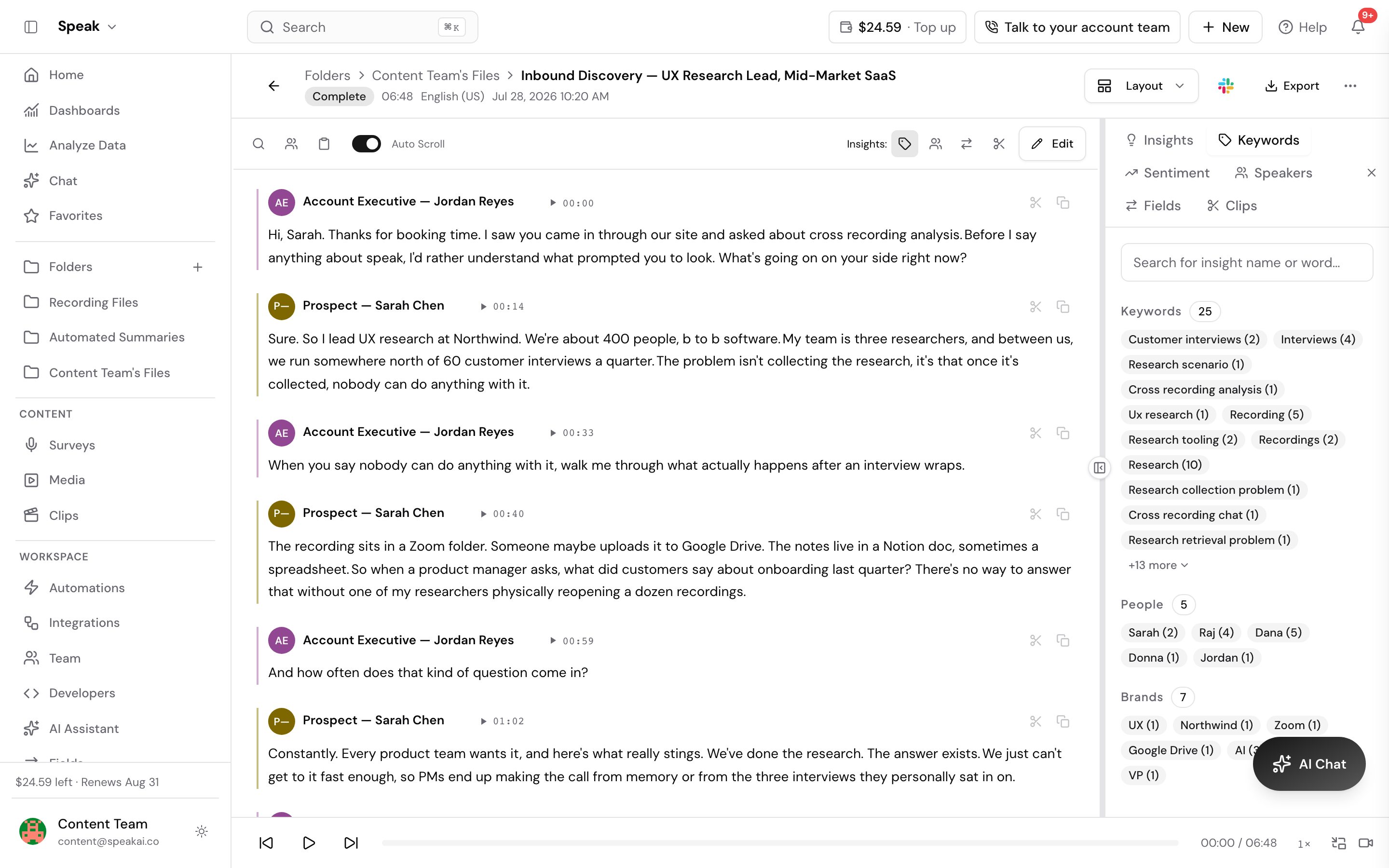
Every time Speak AI analyzes your media, it automatically extracts insights across these default categories. These work out of the box with no configuration needed.

Default categories

  1. Keywords - The most important terms and phrases
  2. Topics - Main subject areas discussed (audio/video only)
  3. People - Names of individuals mentioned
  4. Organizations - Companies, institutions, and brands
  5. Products - Product and brand names referenced
  6. Geopolitical Entities - Countries, cities, regions
  7. Locations - Physical places and addresses
  8. Events - Named events, conferences, meetings
  9. Time Indicators - Time references and scheduling mentions
  10. Dates - Specific dates mentioned
  11. Money - Dollar amounts, prices, financial figures
  12. Percentages - Percentage values mentioned
  13. Ordinals - Ordered items (first, second, etc.)
  14. Artifacts - Objects, tools, and specific items
  15. Natural Phenomena - Weather, environmental references

Customizing categories

You can add your own keywords to any default category to ensure specific terms are always captured:

  1. Go to Default Categories in the sidebar (under Insights Customizations)
  2. Click Edit
  3. Add keywords to the “Include” field for any category
  4. Press Enter after each keyword
  5. Click Save

Custom categories

Beyond the defaults, you can create entirely new categories tailored to your needs. For example: “Product Feedback”, “Action Items”, “Customer Complaints”, or any topic relevant to your work. See our AI Insights guide for details.

Where to see your insights

  • Media detail page: Insights for each individual file
  • Explore page: Aggregate insights across all your files
  • Folder statistics: Insights for all files in a specific folder
  • Export: Include insights in CSV, PDF, and other export formats

In order to add your own unique keywords to the default categories, first navigate to the “Default categories” page on the left-hand side bar under the “Insights Customizations” subheading.

To begin editing, click on the edit button in the top right-hand corner.

You can then add which keyword you would like included within future analysis to any of the available categories by typing into the “Include” section of the available categories. Hit your “Enter” button in order to complete your entry.

Once you have finished inputting your desired keywords, click on the “Save” button in the top right-hand corner to save all of your work.

Default Insight Categories in Speak AI

Overview

Every time Speak AI analyzes your media, it automatically extracts insights across these default categories. These work out of the box with no configuration needed.

Default categories

  1. Keywords - The most important terms and phrases
  2. Topics - Main subject areas discussed (audio/video only)
  3. People - Names of individuals mentioned
  4. Organizations - Companies, institutions, and brands
  5. Products - Product and brand names referenced
  6. Geopolitical Entities - Countries, cities, regions
  7. Locations - Physical places and addresses
  8. Events - Named events, conferences, meetings
  9. Time Indicators - Time references and scheduling mentions
  10. Dates - Specific dates mentioned
  11. Money - Dollar amounts, prices, financial figures
  12. Percentages - Percentage values mentioned
  13. Ordinals - Ordered items (first, second, etc.)
  14. Artifacts - Objects, tools, and specific items
  15. Natural Phenomena - Weather, environmental references

Customizing categories

You can add your own keywords to any default category to ensure specific terms are always captured:

  1. Go to Default Categories in the sidebar (under Insights Customizations)
  2. Click Edit
  3. Add keywords to the “Include” field for any category
  4. Press Enter after each keyword
  5. Click Save

Custom categories

Beyond the defaults, you can create entirely new categories tailored to your needs. For example: “Product Feedback”, “Action Items”, “Customer Complaints”, or any topic relevant to your work. See our AI Insights guide for details.

Where to see your insights

  • Media detail page: Insights for each individual file
  • Explore page: Aggregate insights across all your files
  • Folder statistics: Insights for all files in a specific folder
  • Export: Include insights in CSV, PDF, and other export formats

Want a hand setting this up? Book a free consult and we’ll do it together on your account.


Related: Insights · Explore

Navigation

Type to search…

↑↓ navigate↵ selectEsc close