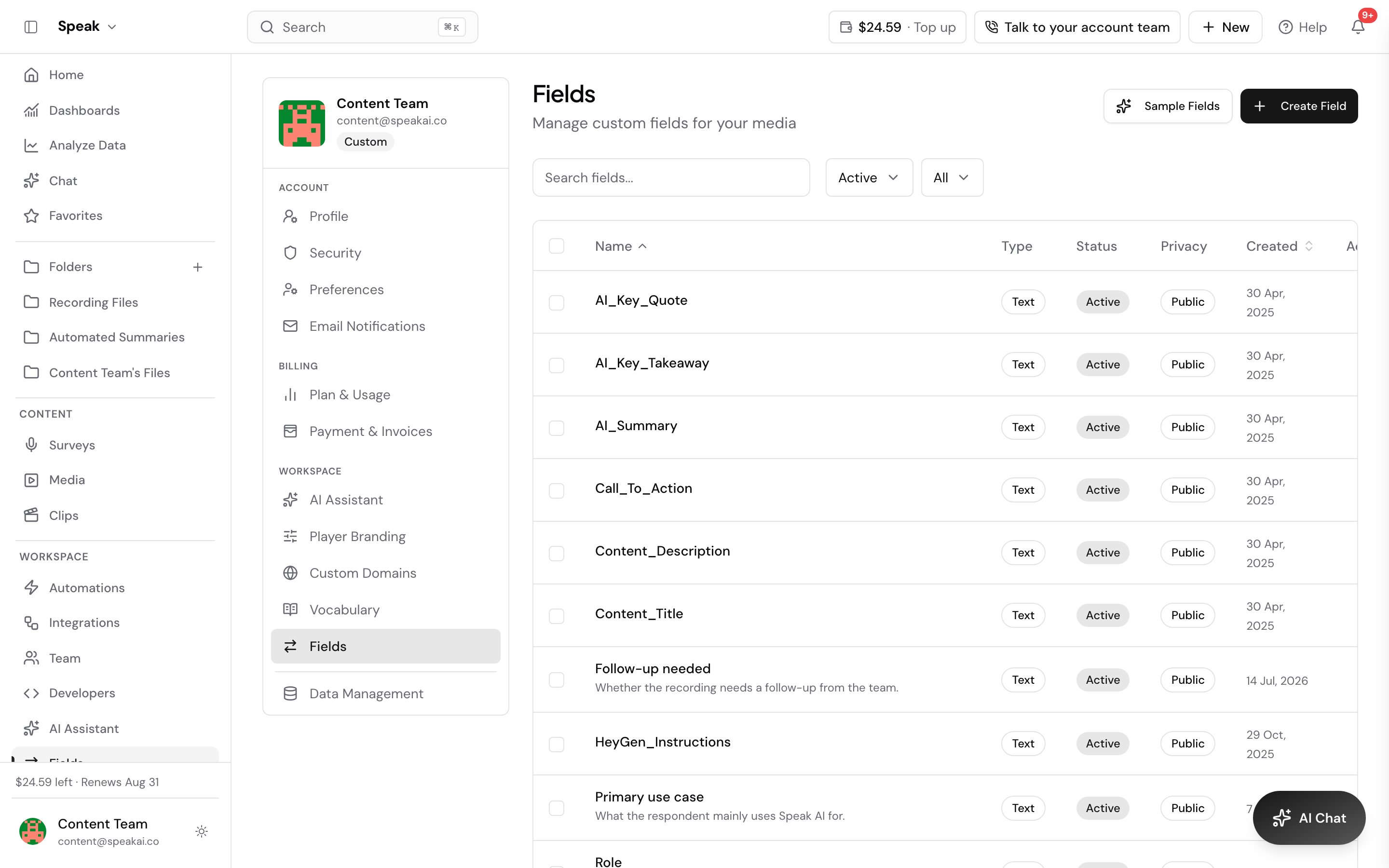
This documentation explains the recently added field properties that control how AI extracts and processes data from media content in Fields and Automations.
Overview
This article details four key field properties that enhance AI data extraction from media content within Intercom’s Fields and Automations. These properties, Prompt, Allowed Values, Other Values, and Not Applicable Values, work together to provide granular control over how the AI identifies, extracts, and standardizes information.
PROMPT
The Prompt field provides custom instructions to the AI assistant for extracting specific information from media content. It serves as the primary directive that guides the AI on what data to identify and extract from audio, video, or text content.
How It Works
When you create a field, you can define a prompt that describes what information should be extracted. This prompt is then used in automations when the field is selected for mapping. The prompt auto-populates from the field definition when you select a field in an automation, ensuring consistency across your workflows.
Important Notes
- Changes to the prompt in a field definition will NOT automatically update existing automations that use that field
- The prompt works in conjunction with other field properties (allowedValues, otherValues, notApplicableValues) to provide comprehensive extraction rules
- Prompts should be clear, specific, and describe the exact type of information you want extracted
Use Cases
- Extract specific entities: “Identify all company names mentioned in the conversation”
- Classify content: “Determine the sentiment of the speaker (positive, negative, neutral)”
- Extract structured data: “Find all dates and times mentioned in the transcript”
- Identify topics: “List all product names or services discussed”
Best Practices
- Be specific about what you want extracted rather than using vague descriptions
- Include context about the format or type of data expected
- Reference related field properties in your prompt when applicable
- Test prompts with sample content to ensure they produce desired results
ALLOWED VALUES
Allowed Values defines a list of primary or preferred values that the AI should extract from content. This field helps standardize extracted data by constraining the AI to specific predefined options.
How It Works
Allowed Values is an array of strings that represents the expected or preferred values for a field. When configured, the AI will attempt to match content against these values. The behavior depends on two key settings:
1. Selection Mode (Single vs Multiple)
- Single Mode: The AI must select only ONE value that best matches the content
- Multiple Mode: The AI can select one or more values that apply to the content
2. Other Values Setting
- When Other Values is disabled: The AI MUST ONLY use values from the allowedValues list (strict mode)
- When Other Values is enabled: The allowedValues become “preferred values” and the AI MAY include other values if they’re more accurate
Output Format
- Single Mode: Returns a single value (e.g., “value1”)
- Multiple Mode: Returns comma-separated values (e.g., “value1, value2, value3”)
Use Cases
- Standardized categories: [“Sales”, “Support”, “Marketing”, “Product”] for department classification
- Status values: [“Active”, “Pending”, “Completed”, “Cancelled”] for workflow status
- Priority levels: [“Low”, “Medium”, “High”, “Urgent”] for task prioritization
- Product types: [“Software”, “Hardware”, “Service”, “Consulting”] for product categorization
Best Practices
- Use clear, distinct values that are unlikely to overlap in meaning
- Order values by priority or frequency if applicable
- Keep the list manageable (typically 5-15 values work best)
- Use consistent naming conventions across similar fields
- Consider how values will be used in filtering, reporting, or analytics
Relationship to Other Fields
- Works with allowedValuesMode to control single vs multiple selection
- Interacts with otherValues to determine strictness of value matching
- Uses notApplicableValues as fallback when no matches are found
OTHER VALUES
The Other Values setting is a boolean flag that controls whether the AI can accept values outside the allowedValues list when extracting data from content.
How It Works
When Other Values is enabled (true):
- The allowedValues list becomes a “preferred values” list
- The AI can identify and include values not in the allowedValues list if they are more accurate or relevant
- This provides flexibility for handling unexpected or alternative terminology
- Example: If allowedValues is [“Sales”, “Support”], the AI might also extract “Customer Success” if it appears in content
When Other Values is disabled (false):
- The allowedValues list becomes strict and mandatory
- The AI MUST ONLY respond with values from the allowedValues list
- No values outside the list will be accepted
- This ensures complete data standardization
Use Cases
- Enable when you want to discover new categories or values that might appear in content
- Enable when dealing with content that may use synonyms or alternative terminology
- Disable when you need strict data standardization for compliance or reporting
- Disable when working with predefined categories that must not be expanded
Best Practices
- Enable Other Values during initial data collection to discover common values
- Disable Other Values once you’ve identified all common values and added them to allowedValues
- Consider your data quality requirements: strict standardization vs flexible discovery
- Review extracted “other” values periodically to identify candidates for the allowedValues list
Relationship to Other Fields
- Only meaningful when allowedValues is configured
- Works in conjunction with allowedValuesMode (applies to both single and multiple modes)
- When disabled, ensures strict adherence to allowedValues list
NOT APPLICABLE VALUES
The Not Applicable Values field specifies what the AI should return when no relevant values are found in the content being analyzed. This provides a consistent fallback response for cases where extraction cannot identify matching data.
How It Works
When the AI analyzes content and cannot find any values that match the allowedValues (or any relevant values if allowedValues is not set), it will return the value specified in notApplicableValues.
Default Behavior
- If notApplicableValues is not specified or empty, the system defaults to “N/A”
- The AI is instructed to return ONLY this value and nothing else when no match is found
- This ensures consistent handling of missing or non-applicable data
Use Cases
- Boolean fields: Use “false” or “No” when the condition is not met
- Text fields: Use “Unknown”, “Not Specified”, or “N/A” when information is missing
- Categorical fields: Use “Uncategorized” or “Other” when no category matches
- Date fields: Use “Not Available” when dates cannot be extracted
Common Values by Field Type
| Field Type | Common Values |
|---|---|
| Boolean fields | “false”, “No”, “N/A” |
| Text fields | “Unknown”, “Not Specified”, “N/A”, “-” |
| Categorical fields | “Uncategorized”, “Other”, “None” |
| Status fields | “Not Applicable”, “Pending”, “Unknown” |
Best Practices
- Choose a value that clearly indicates the absence of data
- Use consistent notApplicableValues across similar fields in your system
- Consider how these values will appear in reports, filters, and analytics
- Use values that are distinct from your allowedValues to avoid confusion
- Keep values concise and clear for end users
Relationship to Other Fields
- Used as fallback when allowedValues matching fails
- Works independently but complements the allowedValues system
- Important for maintaining data completeness in extraction workflows
FIELD INTERACTIONS AND WORKFLOW
These four fields work in harmony to create a comprehensive data extraction system:
- The Prompt provides the initial instruction on what to extract
- Allowed Values defines the preferred or required values to look for
- Other Values determines flexibility in accepting values outside the list
- Not Applicable Values provides a fallback when nothing matches
Example Workflow
Consider a field for “Call Type” classification:
- Prompt: “Identify the primary purpose or type of this call from the conversation”
- Allowed Values: [“Sales Call”, “Support Request”, “Product Demo”, “Follow-up”]
- Allowed Values Mode: Multiple (to allow calls with multiple purposes)
- Other Values: Enabled (to catch new call types like “Training” or “Onboarding”)
- Not Applicable Values: “Uncategorized”
In this scenario:
- The AI will look for the four listed call types in the content
- It can also identify and extract other call types if they appear
- If multiple purposes are discussed, it will return a comma-separated list
- If no call type can be determined, it will return “Uncategorized”
CONFIGURATION IN AUTOMATIONS
When creating or editing automations with AI Chat actions:
- Field Selection: When you select a field that has these properties configured, they auto-populate in the automation
- Override Capability: You can override field-level settings at the automation level for specific use cases
- Field Mapping: The extracted values are automatically mapped to the selected field in your media library
- Consistency: Using field-level prompts ensures consistency, but automation-level overrides allow flexibility
TROUBLESHOOTING
Common Issues and Solutions
Issue: AI returns values not in allowedValues list
Solution: Disable “Other Values” to enforce strict mode, or add the returned values to your allowedValues list
Issue: AI returns “N/A” too frequently
Solution: Review your prompt for clarity, check if allowedValues are too restrictive, or verify content actually contains relevant information
Issue: Multiple values returned when single mode is expected
Solution: Verify allowedValuesMode is set to “single” and that your prompt clearly indicates single value extraction
Issue: Prompt changes not reflected in existing automations
Solution: This is expected behavior - update automations manually or create new ones to use updated field prompts
SUMMARY
These four field properties provide powerful control over AI data extraction:
- Prompt: Guides what to extract
- Allowed Values: Defines preferred/required values with single or multiple selection
- Other Values: Controls flexibility in accepting values outside the list
- Not Applicable Values: Provides consistent fallback for missing data
Together, they enable precise, standardized, and flexible data extraction from your media content while maintaining data quality and consistency across your organization.
Stop manually sifting through audio, video, or text. With these settings, you can guide the AI to pinpoint specific details, classify content accurately, and ensure consistent data capture, saving you time and improving the quality of your insights.
How It Works
These four field properties work together to define how AI extracts data:
- Prompt: Your custom instructions to the AI, telling it exactly what information to look for.
- Allowed Values: A predefined list of primary or preferred values the AI should extract.
- Other Values: A setting that determines if the AI can extract values not on your predefined list.
- Not Applicable Values: A fallback response when no relevant data is found.
Getting Started
To access these features, go to Settings → Fields in your dashboard.
Prompt
The Prompt field is your direct instruction to the AI. It tells the AI precisely what data to extract from your media content.
When you create or edit a field, you can define a prompt. This prompt automatically populates when you use the field in an automation, ensuring consistency.
Important Notes:
- Changing a prompt in a field definition will NOT update existing automations that use that field.
- Prompts work with other field properties (like Allowed Values) for comprehensive extraction rules.
- Prompts should be clear, specific, and describe the exact information you want.
Use Cases:
- Extract specific entities: “Identify all company names mentioned.”
- Classify content: “Determine the sentiment of the speaker (positive, negative, neutral).”
- Extract structured data: “Find all dates and times mentioned.”
- Identify topics: “List all product names or services discussed.”
Best Practices:
- Be specific rather than vague.
- Include context about the expected format or type of data.
- Reference related field properties in your prompt.
- Test prompts with sample content.
Allowed Values
Allowed Values defines a list of primary or preferred values that the AI should extract. This helps standardize your extracted data by limiting the AI to specific options.
This is an array of strings. The AI will try to match content against these values. Its behavior depends on two settings:
1. Selection Mode:
- Single Mode: The AI selects only ONE best-matching value.
- Multiple Mode: The AI can select one or more applicable values.
2. Other Values Setting:
- When Other Values is disabled: The AI MUST ONLY use values from the Allowed Values list (strict mode).
- When Other Values is enabled: The Allowed Values become “preferred values,” and the AI MAY include other values if they are more accurate.
Output Format:
- Single Mode: Returns a single value (e.g., “value1”).
- Multiple Mode: Returns comma-separated values (e.g., “value1, value2, value3”).
Use Cases:
- Standardized categories: [“Sales”, “Support”, “Marketing”]
- Status values: [“Active”, “Pending”, “Completed”]
- Priority levels: [“Low”, “Medium”, “High”]
Best Practices:
- Use clear, distinct values.
- Order values by priority if applicable.
- Keep the list manageable (5-15 values is often ideal).
- Use consistent naming conventions.
Other Values
The Other Values setting is a toggle that controls whether the AI can accept values outside your Allowed Values list.
When Other Values is enabled (true):
- Allowed Values becomes a “preferred values” list.
- The AI can extract values not on the list if they are more accurate or relevant.
- This offers flexibility for synonyms or alternative terminology.
When Other Values is disabled (false):
- Allowed Values becomes strict and mandatory.
- The AI MUST ONLY respond with values from the list.
- This ensures complete data standardization.
Use Cases:
- Enable to discover new categories or values.
- Enable when dealing with synonyms or alternative terms.
- Disable for strict data standardization (compliance, reporting).
- Disable when working with predefined categories that must not be expanded.
Best Practices:
- Enable during initial data collection to discover common values.
- Disable once you’ve identified all common values and added them to Allowed Values.
- Consider your data quality requirements: strict standardization vs. flexible discovery.
- Review extracted “other” values periodically.
Not Applicable Values
The Not Applicable Values field specifies what the AI should return when no relevant values are found in the content. This provides a consistent fallback response.
When the AI analyzes content and cannot find any matching values (from Allowed Values or relevant data), it will return the value specified here.
Default Behavior:
- If Not Applicable Values is not specified or empty, the system defaults to “N/A”.
- The AI is instructed to return ONLY this value when no match is found.
Use Cases:
- Boolean fields: Use “false” or “No” when a condition is not met.
- Text fields: Use “Unknown”, “Not Specified”, or “N/A” when information is missing.
- Categorical fields: Use “Uncategorized” or “Other” when no category matches.
Common Values by Field Type:
| Field Type | Common Values |
|---|---|
| Boolean | “false”, “No”, “N/A” |
| Text | “Unknown”, “Not Specified”, “N/A”, “-” |
| Categorical | “Uncategorized”, “Other”, “None” |
| Status | “Not Applicable”, “Pending”, “Unknown” |
Best Practices:
- Choose a value that clearly indicates the absence of data.
- Use consistent Not Applicable Values across similar fields.
- Consider how these values will appear in reports and filters.
- Use values distinct from your Allowed Values.
Field Interactions and Workflow
These four fields work together to create a comprehensive data extraction system:
- The Prompt provides the initial instruction on what to extract.
- Allowed Values defines the preferred or required values to look for.
- Other Values determines flexibility in accepting values outside the list.
- Not Applicable Values provides a fallback when nothing matches.
Example Workflow: Call Type Classification
- Prompt: “Identify the primary purpose or type of this call from the conversation.”
- Allowed Values: [“Sales Call”, “Support Request”, “Product Demo”, “Follow-up”]
- Allowed Values Mode: Multiple (to allow calls with multiple purposes)
- Other Values: Enabled (to catch new call types like “Training” or “Onboarding”)
- Not Applicable Values: “Uncategorized”
In this scenario:
- The AI will look for the four listed call types.
- It can also identify and extract other call types if they appear.
- If multiple purposes are discussed, it will return a comma-separated list.
- If no call type can be determined, it will return “Uncategorized”.
Configuration in Automations
When creating or editing automations with AI Chat actions:
- Field Selection: When you select a field with these properties configured, they auto-populate in the automation.
- Override Capability: You can override field-level settings at the automation level for specific use cases.
- Field Mapping: The extracted values are automatically mapped to the selected field in your media library.
- Consistency: Using field-level prompts ensures consistency, but automation-level overrides allow flexibility.
Troubleshooting
Common Issues and Solutions:
- Issue: AI returns values not in the Allowed Values list.
- Solution: Disable “Other Values” to enforce strict mode, or add the returned values to your Allowed Values list.
- Issue: AI returns “N/A” too frequently.
- Solution: Review your prompt for clarity, check if Allowed Values are too restrictive, or verify content actually contains relevant information.
- Issue: Multiple values returned when single mode is expected.
- Solution: Verify Allowed Values Mode is set to “single” and that your prompt clearly indicates single value extraction.
- Issue: Prompt changes not reflected in existing automations.
- Solution: This is expected behavior. Update automations manually or create new ones to use updated field prompts.
Next Steps
Ready to get started? Here’s what to do next:
- Login to your account and navigate to Settings → Fields.
- Create a new field or edit an existing one to configure these AI properties.
- Experiment with prompts and allowed values to see how they impact data extraction.
- Integrate these fields into your automations for smooth data processing.
Need help? Contact our support team or check out our other guides.
Want a hand setting this up? Book a free consult and we’ll do it together on your account.
Related: Insights · Categories