
Press Cmd+K(Mac) or Ctrl+K (Windows) anywhere in Speak AI, or click the search icon in the top bar, to open Spotlight search. Type your term and results appear as you type. Click one to jump straight to that file, transcript section, or folder.
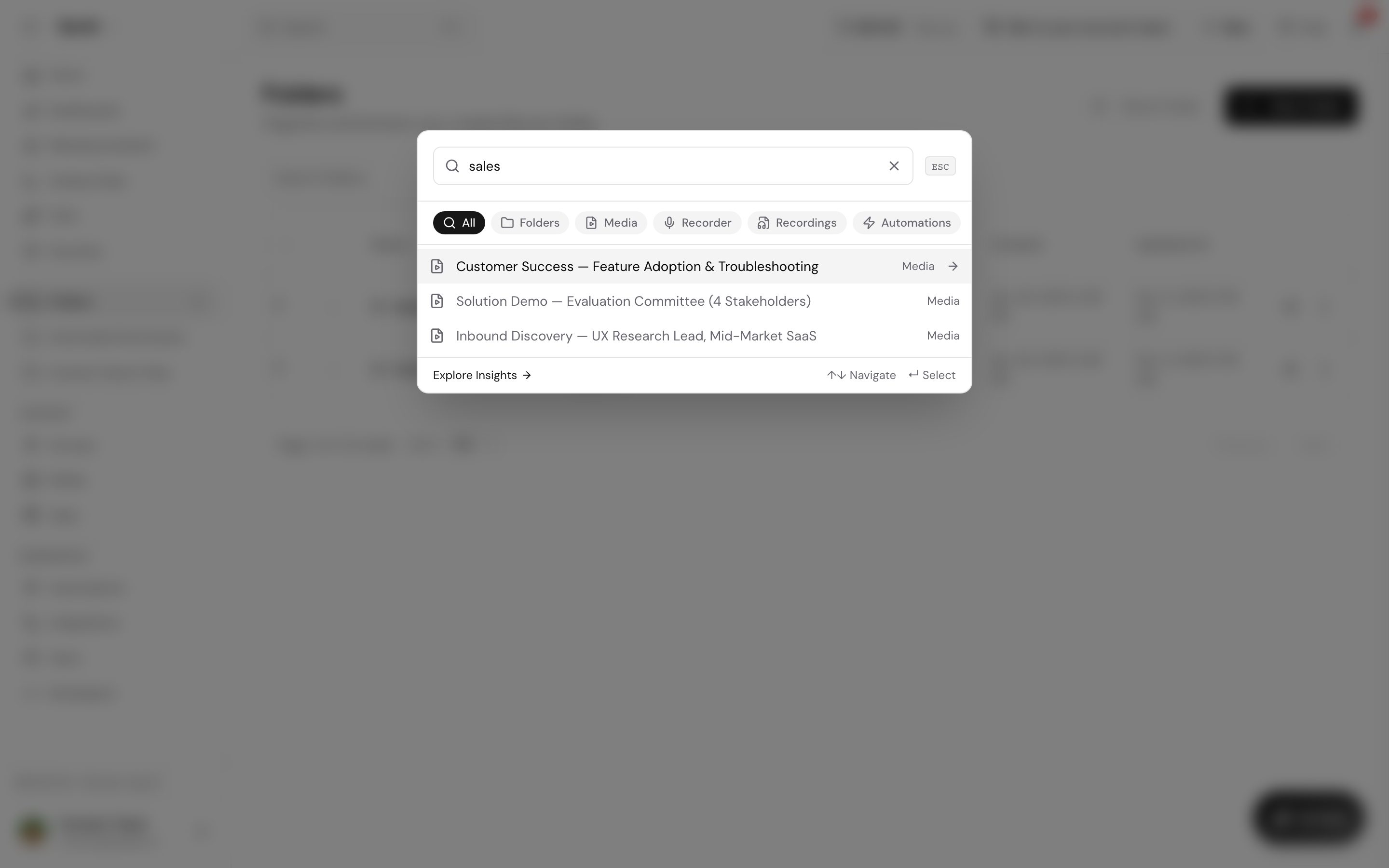
Spotlight search covers:
- Full text of all your transcripts
- Media file names and descriptions
- Folder names
- Insights and keywords
- Speaker names
Search inside one transcript
When you are viewing a media file, use the search bar above the transcript to search that file alone. Matching text is highlighted, and clicking a match jumps to that section and starts playback from there.
Narrow the file list with filters
From your media library or a folder view, filter by:
- Media type: audio, video, or text
- Date range: files from a specific period
- Speaker: files where a specific person spoke
- Sentiment: files with positive or negative sentiment
- Tags: the tags you have applied
- Folders: files inside specific folders
Search with AI Chat
For questions a keyword cannot answer, ask AI Chat at the folder level:
- “How many files are in this folder?”
- “Show files from last week”
- “Find all files tagged ‘interview’”
- “Find files where Gender is Male”, using AI fields
AI Chat can also act on what it finds: “Find all sales calls from last month and export them as PDF.”
Want a hand setting this up? Book a free consult and we’ll do it together on your account.