
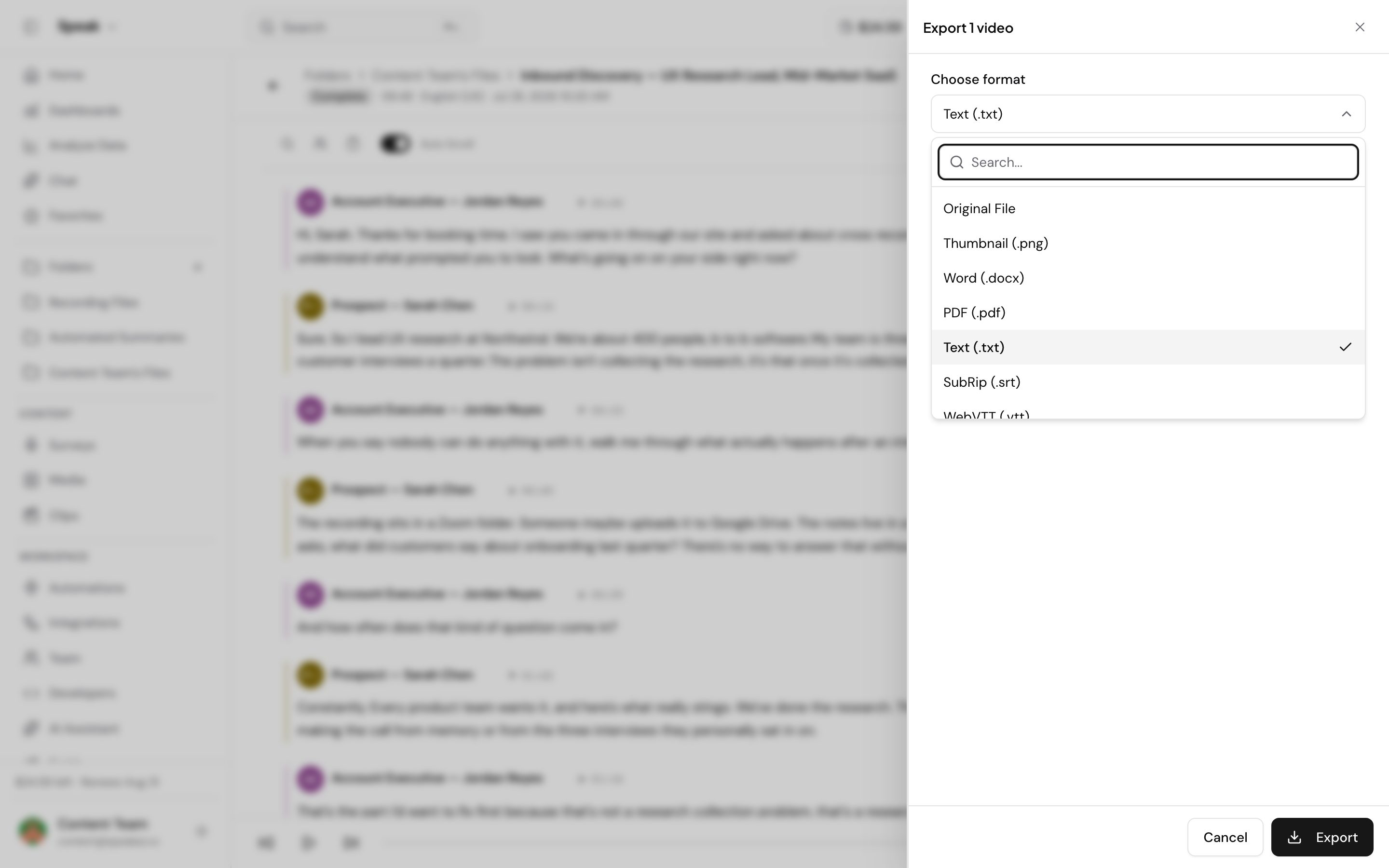
When viewing an individual file, you are able to export your media into multiple file types.
Select “Export” in the tab right of the “Sentiment” tab.
A modal will pop up that enables you to customize your export.
You can choose to export your transcripts and/or reports as:
Free File Types
- TXT
- SRT
- Original File
Premium File Types (Enabled With Premium Export Addon)
- Word Doc
- TXT
- SRT
- VTT
- CSV
- JSON
Customization Options
Additionally, you can select if you want to include:
- Speaker Names
- Timestamps
- Insight Visualizations
- Redacted Personally-Identifiable Information (PII)
Once you are happy with your selection, hit “Export”.
It may take a moment to render all the final exports.
Wait until the circle stops spinning and you will see a successful notification.
The file should start downloading through your browser immediately.
You now have your exported file.
Download Source File
If you are looking to export your audio or video file, you can select “Source File”.
If you have any problems along the way please always feel encouraged to send us a message.
Bulk Export
If you are paying for access to the “Bulk Edit” functionality within Speak, you are able to download all your files at once. Please refer to the step-by-step guide.
Visit the folder where the media files that you want to export are.
You can see all your folders by visiting this page:
Once you are in the folder, select the media files that you want to export.
You can select the files individually:
Additionally, choose to use the top square checkbox on the first left column to select all files within the page view.
Pro-tip: at the bottom of the page, you can increase the “Items per page” to 100.
Once you’ve selected all the files you want to export, you can hit “Export” in the top right corner.
A modal will pop up that enables you to customize your export.
You can choose to export your transcripts and/or reports as:
- Word Doc
- TXT
- SRT
- VTT
- CSV
- JSON
Additionally, you can select if you want to include:
- Speaker Names
- Timestamps
- Insight Visualizations
- Redacted Personally-Identifiable Information (PII)
Once you are happy with your selection, hit “Export All”.
Depending on how many files you have selected, it may take a moment to render all the final exports.
Wait until the circle stops spinning and you will see a successful notification.
The files should start downloading through your browser immediately.
You now have your exported files.
If you have any problems along the way please always feel encouraged to send us a message.
Export transcripts and reports
When viewing an individual file, you are able to export your media into multiple file types.
Select “Export” in the tab right of the “Sentiment” tab.
A modal will pop up that enables you to customize your export.
You can choose to export your transcripts and/or reports as:
Free File Types
- TXT
- SRT
- Original File
Premium File Types (Enabled With Premium Export Addon)
- Word Doc
- TXT
- SRT
- VTT
- CSV
- JSON
Customization Options
Additionally, you can select if you want to include:
- Speaker Names
- Timestamps
- Insight Visualizations
- Redacted Personally-Identifiable Information (PII)
Once you are happy with your selection, hit “Export”.
It may take a moment to render all the final exports.
Wait until the circle stops spinning and you will see a successful notification.
The file should start downloading through your browser immediately.
You now have your exported file.
Download Source File
If you are looking to export your audio or video file, you can select “Source File”.
If you have any problems along the way please always feel encouraged to send us a message.
Bulk Export
If you are paying for access to the “Bulk Edit” functionality within Speak, you are able to download all your files at once. Please refer to the step-by-step guide.
Bulk export transcripts and reports
Visit the folder where the media files that you want to export are.
You can see all your folders by visiting this page:
Once you are in the folder, select the media files that you want to export.
You can select the files individually:
Additionally, choose to use the top square checkbox on the first left column to select all files within the page view.
Pro-tip: at the bottom of the page, you can increase the “Items per page” to 100.
Once you’ve selected all the files you want to export, you can hit “Export” in the top right corner.
A modal will pop up that enables you to customize your export.
You can choose to export your transcripts and/or reports as:
- Word Doc
- TXT
- SRT
- VTT
- CSV
- JSON
Additionally, you can select if you want to include:
- Speaker Names
- Timestamps
- Insight Visualizations
- Redacted Personally-Identifiable Information (PII)
Once you are happy with your selection, hit “Export All”.
Depending on how many files you have selected, it may take a moment to render all the final exports.
Wait until the circle stops spinning and you will see a successful notification.
The files should start downloading through your browser immediately.
You now have your exported files.
If you have any problems along the way please always feel encouraged to send us a message.
Want a hand setting this up? Book a free consult and we’ll do it together on your account.
Related: Exports · Insight data