
The Speak AI Meeting Assistant joins your meetings, records them, and transcribes and analyzes them for you. You stop waiting on a host to export a recording, and your calls build a library you can search later. The assistant is included free with every plan.
Meeting platforms it works on
- Zoom
- Microsoft Teams
- Google Meet
- Webex
Join a meeting right now
Give Speak your meeting link and the assistant joins in seconds:
- From the dashboard, select Meeting in the Quick Actions panel. You can also select Capture Live Meeting on the Meeting Assistant page.
- Fill in Meeting Title and paste the URL from Google Meet, Zoom, Microsoft Teams, or Webex.
The assistant joins within seconds and starts recording, transcribing, and analyzing straight away.
Join meetings from your calendar
Connect Google Calendar or Microsoft Calendar and the assistant works from your schedule instead.
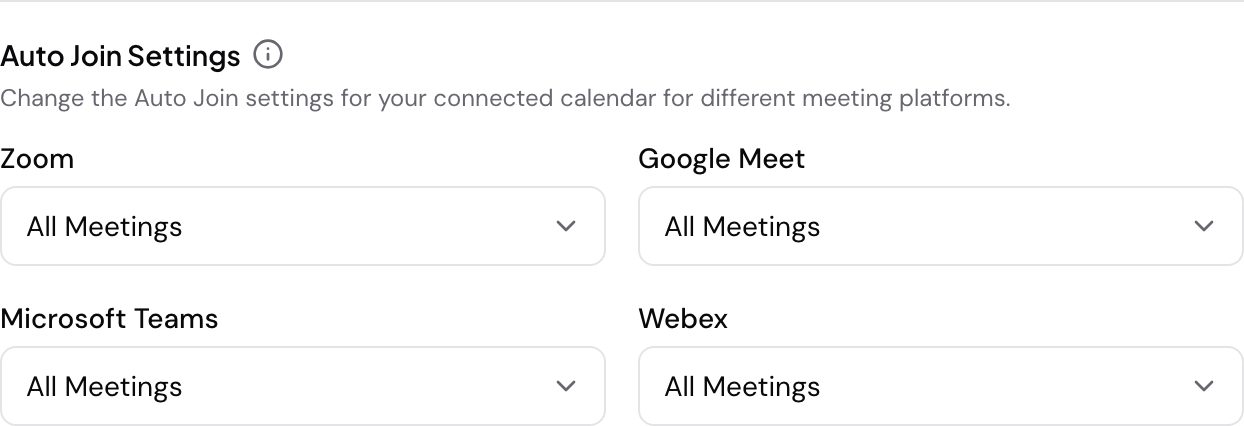
Open Assistant Preferences on the Meeting Assistant page, then Auto Join Settings. Each platform gets its own dropdown, so you can treat Zoom differently from Google Meet. Every dropdown offers the same five choices:
- All Meetings - join every calendar event with that platform’s link
- None (Manual only) - never auto-join, send the assistant yourself instead
- Only when I’m the host - join only the meetings you organize
- Only meetings where I invite the assistant - join only events you have added the assistant to
- When team members attend (not as host) - join when a teammate is on the call and you are not hosting
Filters on event title or attendee email let you skip meetings the rule would otherwise catch, and an admin can set company-wide exclusions.
Change the assistant’s name and image
You can give the assistant your own name and avatar so it matches your branding on the call. That needs the Branded Media Sharing add-on on your subscription: turn it on from the in-app pricing page, then follow customization.
Recording length
The clock starts when the assistant reaches In Call (Recording) status. A recording runs up to 4 hours, or up to 10 hours for subscribers. Speak sends you a notification at 3 hours 55 minutes so a long call does not end without warning.
When the assistant leaves on its own
The assistant leaves a call rather than sit in an empty or silent room:
| Condition | Trigger description | Timeout duration | Activation delay |
|---|---|---|---|
| Everyone left the meeting | All participants exit the meeting. | 1 second | Activates after 30 seconds of everyone leaving. |
| Waiting room timeout | The meeting stays in the waiting room without starting. | 5 minutes | None |
| No one joined the meeting | No participants join after the meeting starts. | 10 minutes | None |
| Recording permission denied | The host or the platform denies recording permission. | 30 seconds | None |
| Silence detection | Silence continues during the meeting. | 15 minutes | Activates after 20 minutes of meeting inactivity. |
| Bot detection | Only bots are on the call and nobody is speaking. | 10 minutes | Activates after 20 minutes of meeting inactivity. |
Evaluating Speak AI for a team? Book a demo and see your own recordings analyzed.
Related: Meeting Assistant · Customization