
A tag is a label you attach to a file so you can find it later. Unlike a folder, a file can carry as many tags as you want, which makes tags the right place for themes that cut across projects.
Tags are applied to a selection of files from Explore. There is no per-file tag box: the Edit panel on a single file covers its name and description only.
Tag files
- Open Explore and select the Media tab.
- Tick the checkbox next to each file you want to tag. To take everything at once, use the Select all media checkbox in the header row.
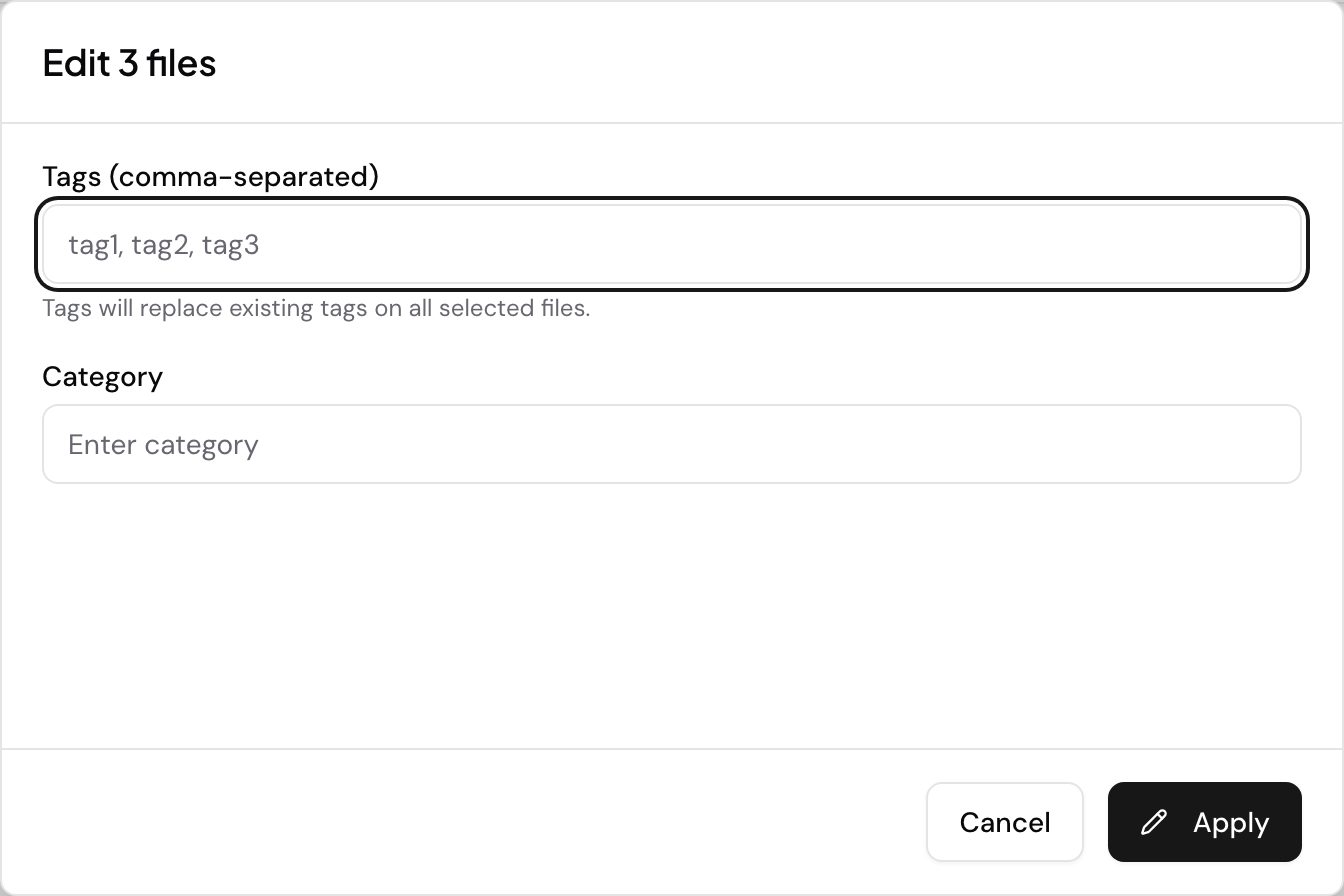
- Click Edit selected. A window titled Edit 3 files opens, counting whatever you picked.
- In Tags (comma-separated), type the tags separated by commas, for example
interview, q3, churn. - Click Apply.
Category sits in the same window and is optional. Leave a box empty to leave that value alone. If both boxes are empty, Speak AI tells you there are no changes to apply and nothing is sent.
Change or remove tags
The Tags box replaces what is already on the selected files rather than adding to it. The window says so under the box: “Tags will replace existing tags on all selected files.”
That has two consequences worth knowing before you apply anything:
- To drop one tag, retype the tags you want to keep and apply that list. The tags you leave out are gone.
- Clearing the box does not clear the tags. An empty box counts as “no change”, so the field is skipped entirely. There is no way to strip every tag from a file in one pass today.
Because tagging replaces rather than merges, select narrowly. Applying q3 to everything in a
folder overwrites the tags each of those files already carried.
Want a hand setting this up? Book a free consult and we’ll do it together on your account.
Related: Folders · Manage folders