
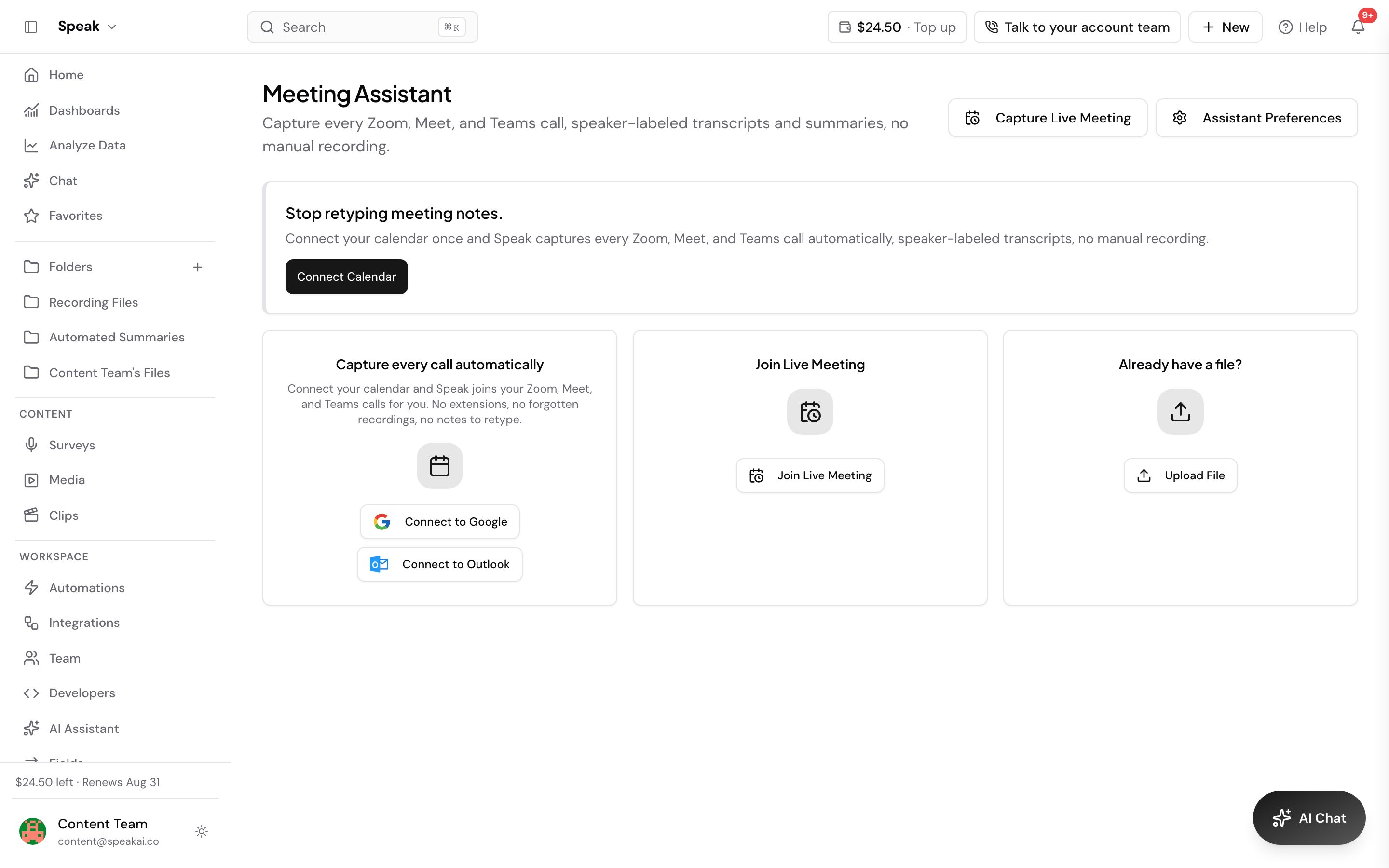
The Meeting Assistant joins your Zoom, Google Meet, Microsoft Teams, and Webex calls, records them, and delivers speaker-labeled transcripts and summaries to your library. Connect a calendar once and it handles every meeting you tell it to.
- Auto-join
- Chat messages
- Customization
- Exclusions
- Folder routing
- Google Calendar
- Meeting reminders
- Microsoft Calendar
- Recording controls
- Summaries
Supported platforms
The Meeting Assistant works with:
- Zoom- Google Meet- Microsoft Teams- Webex
Set up auto-join
Connect your calendar so the Meeting Assistant joins your calls on its own:
- Go to Meeting Assistant
- Select Connect to Google or Connect to Outlook
- Open Assistant Preferences, select the Auto Join Settings tab, and choose a rule for each platform
Auto-join options, per platform
Every platform gets its own dropdown, and each one offers the same five choices:
- All Meetings - join every calendar event with that platform’s link
- None (Manual only) - never auto-join, send the assistant yourself instead
- Only when I’m the host - join only the meetings you organize
- Only meetings where I invite the assistant - join only events you have added the assistant to
- When team members attend (not as host) - join when a teammate is on the call and you are not hosting
Filtering meetings
The Exclude Join Conditions tab keeps your own assistant out of meetings the rule would otherwise catch. It matches on:
- Meeting titles - meetings with these words in the title are not joined
- Attendees Emails - meetings with these attendees are not joined
For example, skip all events titled “Lunch” or “Personal”. Admins can also set company-wide rules under Global Settings, covered in exclusions.
Upcoming meetings
The Upcoming tab lists all events from your connected calendar for the next 7 days. This includes every calendar event, not only ones the Meeting Assistant has been confirmed for. Past events and events beyond the 7-day window are hidden automatically.
Each event row has a Record toggle that controls whether the assistant will join that specific meeting. The toggle is disabled for events that have no meeting link, the assistant can only join a call when a supported meeting URL is present in the calendar event.
Instant join, no calendar needed
You can also have the assistant join any meeting on demand:
- Select Meeting in the Quick Actions panel on the dashboard, or Capture Live Meeting on the Meeting Assistant page
- Fill in Meeting Title and paste the meeting URL
- The assistant joins within seconds
Scheduling versus recording
The Meeting Assistant records meetings that are already on your calendar. It does not book them, so it is not a replacement for a scheduling tool like Calendly. The two jobs fit together: a client books a slot with your booking tool, the event lands on your Google or Outlook calendar, and Speak AI sees it there and joins to record.
Customizing your assistant
Select Assistant Preferences on the Meeting Assistant page. The dialog has a tab for each area:
- Customize: set Assistant Name and Assistant Image, plus Recording Mode and Screen share recording. Needs the Branded Media Sharing add-on. See customization.
- Share Media Player With: control who gets the recording afterwards, with All Attendees, Host Only or Disabled
- Meeting Routing to Folder: choose where recordings are saved, with routing rules by event title. See folder routing.
- Exclude Join Conditions: keep your assistant out of meetings by title or attendee
- Live Transcription and Live Translation: follow the call as it happens
- Global Settings: company-wide rules, for admins. This is also where you set a Consent Message so the assistant posts your own wording in the meeting chat. See exclusions and chat messages.
During the meeting
- The assistant joins and begins recording automatically
- You can pause and resume recording at any time. See recording controls.
- Live transcription is available during the call once you turn it on
After the meeting
Once the meeting ends, the assistant automatically:
- Uploads the recording to your specified folder
- Transcribes the audio
- Runs AI analysis (keywords, sentiment, speakers)
- Sends email notifications based on your settings
When the assistant leaves
The assistant leaves automatically when:
- All participants leave the meeting
- It’s stuck in the waiting room for more than 5 minutes
- No participants join within 10 minutes
- Silence is detected for more than 15 minutes
- The recording reaches the maximum duration
When the assistant does not join
- Assistant didn’t join: Make sure the meeting URL is in the calendar event’s Location or Description field. Check your auto-join settings for that platform, and check that the event title does not match one of your filters.
- Stuck in waiting room: The host needs to admit the assistant. It will wait up to 5 minutes before leaving.
- Recording permission denied: On Zoom, the host must grant recording permission. The assistant will leave after 30 seconds if denied.
- Meeting requires registration: The assistant cannot join meetings that require pre-registration or sign-in.
- Only bots detected: If only bots are in the meeting for 10+ minutes, the assistant will leave to save resources.
The Meeting Assistant is included free with all plans. Custom assistant name and image needs the Branded Media Sharing add-on.
Rolling this out to a team? Book a demo and we’ll set it up on your own calls.