
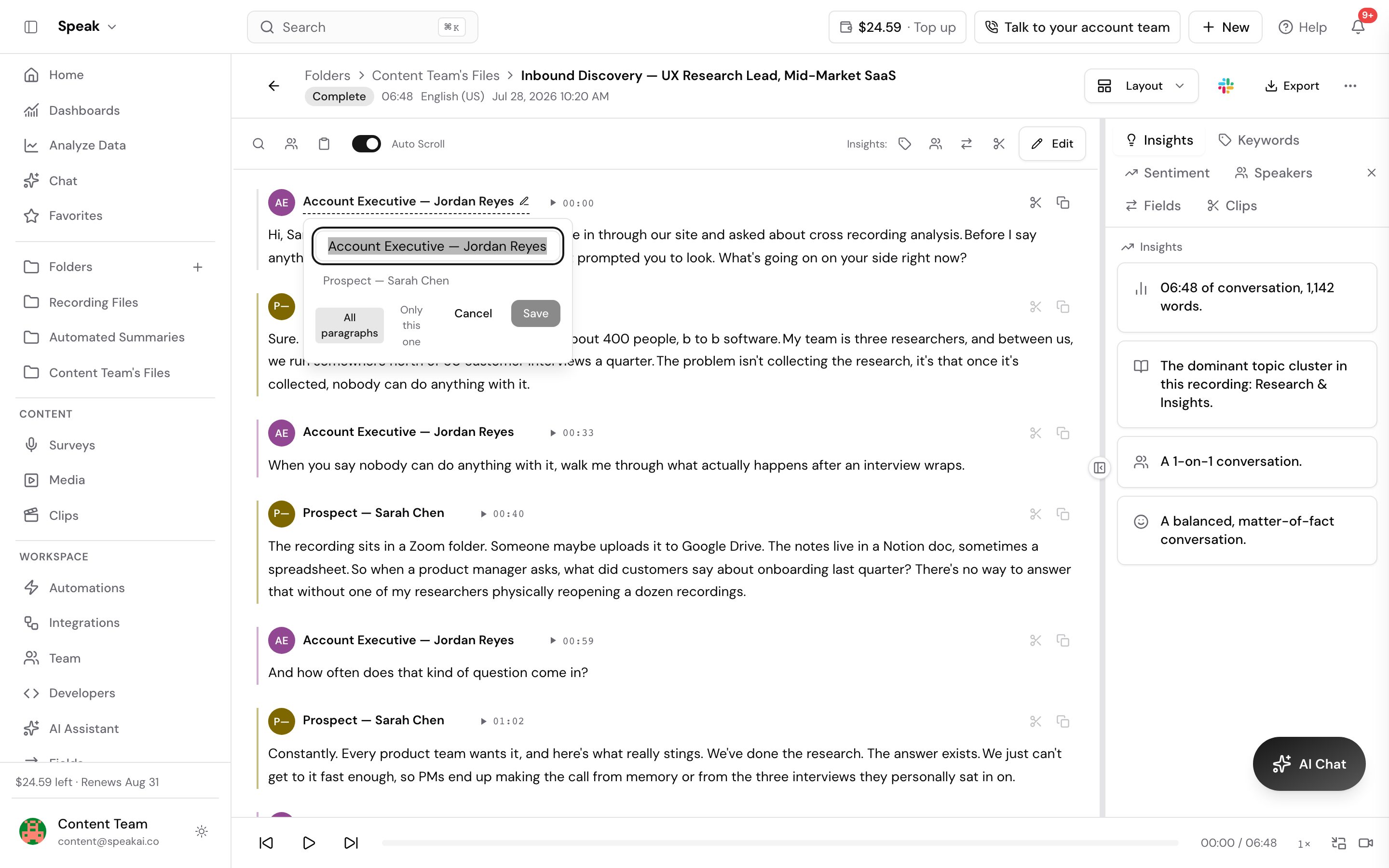
When several people talk in a recording, Speak AI separates the voices and gives each one its own labeled paragraph. How much it knows about who is speaking depends on how the recording was captured.
Meetings the Meeting Assistant joins
When the Meeting Assistant joins a Zoom, Google Meet, Teams or Webex call, it reads the participant names from the meeting itself, so each person is named from the start. With calendar sync turned on, the names from the invite are used. Nothing needs relabeling afterwards.
Recordings you upload
For a file recorded on a phone, a handheld recorder or any other device, Speak AI separates voices by their sound and gives each one a numbered label, Speaker 1, Speaker 2, and so on. It has no way to know the real names, so rename the speakers yourself once the transcript is ready.
Rename a speaker
- Open the transcribed file.
- Click any speaker label, for example “Speaker 1”.
- Type the person’s name.
- Press Enter to confirm.
The name applies to every paragraph that speaker has in the file. You can rename speakers in the read-only view and while editing the transcript, and you can work through all of them in one pass by pressing Enter after each name.
AI Chat handles the same job in plain language, which is quicker when you have several to do at once:
- “Change Speaker 1 to John Smith”
- “Rename Speaker A to Sarah and Speaker B to Mike”
- “The interviewer is Jane Doe”
Rename people early. Once the labels are real names, you can ask “What did Dr. Smith say about the treatment plan?” and get an answer scoped to that person.
Merge two labels into one
If one person was split across two labels, rename one of them to exactly match the other. Speak AI combines them into a single speaker and confirms with “Speakers merged.”
Do this from the speaker label on the transcript, which is the only place a merge is offered. Once the name you type matches another speaker exactly, the box reads Merge with that name and its button changes from Save to Merge, so you can see a merge is what you are about to do. Renaming from the Speakers panel does not merge. It refuses a name another speaker already has, with “A speaker named … already exists. Confirm the merge to combine them.”, so go to the transcript label to combine the two.
Reset the labels and start again
While editing a transcript, Reset Speakers puts every label back to its default. This is the fastest way out of a transcript where the labels are thoroughly mixed up: reset first, then relabel from a clean slate.
What makes detection accurate
Separation is most reliable when:
- Voices are distinct from each other
- People talk one at a time, with little overlap
- Background noise is low
- Each person has their own microphone, or the recorder sits in the middle of the table
In a noisy room or a conversation with heavy crosstalk, Speak AI can merge two people into one label or split one person across several. Poor audio also tends to produce more labels than there were people. Either way the fix is the same: rename them, merge two by giving them the same name, or reset and relabel.
Speaker analytics
Open a recording, then select the speakers icon in the insights toolbar to open the Speakers panel. For each person it shows:
- Their share of the talking, as a percentage
- How long they spoke, for example 3m 43s
- How many times they spoke, shown as mentions
- Their words per minute
The percentage is a share of the time anyone was speaking, not of the length of the file, so the shares add up to 100 even in a recording with long silences in it.
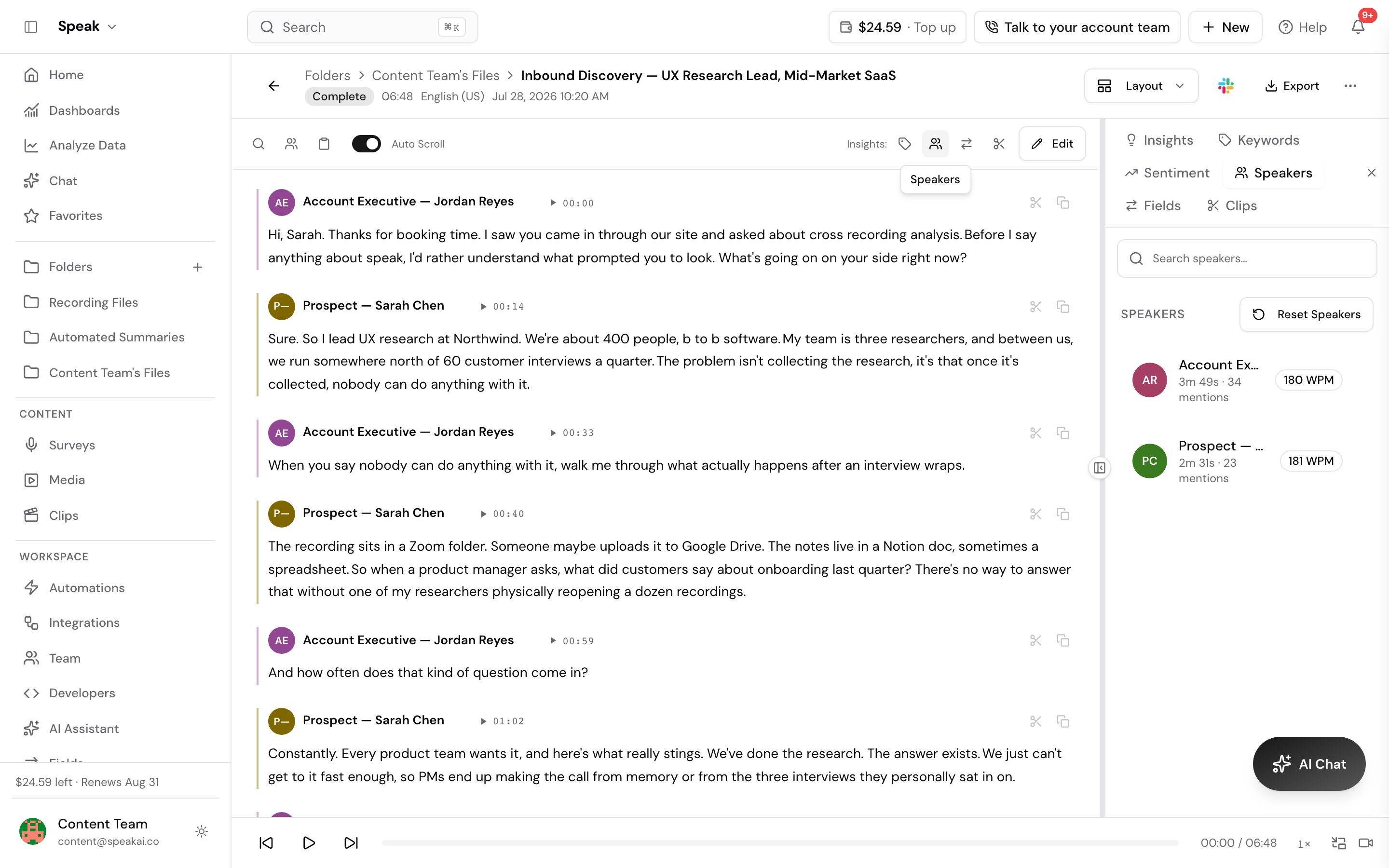
Select a speaker to step through every one of their turns. A playback bar appears with each turn marked on it, so you can move between them without scrolling the transcript. Reset Speakers clears the labels and starts detection again.
Compare how much each person talked
With two or more speakers in the file, Speaker Distribution sits above the list and draws each person’s share as a bar, longest first. A Talk-to-listen line under it splits the conversation between the person who spoke most and everyone else together, for example 62:38.
Anyone whose longest unbroken stretch of speech reaches 30 seconds also carries a badge reading that length followed by monologue, so you can see who ran long without opening the transcript. Gaps of up to three seconds do not break a stretch, because separating one sentence from the next is a normal pause rather than someone else taking a turn.
Both readings are built from the speaker labels, so correct the labels first. Two labels for one person split their share in half, and one label covering two people adds theirs together.
To compare speakers across many files at once rather than one recording, use the Explore page.
Evaluating Speak AI for a team? Book a demo and see your own recordings analyzed.
Related: Transcription · Accuracy