
One workspace for the whole team. Invite members by email or with an invite link, organize them into groups, and use permissions to control which folders each group sees and edits. Notifications keep the right people informed when recordings arrive.
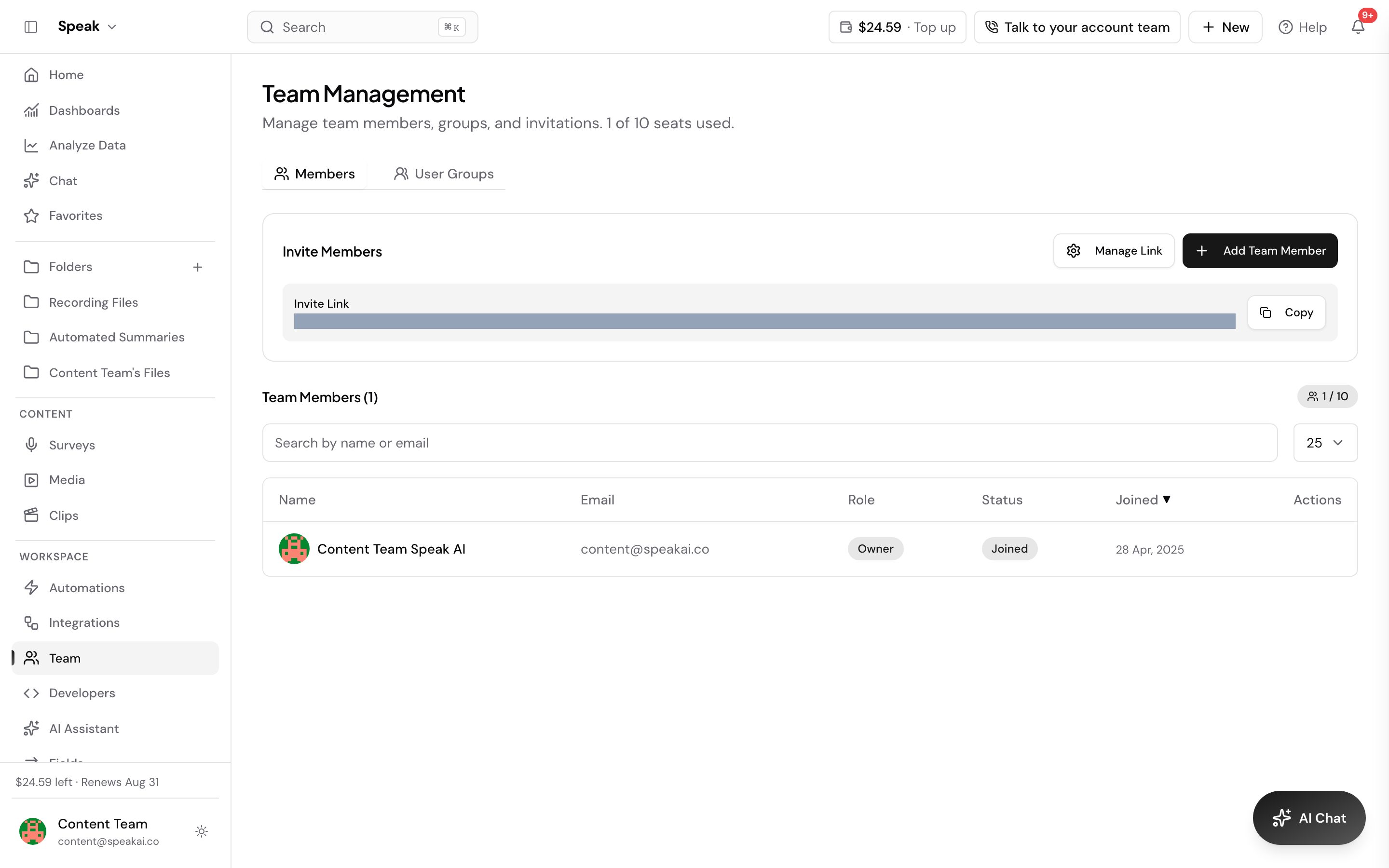
Invite team members
- Go to Team Management in the sidebar
- Click Invite Member
- Enter their email address
- Set their permissions
- Send the invitation
They’ll receive an email with a link to join your team. Once they accept, they’ll have access to shared resources based on their permissions.
Create user groups
For larger teams, you can organize members into groups with shared access:
- Go to Groups
- Click Create Group
- Name the group and add members
- Set group-level permissions
Groups are useful when different teams need access to different folders or features.
Share media and folders
Team members can share:
- Folders: Share entire folders with specific team members or groups
- Individual media: Share specific recordings
- Insights: Team-wide custom categories and analysis settings
Add seats on Pro
Pro includes 2 seats by default, and you can add more seats as needed. Each team member gets:
- Access to shared media libraries
- Team collaboration features
- Shared transcription hours and storage
- Priority support
For larger teams or enterprise needs with SSO and advanced controls, book a consultation.
Account owner controls
As the account owner, you can:
- Add or remove team members
- Change member roles and permissions
- Control who can access developer tools (API keys, webhooks)
- Manage billing and subscription settings
Only the account owner can delete the team account or manage billing.
Setting up Speak AI for a team? Book a demo and we’ll configure it together.