
The embeddable recorder collects audio and video from other people: customers, research participants, applicants. Put it on your site or share a link, ask questions alongside the recording, and every submission lands in your library transcribed and analyzed.
- Browser support
- Custom CSS
- Custom domains
- Downloads
- Embedding
- Field mapping
- Limits
- Microphone and camera permissions
- Pairing codes
- Questions
What people use it for
- Research interviews. Participants record their responses at their own pace.
- Customer feedback. Collect what customers say in their own voice.
- Surveys. Add spoken answers to a form.
- Testimonials. Gather video testimonials from customers.
- Education. Collect student presentations or language assessments.
Create a recorder
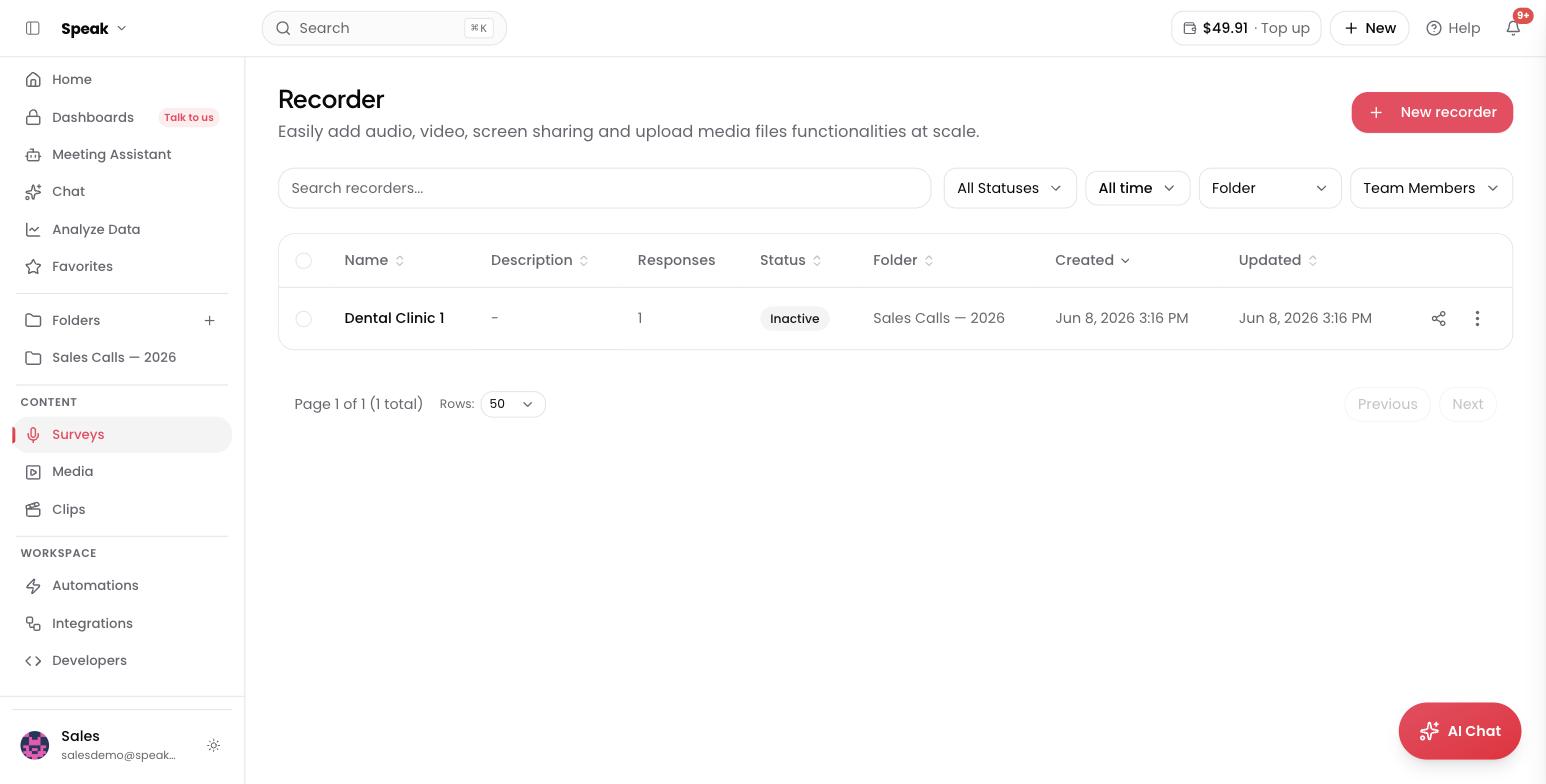
There are two ways to reach the new recorder page. Select Survey in the Quick Actions panel on the dashboard, or open Surveys in the left sidebar under Content and select New recorder in the top right.
Setup runs in four steps, and each one ends with a button that carries you to the next.
Settings
The Settings step is grouped into four sections:
- Basic Information: the recorder name and description, the language submissions are transcribed in, and the folder they are saved to.
- Recording Options: what people can submit. Toggle Audio, Video, Screen Share and File Upload on or off, and use Transcribe & Analyze to have Speak process each submission automatically. Live Transcription shows the words on screen as the person records, covered under Live transcription below.
- Duration Limits: the minimum and maximum recording length, both entered in seconds.
- Notifications: Send confirmation email to client emails the respondent, and Notify your team on every upload alerts the team members you pick under Notify team members.
Select Create & Continue at the bottom to move on.
Questions
On the Questions step you add what each respondent answers. Under Default Fields, Collect Name and Collect Email are on by default and you can turn either off.
Select Add Question to open the Add Question dialog, write the question, pick the answer type, and confirm. The question appears in the list below, where you can edit or delete it at any time. You can also set up Consent Configuration here, which asks respondents to agree before they record. Repeat for as many questions as you need, then select Continue, or Skip to move on without any.
For the answer types you can choose, and for saving answers into structured fields, see Questions and Field mapping.
Customize
On the Customize step you set Primary Color, Font Family, Theme (Light or Dark) and Logo. Branding is a Pro feature, so on lower plans these controls prompt you to upgrade. Logos must be PNG, JPG, GIF or WebP and under 2 MB. The same plan level that unlocks branding also drops the Speak footer from the bottom of the recording page, so a branded recorder carries your mark and nothing else.
For finer control over buttons, cards, inputs and players, see Custom CSS. Select Save & Continue to carry on, or Skip.
Share
The final Share step has three sub-tabs:
- Link. Send it to anyone and they record directly in their browser. A QR Code is provided here too.
- Embed. Paste it into your website, landing page or app. Choose Static (iframe) or Script (advanced), and position it Embedded (Inline), Floating Bottom-Left or Floating Bottom-Right. See Embedding for the query parameters and the fix for site builders that strip microphone permissions.
- Mobile App. Pair a phone or tablet to record on the go. See Pairing codes.
Select Finish to save, Create Another to save and start another one, or Back to List to return to your recorders.
What happens when someone records
- They open your recorder link or visit the page you embedded it on.
- They answer the questions you configured.
- They record their audio or video.
- The recording uploads to your Speak AI library.
- Speak transcribes and analyzes it.
- You get a notification when it is ready.
Live transcription
Turn Live Transcription on under Recording Options and the words appear on screen while the person is still talking, so they can see they are being captured before they commit to the take.
It runs on two of the recording types:
- Audio. The transcript follows the microphone.
- Screen Share. The transcript follows the audio of the shared screen and the microphone together, so a walkthrough, a demo or a shared call is transcribed as it plays.
A camera Video recording does not show a live transcript. It still transcribes in full once it uploads, like every other submission.
When the person stops, the transcript stays on screen next to the review and submit controls, so they can read back what they said before they send it.
Speak transcribes the live text in the language you picked under Basic Information, the same language the finished recording is transcribed in, so a recorder set to French shows French rather than falling back to English.
What you receive is always the full recording the person submitted. The live text runs alongside it so they can follow along, and it is not a second submission in your library.
To hide the live transcript while the person records but keep it on the review screen, embed the recorder with hideLiveTranscriptionRecording=true. See Embedding.
Where submissions land
Recordings arrive in the folder you chose during setup. Each submission carries the recording, the transcript, the insights and the answers to your questions.
Send new submissions to other tools
You can fire a webhook when a new recording is submitted, which lets you send the data to Airtable, Google Sheets or your CRM, notify your team on Slack, or trigger a follow-up email.
For which browsers respondents can record in, see Browser support.
Collecting recordings at scale for research or hiring? Book a demo and we’ll build a recorder for your use case.