
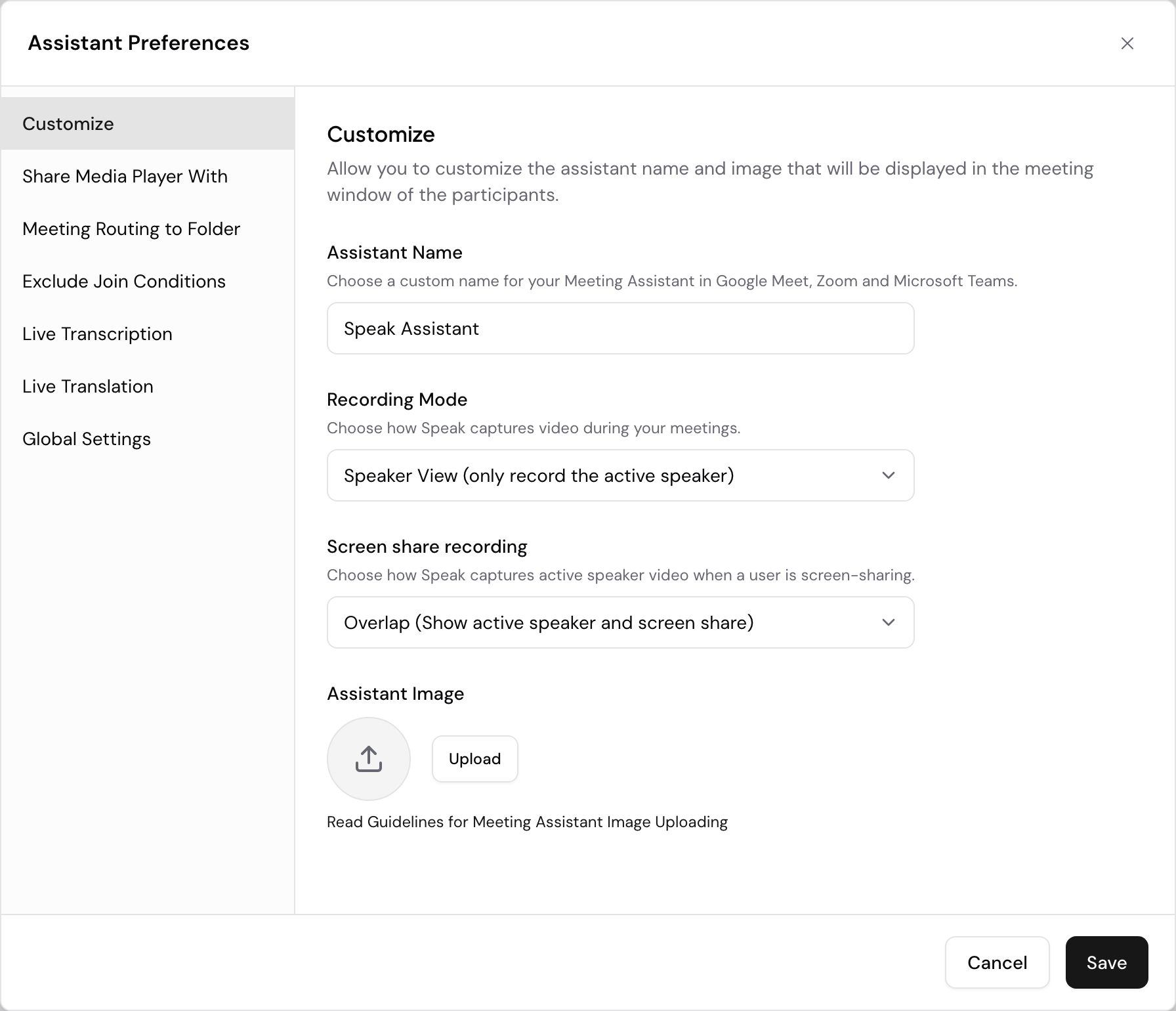
You can change the name and image the Meeting Assistant shows when it joins a call, so it appears as your brand rather than a generic bot. This needs the Branded Media Sharing add-on on your subscription. Without it the Customize tab shows a lock and its fields stay read-only.
Change the name and image
- Open the Meeting Assistant page.
- Select Assistant Preferences at the top right of the page.
- Stay on the Customize tab, the first one in the left menu.
- Enter a name in Assistant Name. It has to be at least 3 characters and at most 100.
- Under Assistant Image, select Upload and choose the image the assistant uses on calls.
- Select Save. Speak updates your assistant right away.
Choose how the assistant records
The Customize tab also controls what the recording looks like. Both settings apply to every call the assistant joins.
Recording Mode decides how Speak captures video:
- Speaker View (only record the active speaker)
- Gallery View (display speakers in a gallery view)
- Audio Only (do not record video)
Screen share recording decides what happens to the speaker’s video while someone shares their screen:
- Overlap (Show active speaker and screen share)
- Side-by-Side (Show active speaker and screen share)
- Hide (Show only screen share)
Image size and quality
Meeting platforms display the avatar as a participant tile, so treat it like a video frame:
- Format: JPEG
- Aspect ratio: 16:9, landscape
- Maximum size: 1280 x 720 pixels
- Maximum file size: 1.3 MB
- Quality: High, around JPEG quality 85 to 95
- Text: Bold, at least 50px, so it stays readable when the tile shrinks
Design at a larger resolution, for example 2560 x 1440 pixels, then downscale for a sharper result. Keep the branding simple: heavy gradients and fine detail lose their definition once the image is compressed and resized.
Keep artwork inside the safe zone
Some platforms, Google Meet among them, resize participant tiles depending on how many people are on the call. Edges get cropped. Keep your logo and any text near the center of the frame so it stays visible at every tile size.
Want a hand setting this up? Book a free consult and we’ll do it together on your account.
Related: Meeting Assistant · Auto-join