
Skip to content

Prompts

Write and save your own AI Chat prompts, then reuse them across files and folders so analysis stays consistent across the team.

Updated View as MarkdownAsk ClaudeOpen in ChatGPTllms.txt

We are enabling a feature to write your own custom AI Chat.

Step 1: Select from the dropdown

Select “Custom (Write your own prompt)” which opens up another input box to write your custom prompt.

Step 2:

Write your own prompt maximum of 100 characters. Click on Submit to generate the response for your prompt.

AI Chat Prompts Guide


📄 Individual File Level

These prompts work when you’re chatting with a single media file.

Create Clips

Cut specific portions of your recording as new clips.

What you want Example prompt
Create a clip by time “Create a clip from 0:30 to 1:45”
Clip a specific range “Cut the section between 2 minutes and 5 minutes”
Quick clip “Make a 30-second clip starting at 1:00”

Edit Speaker Names

Update the who-said-what in your transcript.

What you want Example prompt
Rename a speaker “Change Speaker 1 to John Smith”
Update multiple speakers “Rename Speaker A to Sarah and Speaker B to Mike”
Fix speaker names “The interviewer is Jane Doe”

Edit Transcription

Find and replace words or phrases in your transcript.

What you want Example prompt
Replace a word “Replace ‘gonna’ with ‘going to’”
Fix a name “Change ‘Jon’ to ‘John’ throughout”
Remove filler words “Remove all instances of ‘um’”
Correct terminology “Replace ‘product X’ with ‘ProductName Pro’”

Export Transcript

Download your transcript as a document.

What you want Example prompt
Export as PDF “Export this transcript as PDF”
Export as Word “Download as a Word document”
Export as text “Export as TXT file”
Custom options “Export as PDF without timestamps”

Tip: The AI will ask if you want to include speaker names and timestamps before exporting.


📂 Folder Level

These prompts work when you’re chatting at the folder level (with multiple files).

Search Files

Find files based on various criteria.

What you want Example prompt
Count files “How many files are in this folder?”
Find by date “Show files from last week”
Find by date range “Find files from November”
Find by tags “Show all files tagged ‘interview’”
Find by custom field “Find files where Gender is Male”
Combined search “Files from last month tagged ‘sales’”

Generate Charts

Visualize your data with charts.

What you want Example prompt
Pie chart “Create a pie chart of gender distribution”
Bar chart “Show a bar chart of files by category”
Doughnut chart “Generate a doughnut chart of interview types”

Note: Charts work best when your files have custom fields set up (like Gender, Category, etc.)

Export Multiple Files

Export several transcripts at once as a single merged document.

What you want Example prompt
Export folder “Export all files as PDF”
Export by date “Export files from last week as Word”
Export by tag “Export files tagged ‘interview’ as PDF”
Export search results “Find sales calls and export them as DOCX”

Combine Actions

You can chain multiple requests together:

  • “Show the gender breakdown and create a pie chart”
  • “Find all interviews from last month and export as PDF”

Be Specific

The more specific you are, the better results you’ll get:

  • ✅ “Create a clip from 1:30 to 2:45”
  • ❌ “Make a clip of the important part”

Ask Follow-up Questions

The AI remembers context, so you can have a conversation:

  1. “How many files are tagged ‘interview’?”
  2. “Export those as PDF”

Analyze Meeting Insights

By using AI prompts, you can transform raw meeting data into structured information that drives productivity and ensures nothing important is missed.

How It Works

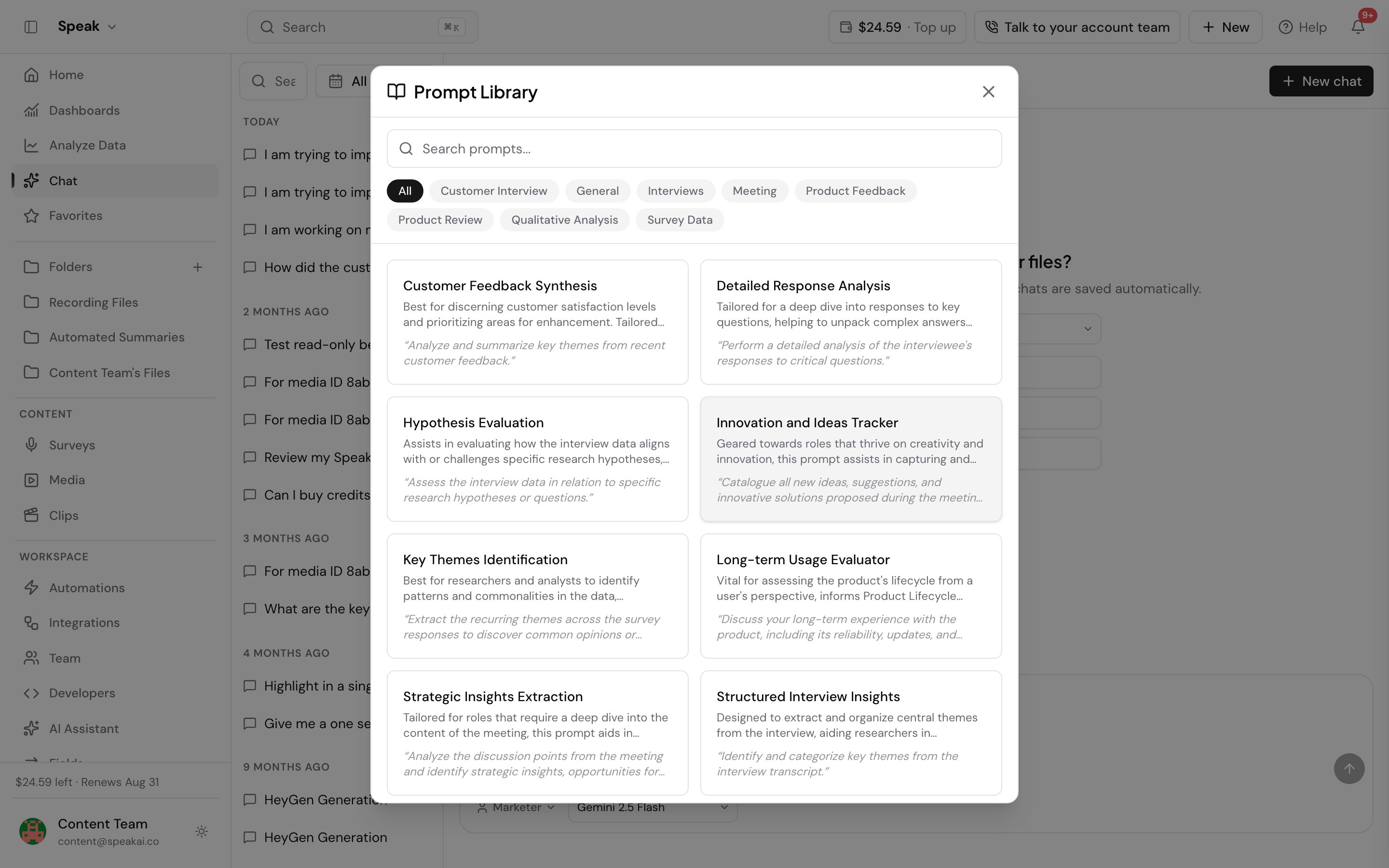
You can use pre-built prompts from the “Assistant Template” library or create your own custom prompts to analyze your processed audio or video recordings. The AI will then process your request and provide structured results based on the meeting content.

Getting Started

To access this feature, go to Profile > Account Preferences > Assistant Template in your dashboard.

Create your own template for better results as it will provide context to AI

Use Cases

Here are some effective strategies for using prompts to analyze your meetings:

  • Summarization: “Write a 3-sentence summary of this meeting.”
  • Action Items: “List all action terms, who is responsible, and the deadline.”
  • Sentiment: “What was the client’s biggest concern based on their tone and words?”
  • Decisions: “List all final decisions made in this call.”

Pro Tips

Chain prompts to get more detailed insights. For example, ask for a summary first, and then ask follow-up questions based on that summary for more effective analysis.

Troubleshooting

If the AI responds with “Answer not found,” it means the specific topic might not have been discussed in the meeting. Try rephrasing your prompt to be broader or more general.

Next Steps

Ready to get started? Here’s what to do next:

  • Login to your account and navigate to the Assistant Templates in Profile Account Preferences
  • Try it out with a simple test case using one of the suggested prompts.
  • Explore the options to see how you can tailor prompts to your specific needs.

Create custom AI Chat prompts

We are enabling a feature to write your own custom AI Chat.

Step 1: Select from the dropdown

Select “Custom (Write your own prompt)” which opens up another input box to write your custom prompt.

Step 2:

Write your own prompt maximum of 100 characters. Click on Submit to generate the response for your prompt.

Watch the video tutorial here:

AI Chat prompts guide

AI Chat Prompts Guide


📄 Individual File Level

These prompts work when you’re chatting with a single media file.

Create Clips

Cut specific portions of your recording as new clips.

What you want Example prompt
Create a clip by time “Create a clip from 0:30 to 1:45”
Clip a specific range “Cut the section between 2 minutes and 5 minutes”
Quick clip “Make a 30-second clip starting at 1:00”

Edit Speaker Names

Update the who-said-what in your transcript.

What you want Example prompt
Rename a speaker “Change Speaker 1 to John Smith”
Update multiple speakers “Rename Speaker A to Sarah and Speaker B to Mike”
Fix speaker names “The interviewer is Jane Doe”

Edit Transcription

Find and replace words or phrases in your transcript.

What you want Example prompt
Replace a word “Replace ‘gonna’ with ‘going to’”
Fix a name “Change ‘Jon’ to ‘John’ throughout”
Remove filler words “Remove all instances of ‘um’”
Correct terminology “Replace ‘product X’ with ‘ProductName Pro’”

Export Transcript

Download your transcript as a document.

What you want Example prompt
Export as PDF “Export this transcript as PDF”
Export as Word “Download as a Word document”
Export as text “Export as TXT file”
Custom options “Export as PDF without timestamps”

Tip: The AI will ask if you want to include speaker names and timestamps before exporting.


📂 Folder Level

These prompts work when you’re chatting at the folder level (with multiple files).

Search Files

Find files based on various criteria.

What you want Example prompt
Count files “How many files are in this folder?”
Find by date “Show files from last week”
Find by date range “Find files from November”
Find by tags “Show all files tagged ‘interview’”
Find by custom field “Find files where Gender is Male”
Combined search “Files from last month tagged ‘sales’”

Generate Charts

Visualize your data with charts.

What you want Example prompt
Pie chart “Create a pie chart of gender distribution”
Bar chart “Show a bar chart of files by category”
Doughnut chart “Generate a doughnut chart of interview types”

Note: Charts work best when your files have custom fields set up (like Gender, Category, etc.)

Export Multiple Files

Export several transcripts at once as a single merged document.

What you want Example prompt
Export folder “Export all files as PDF”
Export by date “Export files from last week as Word”
Export by tag “Export files tagged ‘interview’ as PDF”
Export search results “Find sales calls and export them as DOCX”

💡 Pro Tips

Combine Actions

You can chain multiple requests together:

  • “Show the gender breakdown and create a pie chart”
  • “Find all interviews from last month and export as PDF”

Be Specific

The more specific you are, the better results you’ll get:

  • ✅ “Create a clip from 1:30 to 2:45”
  • ❌ “Make a clip of the important part”

Ask Follow-up Questions

The AI remembers context, so you can have a conversation:

  1. “How many files are tagged ‘interview’?”
  2. “Export those as PDF”

Using AI Chat to analyze meeting recordings

Analyze Meeting Insights

Overview

Unlock the full potential of your meeting recordings by using specific prompts to extract valuable, actionable insights. This feature helps you quickly identify key takeaways, decisions, and next steps without having to re-watch entire recordings.

By using AI prompts, you can transform raw meeting data into structured information that drives productivity and ensures nothing important is missed.

How It Works

You can use pre-built prompts from the “Assistant Template” library or create your own custom prompts to analyze your processed audio or video recordings. The AI will then process your request and provide structured results based on the meeting content.

Getting Started

To access this feature, go to Profile > Account Preferences > Assistant Template in your dashboard.

Create your own template for better results as it will provide context to AI

Use Cases

Here are some effective strategies for using prompts to analyze your meetings:

  • Summarization: “Write a 3-sentence summary of this meeting.”
  • Action Items: “List all action terms, who is responsible, and the deadline.”
  • Sentiment: “What was the client’s biggest concern based on their tone and words?”
  • Decisions: “List all final decisions made in this call.”

Pro Tips

Chain prompts to get more detailed insights. For example, ask for a summary first, and then ask follow-up questions based on that summary for more effective analysis.

Troubleshooting

If the AI responds with “Answer not found,” it means the specific topic might not have been discussed in the meeting. Try rephrasing your prompt to be broader or more general.

Next Steps

Ready to get started? Here’s what to do next:

  • Login to your account and navigate to the Assistant Templates in Profile Account Preferences
  • Try it out with a simple test case using one of the suggested prompts.
  • Explore the options to see how you can tailor prompts to your specific needs.

Analyzing book text and character development

Analyze Book Text for Characters

Overview

Unlock deeper insights into your book’s narrative by analyzing character development. This feature helps you understand how your characters evolve throughout the story, from their initial introduction to their final arc.

By using advanced AI, you can automatically identify key characters, track their emotional journey, and even gain a clearer picture of their personality based on their dialogue. This allows for a more nuanced and data-driven approach to character analysis.

How It Works

You can upload your book text or individual chapters. The system then uses Named Entity Recognition (NER) to identify characters and Sentiment Analysis to gauge their emotional state across the narrative.

Getting Started

To access this feature, go to Dashboard → Upload in your dashboard.

Analysis Steps

Follow these steps to analyze your book’s characters:

  • Entity Extraction: Navigate to “Explore” → “People”. Here you can see which characters appear most frequently, helping you distinguish between Main and Side characters.
  • Sentiment Arc: Filter the analysis by “Character Name” to view the sentiment of sentences that mention them. Observe if their sentiment shifts from Negative (indicating conflict) to Positive (indicating resolution).
  • AI Chat: Ask specific questions like: “Describe the personality traits of [Character Name] based on their dialogue.”
  • Named Entity Recognition
  • Sentiment Graphs

Pro Tips

  • Use the “Word Cloud” feature for a specific character to quickly identify their most common vocabulary or recurring themes.

Troubleshooting

  • File Size: If your book is 500+ pages, it’s recommended to upload it in chapters to avoid potential token limits.

Next Steps

Ready to get started? Here’s what to do next:

  • Login to your account and navigate to Explore → People
  • Upload your book text or chapters to begin analysis
  • Explore the character insights to understand their arcs and traits

Need help? Contact our support team or check out our other guides.

Need help? Contact our support team or check out our other guides.

Need help? Contact our support team or check out our other guides.

Overview

Unlock deeper insights into your book’s narrative by analyzing character development. This feature helps you understand how your characters evolve throughout the story, from their initial introduction to their final arc.

By using advanced AI, you can automatically identify key characters, track their emotional journey, and even gain a clearer picture of their personality based on their dialogue. This allows for a more nuanced and data-driven approach to character analysis.

How It Works

You can upload your book text or individual chapters. The system then uses Named Entity Recognition (NER) to identify characters and Sentiment Analysis to gauge their emotional state across the narrative.

Getting Started

To access this feature, go to Dashboard → Upload in your dashboard.

Analysis Steps

Follow these steps to analyze your book’s characters:

  • Entity Extraction: Navigate to “Explore” → “People”. Here you can see which characters appear most frequently, helping you distinguish between Main and Side characters.
  • Sentiment Arc: Filter the analysis by “Character Name” to view the sentiment of sentences that mention them. Observe if their sentiment shifts from Negative (indicating conflict) to Positive (indicating resolution).
  • AI Chat: Ask specific questions like: “Describe the personality traits of [Character Name] based on their dialogue.”
  • Named Entity Recognition
  • Sentiment Graphs

Pro Tips

  • Use the “Word Cloud” feature for a specific character to quickly identify their most common vocabulary or recurring themes.

Troubleshooting

  • File Size: If your book is 500+ pages, it’s recommended to upload it in chapters to avoid potential token limits.

Next Steps

Ready to get started? Here’s what to do next:

  • Login to your account and navigate to Explore → People
  • Upload your book text or chapters to begin analysis
  • Explore the character insights to understand their arcs and traits

Need help? Contact our support team or check out our other guides.

Overview

Unlock key financial insights from your company’s earnings calls and reports with ease. This tool helps you quickly extract crucial data and understand performance trends without manual review.

Save time and gain a deeper understanding of your financial health by automating the extraction of metrics like revenue, EBITDA, and future guidance. Identify potential risks and gauge investor sentiment with just a few clicks.

How It Works

Upload your earnings call recordings or PDF reports. Then, use our intelligent prompts to pinpoint and extract specific financial data points and analyze sentiment from Q&A sessions.

Getting Started

To access this feature, go to Dashboard → Analyze Data in your dashboard.

Workflow

Follow these simple steps to analyze your financial documents:

  • Upload: Begin by uploading your quarterly presentation or relevant financial reports.
  • Prompts: Use prompts like “Create a table of all financial figures mentioned, including Revenue, Net Income, and YoY growth” to extract specific data.
  • Sentiment: Analyze the Q&A session segment to gauge investor confidence, categorizing it as Positive or Nervous.
  • Search: Filter for keywords such as “Headwinds” or “Inflation” to quickly identify potential risks discussed.
  • AI Chat
  • Named Entity Recognition

Pro Tips

  • Compare sentiment across different periods (e.g., Q1, Q2, and Q3 folders) to visualize confidence trends throughout the fiscal year.

Troubleshooting

“Hallucination”: Always verify the extracted numbers against the official SEC filing. AI can sometimes misinterpret spoken numbers (e.g., mistaking “15” for “50”).

Next Steps

Ready to get started? Here’s what to do next:

  • Login to your account and navigate to Analytics → Financial Insights
  • Try it out with a simple test case using an earnings call transcript
  • Explore the options to see how this feature fits your financial analysis workflow

Need help? Contact our support team or check out our other guides.

Overview

Save your most frequently used AI Chat prompts as templates to save time and ensure consistency. This feature allows you to quickly access and apply pre-defined prompts, streamlining your workflow and making it easier to generate consistent outputs.

By creating templates, you eliminate the need to retype complex instructions or remember specific variable formats. This is especially useful for recurring tasks like generating meeting summaries, conducting SWOT analyzes, or drafting specific types of reports.

How it works

You can create “Assistant Templates” within the AI Chat menu. These templates can include dynamic variables such as #####{{transcript}} or #####{{date}}, which will be automatically populated when the template is used.

Getting started

To access this feature, go to Account Preferences > Assistant Templates in your profile.

Step-by-step guide

  1. Navigate: Go to Account Preferences > Assistant Templates.
  2. Create new: Click New Template.
  3. Define: Give your template a name (e.g., “SWOT Analysis”) and enter your system prompt instructions.
  4. Save: Click the save button to store your template.
  5. Apply: The next time you run a prompt on a file, you can select your saved template from the list instead of typing it from scratch.
  • AI Chat
  • Meeting Assistant
  • Automations

Pro tips

  • Share your custom templates with your team to ensure everyone uses the same standardized format for tasks like meeting summaries.

Troubleshooting

Template missing: If you cannot find a template you created, check if it was saved in a different workspace (e.g., Personal vs. Team).

Want a hand setting this up? Book a free consult and we’ll do it together on your account.


Related: AI Chat · Attachments

Navigation

Type to search…

↑↓ navigate↵ selectEsc close