
Comments let your team discuss a recording where it happens. Put a comment on a passage of the transcript to ask about those exact words, or on the whole file for a note about the recording as a whole. Teammates reply in a thread, and you resolve the thread when the question is settled.
Anyone who can open a file can read its comments. To mark a passage so it can be found and counted later, use labels.
Comment on a passage
- Open a transcribed file.
- Select the words you want to comment on.
- Click Comment in the toolbar above your selection. You can also right-click the selection and choose Add comment, or press Cmd/Ctrl + Shift + M.
- Write your comment and post it.
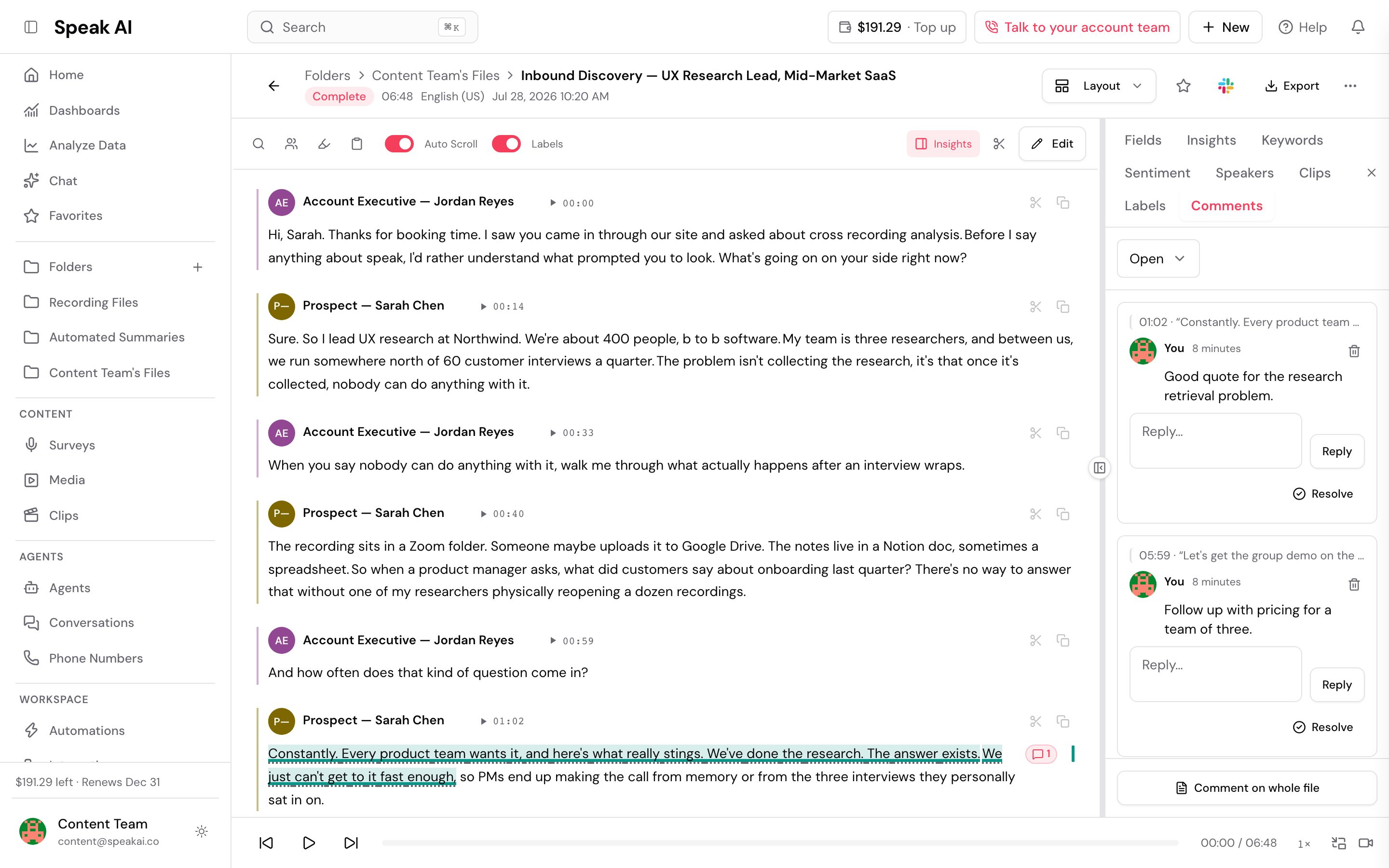
Commented words are underlined, and a comment badge in the right margin shows where the thread sits. Click either one to open the thread.
You can also link a comment to a labelled passage, so the discussion stays with the label it is about.
Comment on the whole file
Open the Comments tab in the panel to the right of the transcript and write your comment there without selecting any words. File comments are not tied to any passage, so they never need review when the transcript changes.
Reply, resolve and reopen
- Reply to add to a thread. Replies go one level deep: you reply to the thread, not to another reply.
- Resolve a thread when it is settled. Resolved threads stay in the Comments tab, so you can read them later.
- Reopen a resolved thread if the question comes back.
When someone replies to a thread you started, you get an in-app notification that opens the Comments tab. See replies to your comments.
The Comments tab lists every thread on the file. Filter it to open threads, resolved threads, or comments on the whole file.
Edit or delete a comment
You can always edit and delete your own comments. Only the author can edit a comment.
Deleting the first comment of a thread that already has replies leaves an empty placeholder in its place, so the replies still make sense.
Who can do what
Admins set comment permissions for each person in Team, in the Comments section of the permissions grid. Owners can do everything.
| Permission | Lets someone | Admins by default | Members by default |
|---|---|---|---|
| Create | Start threads and reply | Yes | Yes |
| Update | Resolve and reopen threads | Yes | Yes |
| Delete | Delete other people’s comments | Yes | No |
Reading comments needs no permission, and nobody needs a permission to edit or delete their own comments.
When you edit a transcript
Comments on a passage follow their words when the transcript is edited, the same way labels do. If the words changed too much to follow, the comment is marked as needing review and Speak AI suggests where it belongs now. Nothing is deleted. See When you edit a transcript for the details.
Comments on the transcript
Open comments are always underlined on the transcript. Click an underline to open its thread in the Comments tab. Resolved comments are not underlined; find them under Resolved in that tab.
Related: Comments on a share link · Labels · Editing · Notifications