
Folders group your recordings, transcripts, and notes by project, client, or meeting series. Each folder holds its own files, its own saved views, and its own automations, so a folder is usually the unit you set up once and reuse for every file that lands in it.
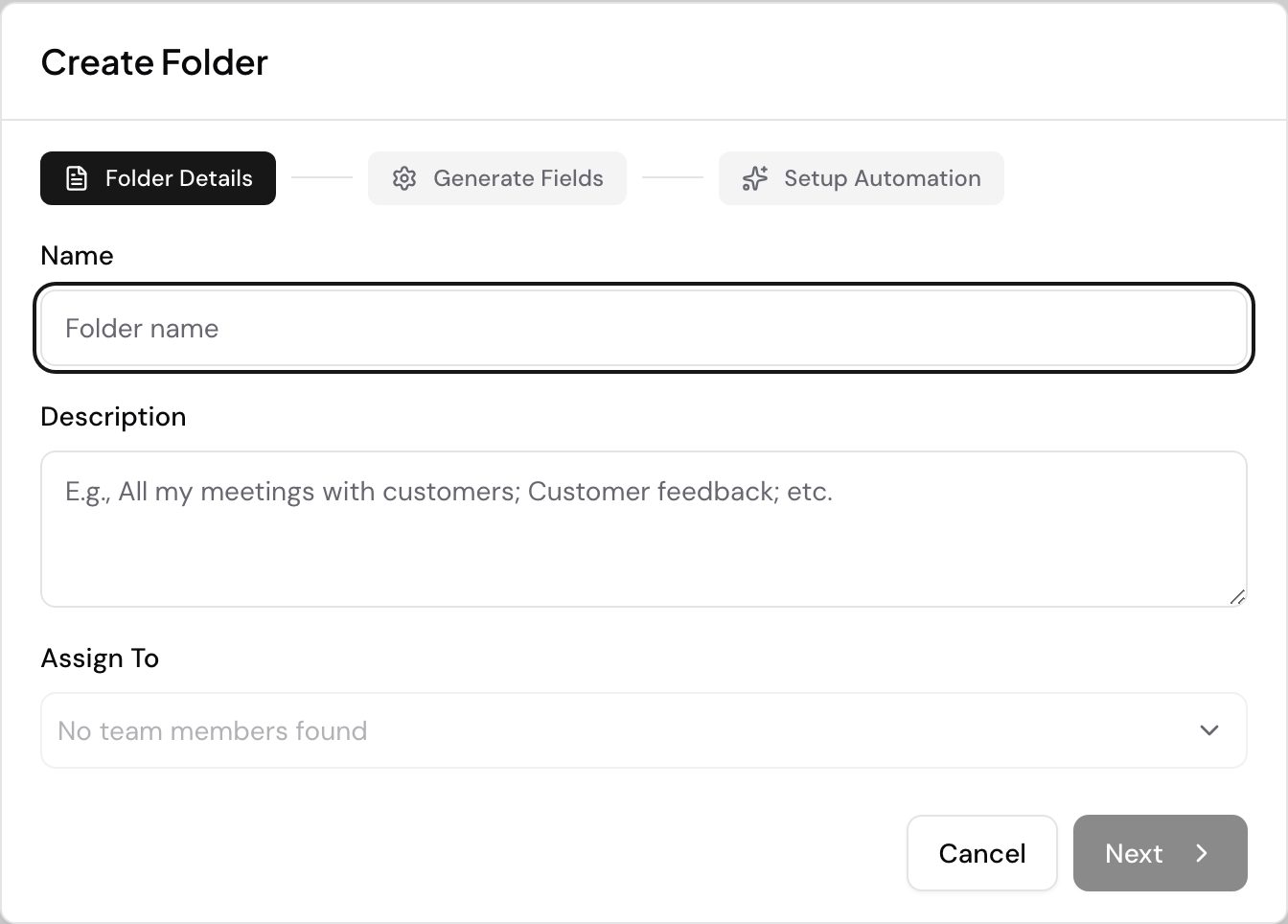
Create a folder
- Click Folders in the sidebar.
- Click New Folder in the top right.
- Name the folder and add a description.
- Pick the user groups that get access from the Assign To list.
- Click Next. Speak creates the folder. On a desktop browser the window carries on to generating fields and setting up automation.
Rename a folder or change who can see it
- Go to your folder list.
- Click the three-dot menu next to the folder name.
- Select Edit.
- Change the name, the description, or the groups in Assign To.
- Click Save.
Create and edit open the same window, so you set Assign To when you first create the folder and you change it any time afterwards. You do not have to get access right on the first try. The list holds your user groups, and the groups you pick control who can see the files inside the folder. See Groups and permissions for how that works.
Assign To shows up only on a team workspace, and only when your own permissions include assigning folders.
Choose between folders and tags
A file lives in one folder, so use folders for the thing that owns the file: one folder per research project, client, or meeting series. A file can carry many tags, so use tags for themes that cut across folders, like “urgent”, “follow-up”, or “reviewed”. You can filter and search on either.
Set up an automation per folder when you want every new file to get analyzed the moment it arrives, without anyone starting it.
Want a hand setting this up? Book a free consult and we’ll do it together on your account.
Related: Library · Saved views