
Everything Speak AI produces can leave: transcripts as PDF, Word, TXT, CSV, SRT, VTT, JSON, or HTML, insight data for your analysis tools, and word clouds for decks. Exports carry speaker labels and timestamps when you want them, and can redact names, emails, locations, brands, and dates on the way out, which is what makes them safe to circulate.
Available export formats
Documents
- PDF - Formatted document, great for sharing and printing
- DOCX (Word) - Editable document for Microsoft Word or Google Docs
- TXT - Plain text, universal compatibility
- HTML - Web-ready format for embedding on websites
Subtitles and captions
- SRT - SubRip subtitle format, widely supported by video players and YouTube
- VTT (WebVTT) - Web Video Text Tracks, used for HTML5 video captions
Data formats
- JSON - Structured data for developers and integrations
- CSV - Spreadsheet-compatible for data analysis
- Labels (CSV) - Every labelled passage, one row per label
Video editing
- Premiere Pro XML - Import transcript as markers in Adobe Premiere Pro
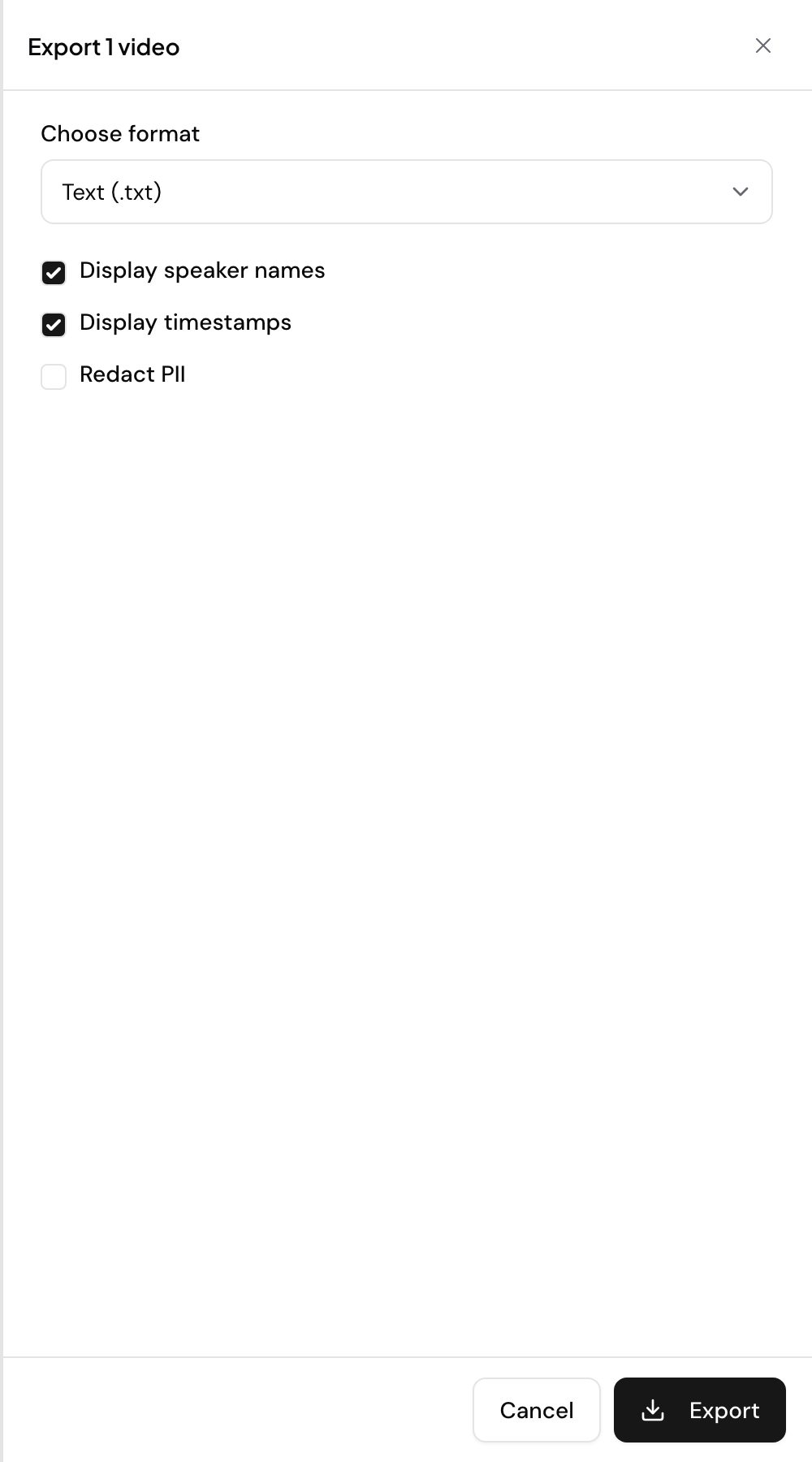
Export a single file
- Open your transcribed media file
- Click the Export button (or use AI Chat: “Export this transcript as PDF”)
- Choose your format
- Select what to include
- Download the file
Three options change what lands in the file:
- Include speaker names: Show who said what
- Include timestamps: Add time markers throughout
- Include insights: Embed keyword and sentiment visualizations
Format by format detail, and which types need the Premium Export Add-On, is on transcripts.
PII redaction
For sensitive content, you can redact personally identifiable information before exporting:
- People names - Replace with [PERSON]
- Locations - Replace with [LOCATION]
- Email addresses - Replace with [EMAIL]
- Brand/company names - Replace with [ORGANIZATION]
- Dates - Replace with [DATE]
This is especially useful for research ethics compliance, legal discovery, and data privacy requirements.
Bulk export
You can export multiple files at once:
- Go to a folder and select the files you want to export
- Click Export in the top bar
- Choose your format
- Files will be merged into a single document or downloaded as a batch
You can also export via AI Chat: “Export files from last week as PDF” or “Find all interviews and export as DOCX”.
Some export formats are available as premium features. Check your plan details at speakai.co/pricing.
Convert WebVTT to plain text
We created a tool for you to convert your Transcript in WebVTT format to Plain Text to analyze text data on Speak.
The format required to convert into Plain Text successfully is below:
WEBVTT

1
00:01:14.510 --> 00:01:17.380
Zoom 2 Curion: Hello, This is a sample Zoom file response.

2
00:01:17.510 --> 00:01:19.759
Zoom 2 Curion: Please ensure you follow the Zoom export

3
00:01:20.010 --> 00:01:21.140
Zoom 2 Curion: WebVTT format to generate the only text output.
Please ensure the format follows the same otherwise, it will break the output.
The output will look like as below:
Hello, This is a sample Zoom file response. Please ensure you follow the Zoom export WebVTT format to generate the only text output.Need a compliance-ready export workflow? Book a free consult.