
Sharing a dashboard publicly
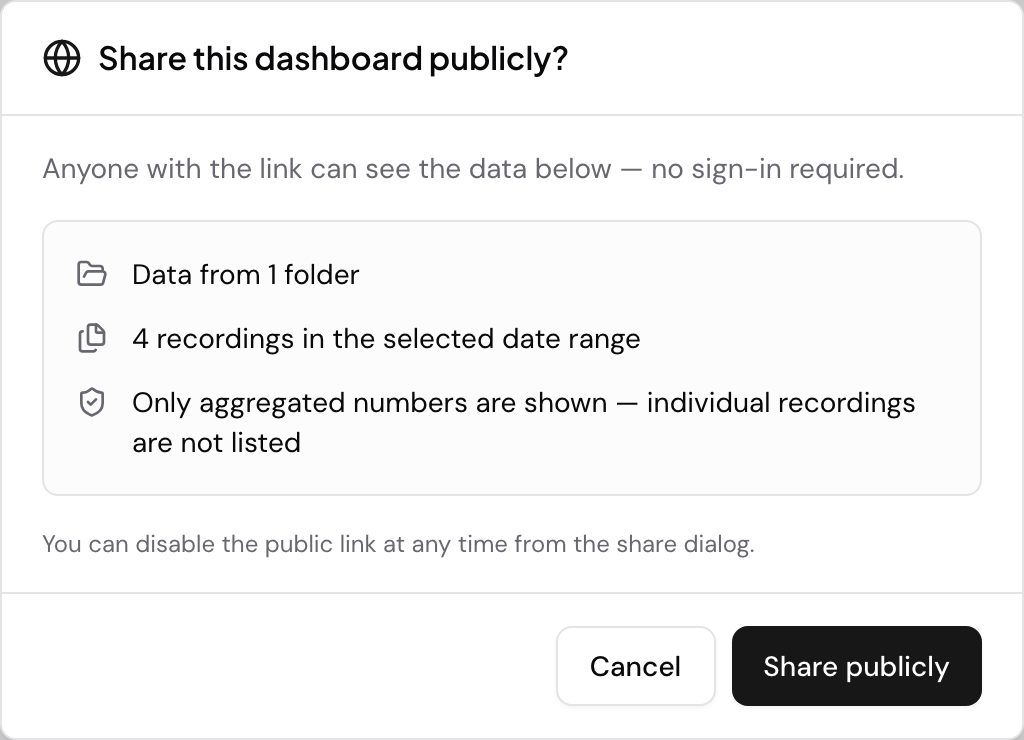
The dashboard owner, anyone with the Admin role, or a team member with company-wide folder access can generate a public link for a dashboard. The dashboard must be scoped to at least one folder before sharing is allowed.
To share a dashboard, open it and click the three-dot menu, then click Share. Speak AI creates a shareable link and opens the Share dialog.
The Share dialog
The dialog has tabs: Preferences, Statistics, and Viewers.
Statistics tab Charts the views the public link has had, broken down by date, day of week, country, region, city, device and browser. A view is counted once per viewer per six hours, so a wall screen left on the link all day counts a couple of times rather than once per refresh, and opens from the IP address that created the link are not counted at all.
Preferences tab At the top you will see a type selector and a link field. The type selector defaults to Branding(a Speak AI-branded share page). Switch to iFrame to get an embed code you can paste into a website. Copy the link or code with the clipboard button, or open the preview in a new tab with the external-link button.
Below the link field, the Require viewers to enter their email toggle enables a lead-capture gate (see below). Click Save Changes to apply any customization edits.
Brand a shared dashboard and choose what it shows
When your plan includes brand customization, the Preferences tab has three more groups of options. Click Save Changes to apply them.
- Display Options has switches for the title, description, remark notes, search engine indexing and Open recordings in Fields view.
- Insights to display shows a chip for each insight type, such as keywords or topics. Click a chip to show or hide that insight on the recordings viewers open from the link. These chips now appear on dashboard and media library shares too, not only on single media shares.
- Branding sets the Logo and the Brand Color.
Open recordings in Fields view
Open recordings in Fields view is on by default and appears only on dashboard shares. When it is on, a recording opened from the dashboard leads with its Fields, with a smaller player beside them. When it is off, the recording opens on the normal media page, with the tabs the share allows.
Branding options
The app sets the logo and the brand color. The other branding options are set through the API or the MCP server today.
| Option | Where to set it | Key in meta |
What it does |
|---|---|---|---|
| Logo | App, API and MCP | logo |
The logo shown on the shared dashboard. |
| Dark-mode logo | API and MCP only | logoDark |
The logo shown when the viewer uses dark mode. It must be an image already stored in Speak AI; a link to another site is refused. When it is empty, the logo is used. |
| Theme | API and MCP only | theme |
light or dark shows that theme to every viewer and hides their theme switch. Empty lets each viewer choose. |
| Background color | API and MCP only | backgroundColor |
A hex color, such as #0f172a, for the page background. Pair it with a theme so text stays readable. |
| Brand color | App, API and MCP | primaryColor |
A hex color for navigation, links, card chips and play buttons. |
| Title color | API and MCP only | titleColor |
A hex color for the dashboard title. It is ignored when it does not stand out enough from the background (a contrast below 3:1). |
| Font | API and MCP only | fontFamily |
A Google Fonts family name, such as Arimo: letters, digits and spaces, up to 60 characters. Empty uses your account font. |
Send an empty string for any of these keys to clear it.
Set share options through the API or MCP
A dashboard’s share link is an embed, so you change these options with the
update_embed tool or the
Update Embed endpoint, in meta:
meta.featuresholds the insight chips, one{ "name", "isActive" }entry per insight. Send the full list every time: Speak AI replaces the stored list with the one you send, so an entry you leave out is lost.- Fields view is the
fieldsFocusentry in that same list. Send{ "name": "fieldsFocus", "isActive": false }to turn it off. With no entry, or withisActiveset totrue, it stays on. isPromptAskmust betruefor the chat button on a shared dashboard to work.- The branding keys are in the table above. The MCP server cannot upload images.
Lead capture (email gate)
Toggle Require viewers to enter their email to on. Viewers who open your public link will be asked to enter their email address before the dashboard loads. The toggle saves immediately; you do not need to click Save Changes to activate it.
Optionally fill in the Consent text (optional) field with a short statement viewers must agree to (for example, “I agree to be contacted about this dashboard.”). This field also saves on blur.
To disable the gate, toggle the switch off.
Viewing who has seen your shared dashboard
Open the Viewers tab in the Share dialog. The tab is available whenever lead capture is in use. It shows the count of people who have viewed the dashboard and lists each viewer with:
- Name (if collected) and email address
- Location
- Last seen time
- Total view count
If no one has viewed the shared link yet, the panel shows “No viewers yet.” Viewers only appear here once they enter their email through the gate.
Public viewer experience
Someone who opens the public link sees the dashboard in view mode, the same data and filters as the saved dashboard, scoped to the folders and date range the owner last applied. They cannot edit the dashboard, change the filters, or see any settings. If lead capture is on, they must enter their email before the dashboard loads.
The numbers on a public link are cached, so they lag the saved dashboard a little. A widget on a date range that reaches today refreshes about every four to five minutes, and one on a range that has already closed refreshes about every fifteen. A viewer never waits on the recalculation: the last answer is served straight away while the new one is worked out behind it.
Labels and comments on a share link
Viewers of a public link can read the labels and
comments on your calls, and, if you allow it, add their own. Everything
is off until you turn it on. You set it for each dashboard in the settings of the
update_dashboard tool or the dashboards API.
| Setting | Values | What it does |
|---|---|---|
labels |
isEnabled, mode (view or apply), labelGroupIds |
Shows the Labels tab, and lets viewers label passages in apply mode. |
comments |
isEnabled, mode (view or reply) |
Shows the Comments tab, and lets viewers comment and reply in reply mode. |
Choose who viewers write as
Viewers have no Speak AI account, so every label or comment they write is saved under a name. The
names come from the dashboard’s Feedback names (feedback.submitters), the same list the Feedback
button and Edit fields use, even while Feedback itself is off. A
viewer picks one in a Who is reviewing? picker. If you turn on allowOtherSubmitter, they can
also choose Other (type a name) and type their own. Once a viewer picks a name, the page says
their labels and comments will show that name “via dashboard”.
With no names listed and other names off, nobody can label or comment. The link has no sign-in, so the name is not checked against a person: anyone who holds the link can pick any listed name. List only names you are happy for link holders to write as. Revoking the link stops every write at once.
Label a passage from a share link
With labels on and mode set to apply:
- Open a call from the dashboard and pick your name in Who is reviewing?.
- Select the words in the transcript, then click Label in the toolbar that appears.
- Search and tick one or more labels, then click Apply.
labelGroupIds decides which labels viewers can choose from: only labels in those groups. Leave it
empty to offer every active label. In view mode, viewers see labels in the Labels tab and on
the transcript but cannot add any. A viewer can remove only the labels written under their own name.
Add a comment from a share link
With comments on and mode set to reply:
- Open a call from the dashboard and pick your name in Who is reviewing?.
- Select the words you want to comment on and click Comment, or open the Comments tab and choose Comment on whole file.
- Write the comment and click Post. To answer an existing thread, click Reply.
In the Comments tab, filter by Open, Resolved or Whole file. A viewer can edit and
delete only the comments written under their own name. In view mode, comments are read-only.
What viewers can and cannot do
Viewers can read labels and comments, apply labels from the groups you chose, remove the labels written under their own name, start comment threads on a passage or the whole file, reply, and edit or delete their own comments.
Viewers cannot create, archive or merge labels, resolve or reopen comments, change or delete labels or comments written under another name, or edit the transcript. Every label and comment they add is marked via dashboard, and writes only work on dashboard links.
Filter the dashboard by label
When labels are on, the dashboard filter bar adds a Has label menu. Choose one label to narrow
every widget to calls that carry it. The choice is kept in the link as ?labelId= followed by the
label id, so you can send a filtered view to someone. Clear removes it. One label can be chosen
at a time, and it only matches labels the dashboard offers.
Notifications for labels and comments
Notifications are in-app. Each write shows up in the notifications of the dashboard owner and reads “by NAME from a shared dashboard”. When a viewer replies to a thread started by a team member, that team member is told, and the name shows as “NAME (via dashboard)”. See Notifications. To let viewers change field values too, see Edit fields on a share link.
Disabling sharing
Deleting a shared dashboard disables its public link and removes viewer access. If you want to stop sharing without deleting the dashboard, contact us.
Sharing within your team
Internal sharing is managed through the dashboard’s groups, not the public link. During creation (or via Settings in the three-dot menu) you assign the dashboard to one or more groups. Members of those groups can open the dashboard from their Dashboards list in view mode. The owner, anyone with the Admin role, and members with company-wide folder access can also edit it.
The fastest way to reach us is the live chat in the app (the chat bubble in the bottom corner). You can also email success@speakai.co.
Evaluating Speak AI for a team? Book a demo and see your own recordings analyzed.
Related: Dashboards · Widgets · Edit fields on a share link · Dashboard profiles