
Adding questions to a recorder
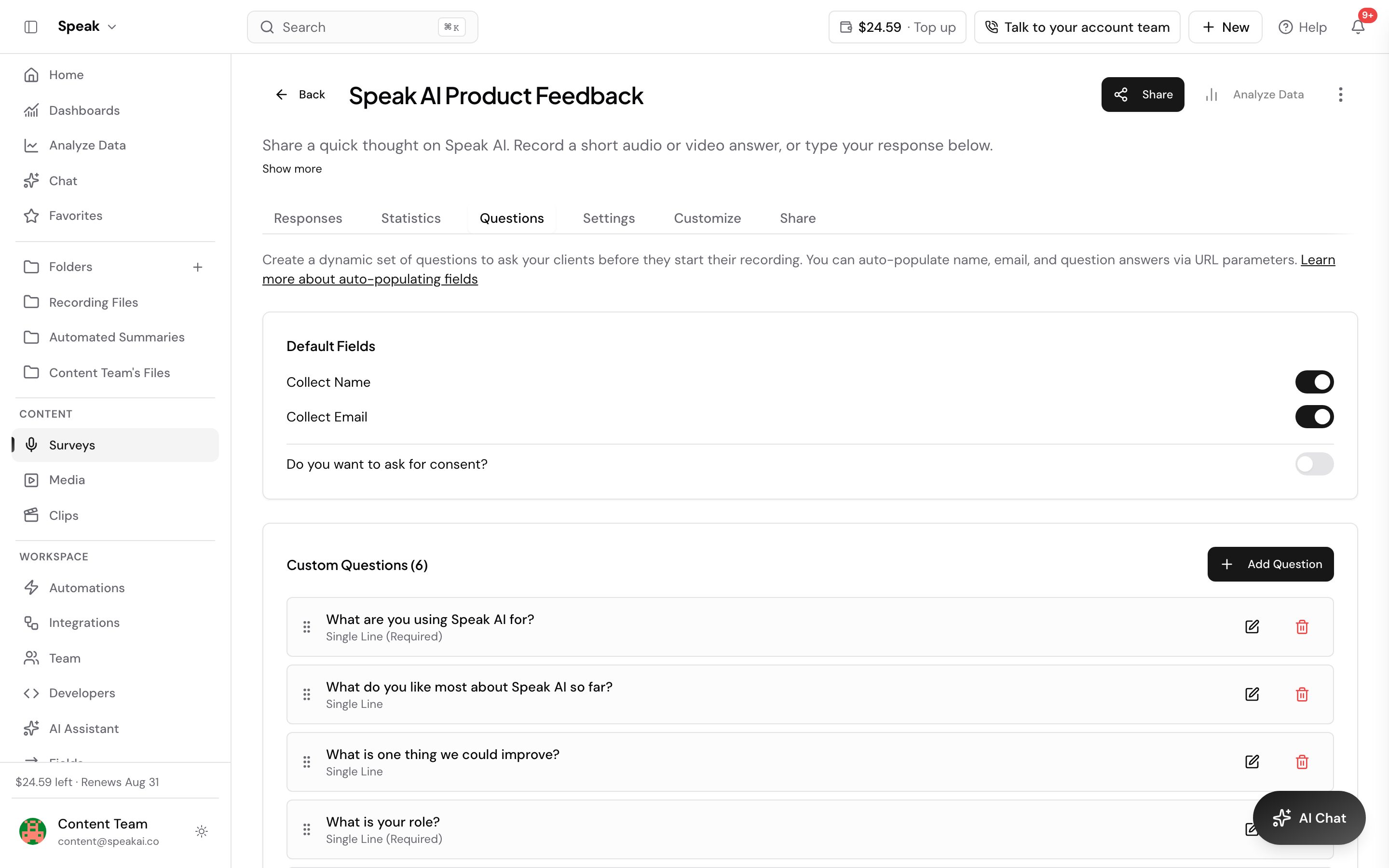 Your recorder can ask respondents questions alongside their recording. To set them up:
- Open the recorder and go to the Questions tab.
- Click Add Question.
- Enter the question text, choose an answer type, optionally map it to a field, and mark it required if needed.
- Save the question.
Available answer types
You can choose from:
- Single Line: a short text answer
- Multiple Line: a longer, free-form written answer
- Checkbox: choose more than one option
- Radio Button: choose one option
- Dropdown: choose one option from a list
- Date and Date & Time
Respondents always record their audio or video answer. These question types capture the structured details you want to collect alongside that recording.
How do you name recordings after an answer?
Speak AI can name every submitted recording from one question’s answer, so a recorder collecting broadcast segments files them under the segment name instead of the person who sent them in. Set it on the recorder’s Settings tab, under Name recordings from:
- Open the recorder and go to the Settings tab.
- Open Name recordings from and pick the question whose answer should name each recording.
- Click Save.
Every recording submitted after that is named from that answer. Default naming turns it off again and returns to naming each recording after the respondent, the file name, or the recorder and the date it arrived.
Three things worth knowing before you pick a question:
- Only one question names recordings. Choosing a second one replaces the first.
- Multiple Line questions are not offered. A paragraph makes a poor file name. Every other answer type is available.
- A blank answer falls back to the default naming, so make the question required if you want every recording named from it. Speak AI puts the answer on a single line and shortens a long one to fit.
Prefill and control the recorder from the URL
You can preselect a recording type, prefill the name, email, folder and question answers, let the respondent download their recording, or send them somewhere after they submit. Add the values as query parameters on the recorder link:
https://recorder.speakai.co/your-custom-url?preselect=audio&name=John%20DoeSomeone arriving with their answers already filled skips the questionnaire and goes straight to recording. The full parameter list, with types and defaults, is in Embedding and iframe controls.
If there is something else you want to collect, message us on live chat in the app and we will look at whether it can be added.
Want a hand setting this up? Book a free consult and we’ll do it together on your account.
Related: Embeddable recorder · Browser support