
Overview group
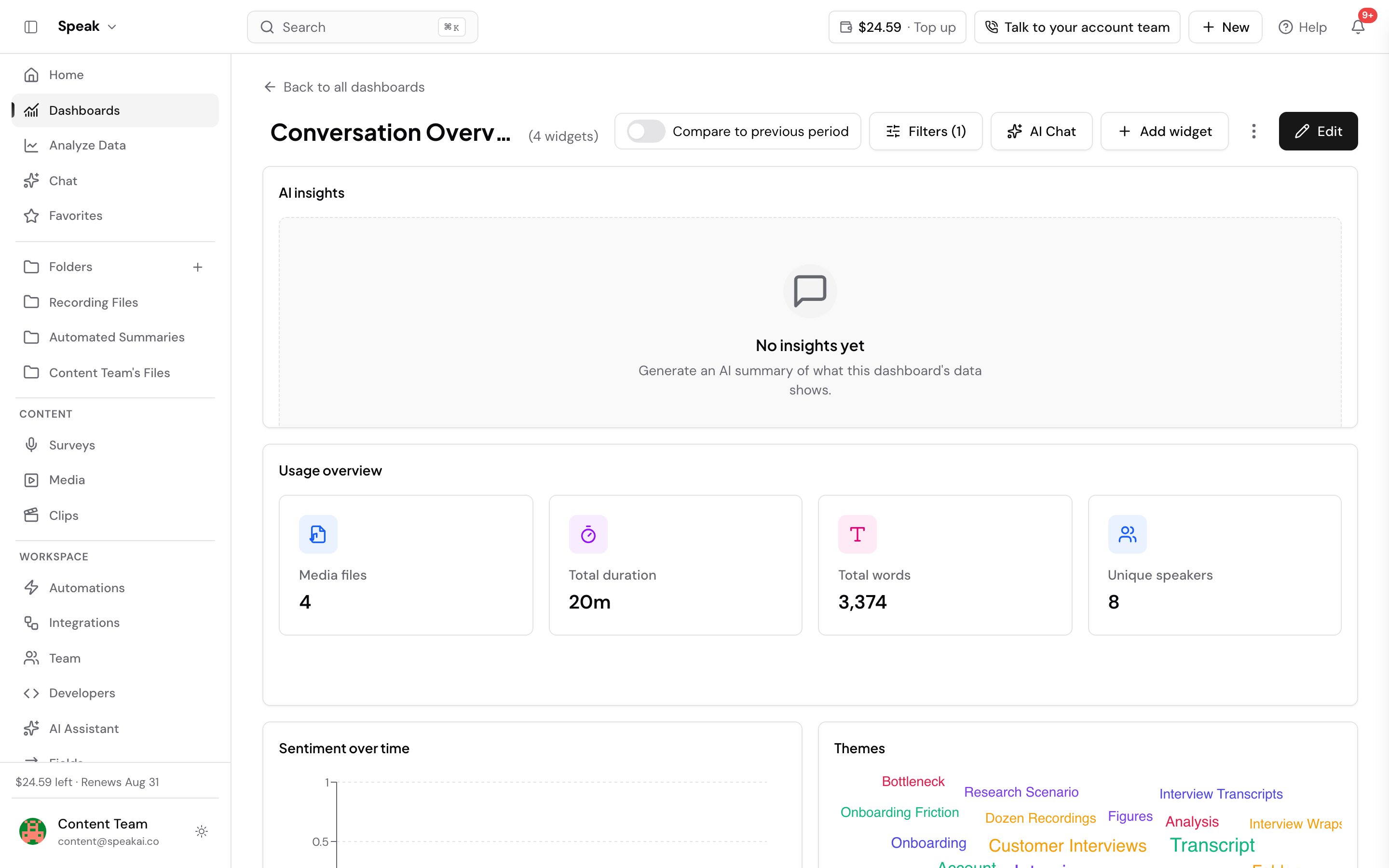
Usage overview A row of summary cards showing key totals across your media: files, words, speakers, and duration. You can choose which cards appear and reorder them in Widget settings under Metrics. Supports CSV export.
Total files (KPI trend card)
A compact card that shows a single metric (for example, total files, total words, or total duration) with a trend line. In Widget settings choose one or more metrics under Metrics; the widget shows one tile per metric. When “Compare to previous period” is on in the Filters panel, a delta arrow appears. You can also override the dashboard date range and folder for this widget individually.
Metrics group
Field metric A KPI card that aggregates one custom field across all in-scope media. In Widget settings choose a Field and an Aggregation: Sum, Average, Minimum, Maximum, or Count. Sum, Average, Min, and Max apply to numeric fields; Count works for any field (how many files have it set). A period delta is shown when “Compare to previous period” is on.
Metrics group Several field metric tiles displayed together as compact scorecards in one widget. In Widget settings click Add metric to add tiles; each tile needs a Field and an Aggregation. Useful for placing multiple KPIs side-by-side without taking up a separate widget slot per metric.
Breakdowns group
Table A table of the media in scope, with either one row per file or one row per group. In Widget settings set Rows show to Individual files or Groups. Choosing Groups adds a Group by control, where you group by Field, Time, Folder, or Speaker. Build the table with Add column and set each column to a Field, a Metric, or a Rank. You can also set Sort by column and Direction, a Limit, and two switches: Searchable, and Open file on row click.
Limit sets how many rows the table returns. Leave it empty and the table returns 50. A table returns at most 3,000 rows whatever you set, so a window wider than that needs a tighter filter or a grouped table rather than a bigger limit.
With Open file on row click on, clicking a row that stands for a single file opens that file in your library, where you can read the transcript and edit its field values on the Fields tab.
A table set to Individual files also lists media that is still being transcribed or analyzed, so a recording you have just captured stays on the table while it processes instead of appearing only once it finishes. Columns that read a field or a transcript metric have no value to show until processing completes. Every other widget still counts finished media only, so a table can list more files than the cards beside it report.
When the table groups by a Field, clicking a group row filters the whole dashboard to that group. Drilling into a group covers what happens next.
Rows per page sets how many rows the table shows at a time: 10, 25, 50 or 100. The default is 25. When there are more rows than fit, a pager under the table lets viewers move between pages and pick another page size. Through the API or the MCP server, pageSize takes any whole number from 1 to 100.
Show a table as session cards
A table set to Individual files can show each file as a card instead of a row. Cards suit a set of sessions, such as talks at an event, where people want to see and play the recordings rather than read a list.
- In Widget settings, set Rows show to Individual files.
- Set Display to Cards. A Card layout section appears.
- Turn on Open file on row click so a click on a card opens the file.
Each card shows a frame from the recording, a title, up to two subtitle lines, up to two detail lines and, with Show duration on, the length of the recording. In Card layout, each setting picks one of the table’s columns:
- Title is the column shown as the card title. The default is Media name.
- Image column shows the profile image when this column’s value has a profile. Add the images in dashboard profiles first.
- Subtitle 1, Subtitle 2, Detail 1 and Detail 2 add lines under the title.
- Layout is Grid or Rows. The default is Grid.
- Row for each appears when Layout is Rows, and is required. Choose a column, such as a track or a speaker, and the widget shows one row of cards for each value of that column.
- Feature the first card shows the first card as a wide banner above the grid or the rows.
Grid lays the cards out in pages of 25, with the same pager as the table. Rows per page is not offered for cards in the app; a page size set through the API still applies.
Rows gives each value its own row of cards, which viewers scroll sideways. The row with the most files comes first. Files with no value in that column go in a last row named Other. Rows are not split into pages, so every file up to the Limit shows. Through the API or the MCP server you can put chosen rows first with card.rowOrder.
The featured card is the first file after sorting, so set Sort by column to decide which one leads. It shows on the first page only. With Display set to Cards, leaving Limit empty saves a limit of 500.
Field breakdown Shows how media files split across the values of a chosen custom field. In Widget settings pick the Field and a Measure, what each bar’s value represents: Media files(count), Total words, Total duration, or, for numeric fields, Average of <field> or Sum of <field>. Supports CSV export.
Themes Displays the most frequent themes extracted from media in scope. In Widget settings choose a Chart type: Word cloud or Bar.
Sentiment
A pie chart of the overall positive, neutral, and negative sentiment split across in-scope media. No configuration required beyond title and accent color.
People breakdown
Groups media by identified person (speaker or contact). Supports CSV export.
Trends group
Uploads over time
A line chart of upload volume across the selected date range. Useful for spotting spikes or drops in recording activity. Supports CSV export.
Period comparison Compares key metrics between the current date range and the previous period of the same length. In Widget settings choose which metrics to compare under Metrics (for example, total files, total words, sentiment). Supports CSV export.
Sentiment over time
A line chart showing how sentiment shifts over the selected date range. No configuration required beyond title and accent color.
Content and team group
Recent media
A sortable table of recent files in scope. Clicking a row opens that file. Supports CSV export.
Team activity
Shows activity broken down by team member. Supports CSV export.
AI Chat History
Lists the AI Chat conversations already held about the media in scope, so a dashboard carries the questions your team asked as well as the numbers. Pick a conversation on the left and the panel on the right shows that conversation turn by turn, in the same bubbles the in-app chat uses, including the thinking and tool steps behind an answer. Rating an answer opens the same feedback dialog as AI Chat does.
The widget is read-only: you browse past conversations here and ask new questions in AI Chat itself. It follows the dashboard’s folder scope but not its date range, so changing the date range in Filters does not narrow the conversation list. There is no CSV export.
Note widget
A static text widget with no data connection. Use it to add context, section labels, or instructions to the dashboard. In Widget settings fill in an optional Heading and the Text body. Note widgets do not have a CSV export or a scope override.
Per-widget settings available on all widgets
- Title, rename any widget.
- Accent color, enter a hex value or use the color picker. Leave empty to use the company brand color. Click Reset to brand to clear a custom color.
- Override dashboard filters, give this widget its own Date range and Folder, independent of the dashboard-level Filters panel. Available on all widgets except the Note widget.
The fastest way to reach us is the live chat in the app (the chat bubble in the bottom corner). You can also email success@speakai.co.
Want a hand setting this up? Book a free consult and we’ll do it together on your account.
Related: Dashboards · Dashboard sharing · Dashboard profiles