
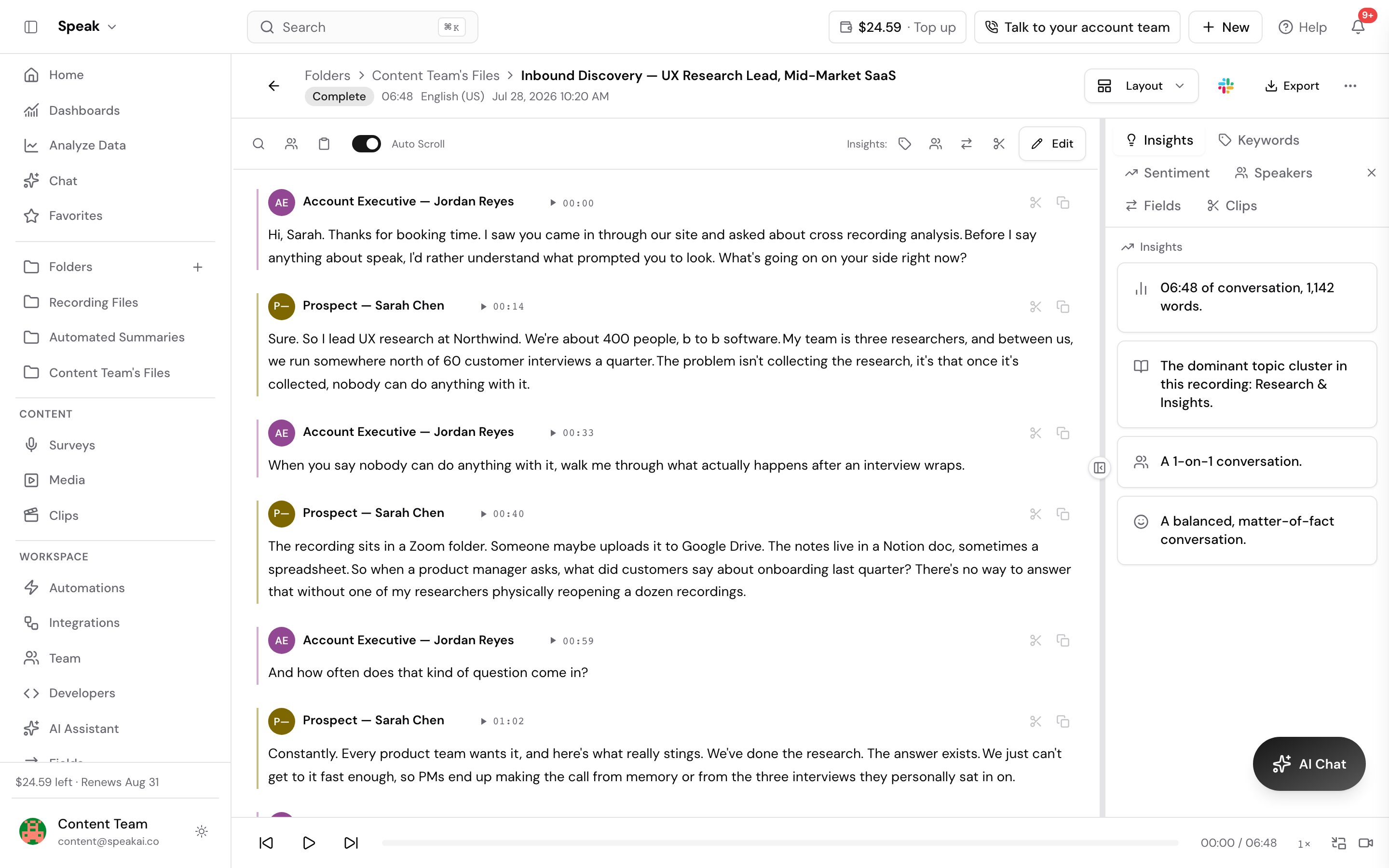
Getting automatic meeting summaries is easy.
After selecting what folder your Meeting Assistant meetings go to (you can follow this guide to do that).
Once done, you can visit Prompt Automation on this page:
https://app.speakai.co/automations
You can then set up an automation to create a Meeting Summary every time a new file is added to the folder.
Here is how:
- Select “New automation”
- Add a “Name” and “Description”
- Select the Folder your Meeting Assistant recordings are going to
- Select your “Assistant Type” (you can customize your own on this page)
- Select or write your prompt.
- Here is a default one for meeting summaries you can use: “Summarize the meeting with agenda, action items, and next steps. “
- Select “Run type” and “Instant” so that it runs automatically every time a new recording is added to the folder.
You can then hit “Update” and the Automation will be created.
You will get a notification every time it runs. You can also view your AI Chat response on the History page here:
https://app.speakai.co/chat/history
Here is a video guide for this process if you want a video tutorial:
Overview
Stop wasting time taking manual notes during meetings. Speak AI automates the process of recording, transcribing, and summarizing your team discussions.
How It Works
The workflow is simple:
- Record: Use our Meeting Assistant to join your calls automatically or upload existing recordings.
- Analyze: Speak AI transcribes your meeting and then uses “AI Chat” to extract key details like action items and summaries.
- Share: Easily share the generated minutes with your team.
Getting Started
To access this feature, go to Speak AI in your dashboard.
Step-By-Step Guide
Follow these steps to generate your meeting minutes:
- Capture:
- Option A: Use the Meeting Assistant to join your call automatically.
- Option B: Upload the recording manually.
- Analyze: Once transcribed, run the “Meeting Minutes” predefined AI Chat. This extracts:
- Agenda Items
- Key Decisions
- Action Items (Who needs to do what)
- Review & Edit: Quickly verify the action items.
- Share: Copy the AI Chat response and email it to the team, or share the link to the full transcript.
Related Prompts/Features
- Meeting Assistant
- AI Chat
Pro Tips
Schedule the Meeting Assistant to auto-join all calendar events so you never miss a recording.
Troubleshooting
Assistant Didn’t Join: Ensure the meeting URL was in the calendar invite ‘Location’ or ‘Description’ field.
Next Steps
Ready to streamline your meeting note-taking? Here’s what to do next:
- Login to your account and navigate to Speak AI.
- Try it out by recording or uploading a meeting.
- Explore the AI Chat to see how they can summarize your discussions.
Get automatic meeting summaries
Getting automatic meeting summaries is easy.
After selecting what folder your Meeting Assistant meetings go to (you can follow this guide to do that).
Once done, you can visit Prompt Automation on this page:
https://app.speakai.co/automations
You can then set up an automation to create a Meeting Summary every time a new file is added to the folder.
Here is how:
- Select “New automation”
- Add a “Name” and “Description”
- Select the Folder your Meeting Assistant recordings are going to
- Select your “Assistant Type” (you can customize your own on this page)
- Select or write your prompt.
- Here is a default one for meeting summaries you can use: “Summarize the meeting with agenda, action items, and next steps. “
- Select “Run type” and “Instant” so that it runs automatically every time a new recording is added to the folder.
You can then hit “Update” and the Automation will be created.
You will get a notification every time it runs. You can also view your AI Chat response on the History page here:
https://app.speakai.co/chat/history
Here is a video guide for this process if you want a video tutorial:
Generate meeting minutes with Speak AI
Generate Meeting Minutes
Overview
Stop wasting time taking manual notes during meetings. Speak AI automates the process of recording, transcribing, and summarizing your team discussions.
This feature helps you capture all key information, identify action items, and ensure everyone is on the same page without the burden of manual note-taking.
How It Works
The workflow is simple:
- Record: Use our Meeting Assistant to join your calls automatically or upload existing recordings.
- Analyze: Speak AI transcribes your meeting and then uses “AI Chat” to extract key details like action items and summaries.
- Share: Easily share the generated minutes with your team.
Getting Started
To access this feature, go to Speak AI in your dashboard.
Step-By-Step Guide
Follow these steps to generate your meeting minutes:
- Capture:
- Option A: Use the Meeting Assistant to join your call automatically.
- Option B: Upload the recording manually.
- Analyze: Once transcribed, run the “Meeting Minutes” predefined AI Chat. This extracts:
- Agenda Items
- Key Decisions
- Action Items (Who needs to do what)
- Review & Edit: Quickly verify the action items.
- Share: Copy the AI Chat response and email it to the team, or share the link to the full transcript.
Related Prompts/Features
- Meeting Assistant
- AI Chat
Pro Tips
Schedule the Meeting Assistant to auto-join all calendar events so you never miss a recording.
Troubleshooting
Assistant Didn’t Join: Ensure the meeting URL was in the calendar invite ‘Location’ or ‘Description’ field.
Next Steps
Ready to streamline your meeting note-taking? Here’s what to do next:
- Login to your account and navigate to Speak AI.
- Try it out by recording or uploading a meeting.
- Explore the AI Chat to see how they can summarize your discussions.
Need help? Contact our support team or check out our other guides.
Evaluating Speak AI for a team? Book a demo and see your own recordings analyzed.
Related: Meeting Assistant · Auto-join